


















Mail Merge and Attachments: How to Send Files in Gmail
Master mail merge and attachments in Gmail. Learn per-recipient file mapping, Drive links, size limits, and troubleshooting for reliable campaigns.
The popular advice is simple: upload your file, add it to the merge, and send. That advice skips the decision that causes the most trouble. An attachment isn’t automatically the best delivery method, especially when every recipient gets a separate copy and a single file can create size, access, mapping, or compliance problems.
Mail merge has used the same basic model since early personal-computer word processors around 1980. WordStar is often cited as one of the earliest systems to offer it, Microsoft Word shipped a Mail Merge Helper in 1993, and the feature was widely established in office workflows by the mid-to-late 1990s, as documented in the history of mail merge. Modern Gmail workflows add cloud storage, tracking, and per-recipient file mapping, but the foundation remains one template plus structured recipient data.
The practical question isn’t only how to send files. It’s whether a direct attachment, a controlled link, or no file at all gives recipients the clearest and safest experience.
Why Attachments Can Hurt Your Mail Merge Campaigns
Deciding between a direct attachment, a controlled Drive link, or no file at all affects deliverability, recipient access, and campaign results more than a send setting does. Attachments give recipients an immediate download, an offline copy, and a document they can retain. That convenience fits contracts, confidential HR documents, invoices, and other files recipients expect to possess.
The same file can create friction. Mailbox providers inspect the complete message, not only its written copy. A large payload, several files, an unfamiliar file type, or a pattern unlike ordinary one-to-one correspondence can receive more scrutiny than a comparable message containing a hosted link. Attachments do not automatically cause spam placement problems, but they add an operational variable to a campaign already dependent on sender reputation, recipient expectations, authentication, list quality, and relevance.
The risk is easy to miss because the sender sees one tidy campaign screen while recipients receive separate messages. A file that looks manageable in a spreadsheet is copied into each outgoing message, and one permission or mapping error can affect every row that uses it.
Practical rule: Confirm that the recipient needs a file in the message before automating the send.
When an attachment earns its place
A direct attachment makes sense when the recipient needs an immutable copy, offline access, or a document that should be reviewed without opening another service. A personalized offer letter, signed agreement, candidate document, or confidential report can meet those conditions, particularly when distribution should stay limited to the message recipient.
Links are often better for sales decks, regularly updated resources, event materials, and large files. A hosted document can be revised without another email, while a tracked link can provide a clearer engagement signal than an attachment that disappears into a download folder. The team also gets one location for permissions and version control, though access settings must be tested before sending.
A hybrid approach suits audiences with different requirements. Attach a short document that matters immediately, then link to supporting material. Send the summary directly and provide a controlled Drive link to a detailed appendix. If the email only announces an update, skip the file and direct recipients to the current resource.
A 2025 deliverability report cited in guidance on preventing email from going to spam reported that 66% of emails reached a visible mailbox location, despite a global deliverability health score of 87 out of 100. The contrast is a useful warning. Legitimate sending can still produce inconsistent inbox experiences, so attachment choices should serve the campaign rather than add unnecessary transport weight.
Setting Up Attachments in Mail Merge for Gmail
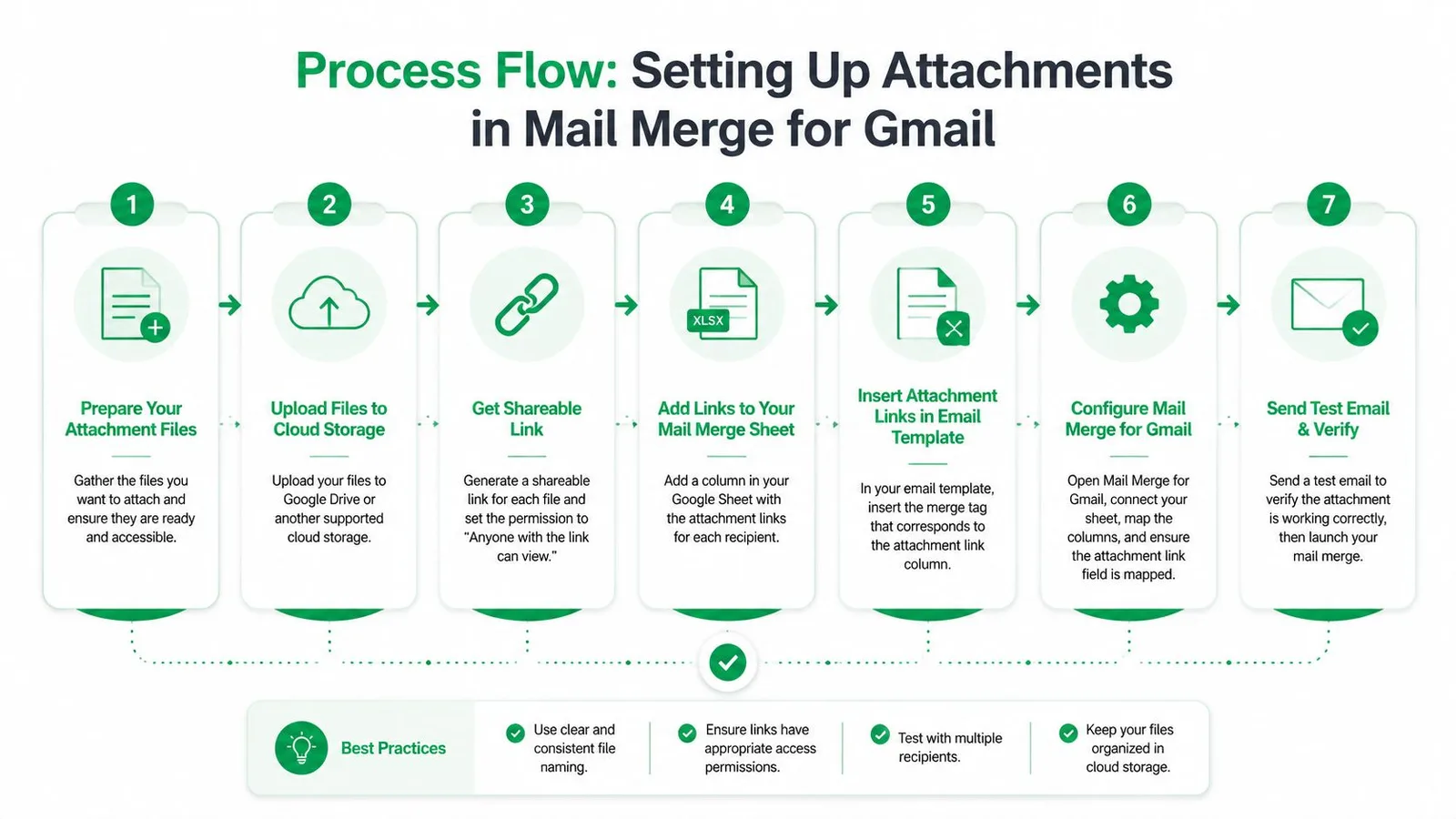
Before automating a mail merge with attachments, confirm that each recipient needs a file. Then choose a direct attachment, a controlled link, or no file based on the document’s sensitivity, update frequency, and delivery risk. Store source documents in Google Drive, prepare one spreadsheet row per recipient, and make the attachment field explicit. Documentation for this workflow notes that attachments generally need to be in Google Drive and may be expected to remain under 5 MB in a particular implementation, while Gmail’s own message limits still apply, as described in attachment workflow documentation.
Use one file for every recipient
For a shared document, upload the file to a dedicated Drive folder and select it in the campaign’s attachment control. A common policy, event guide, or product sheet can fit this setup. Open the file from the sending account before launch, then verify its content and access settings for the full recipient group.
The file is still added separately to every outgoing message. Attachments in a Gmail mail merge are copied into every recipient’s message, rather than being sent as one shared attachment reference, as explained in this Gmail mail merge attachment guide. That behavior increases the campaign’s total transport volume and gives each recipient a local copy. It also means a later Drive revision will not update files already delivered.
Map unique files by spreadsheet row
For personalized documents, add an attachment column beside the recipient’s email address and personalization fields. Use a clear header such as Attachment, Offer Letter, or Proposal File, and place the matching Drive file reference in each row. Consistent naming improves auditability. A row that identifies the recipient, document type, and revision is safer than one containing an ambiguous filename.
An HR offer-letter campaign might pair a candidate’s address, name, and role with that candidate’s offer-letter file. A sales campaign might pair the contact and company with the correct proposal. The mail merge tool should read the reference in each row and attach only the matching document.
Do not attach files merely because the workflow supports them. Sensitive documents require an extra recipient check, while frequently revised material is usually safer as a controlled link. Skipping an unnecessary file reduces exposure if an address is wrong and avoids asking the recipient’s mail system to process another attachment.
Preview before authorizing the send
Preview is a verification control, not a cosmetic step. Check several rows, including the first, last, and any row with a missing or unusual file reference. Open each resolved document and compare its recipient, filename, and contents with the spreadsheet record. A filename swap can expose salary, legal, recruiting, or customer information.
Send a controlled test to yourself and a colleague before the live campaign. Confirm the rendered personalization, attachment name, file contents, and recipient access. If one row fails, stop the send and correct the source data. Repairing a mapping problem after delivery is not a practical recovery plan.
Understanding Gmail Attachment Size Limits
Gmail applies the attachment ceiling to the whole message, not to each individual file. That includes the email body and the combined attachment payload, so several small documents can fail together even when none of them looks large in isolation.
For personal Gmail accounts, the stated cap is 25 MB per message, according to Google’s Gmail attachment guidance. Outlook and Hotmail commonly allow 20 MB, while Yahoo Mail supports 25 MB, according to industry email attachment policy guidance. Raw files also gain size during MIME encoding. Industry guidance describes encoding overhead of roughly 40% to 50%, which means a stated 20 MB to 25 MB limit may provide only about 10 MB to 12.5 MB of effective raw attachment capacity.
A 20 MB PDF can therefore be too large even though the visible Gmail limit appears higher. The message body and encoding overhead consume room before the recipient sees the delivered file.
Gmail attachment limits by account type
| Account Type | Sending Limit | Receiving Limit | Effective Usable Size |
|---|---|---|---|
| Personal Gmail | 25 MB | Not specified in the cited guidance | Often about 10 MB to 12.5 MB for raw attachment payload after encoding |
| Most Google Workspace editions | 25 MB | 50 MB | Sending payload is often materially below the stated cap after encoding |
| Enterprise Plus | 50 MB | 70 MB | Keep files well below the nominal limit because encoding still adds overhead |
Google’s Enterprise Plus announcement says eligible users can send direct attachments up to 50 MB and receive messages up to 70 MB. It also notes that receiving limits are measured after encoding, which can add about 37% size overhead, as explained in the Google Workspace attachment limit announcement. Most Workspace tiers still use the lower sending limit, so a workflow that succeeds in one edition may fail in another.
What happens when a message is oversized
Gmail may remove an oversized attachment and convert it into a Google Drive link. That behavior prevents a hard delivery failure in some cases, but it changes the recipient experience and can introduce permission problems. The recipient may not have access to the file, may distrust an unexpected Drive link, or may assume the campaign didn’t send what the email promised.
Use compressed PDFs, remove unnecessary embedded assets, combine related documents when that improves usability, and test the actual campaign payload. If the file remains large, use a Drive link deliberately rather than relying on Gmail to convert it during delivery.
Choosing Between Direct Attachments and Drive Links
Direct attachments, Drive links, and hybrid delivery solve different operational problems. The right choice depends on what the recipient needs, how sensitive the document is, and whether the team must track access or maintain a single current version.
| Method | Works well for | Main advantage | Main risk |
|---|---|---|---|
| Direct attachment | Contracts, offer letters, offline documents | The file travels with the message | Size, mapping, and inbox placement concerns |
| Tracked Drive link | Large collateral, evolving resources, shared materials | Flexible access and version control | Permission friction and extra recipient action |
| Hybrid delivery | A short required document plus supporting files | Balances immediacy with flexibility | More complex instructions and governance |
A direct attachment is strongest when the recipient expects a finished document and must retain the exact version sent. A link is stronger when the file is large, updated frequently, or useful as part of a controlled resource library. For guidance on converting a document into a shareable destination, this resource on how to put a document into a link provides a practical starting point.
Trust and access are part of the format decision
Recipients recognize a familiar PDF attached to an expected transaction. They may hesitate when an email asks them to open a Drive link, especially if the sender, domain, or permission screen is unfamiliar. On the other hand, links can be more transparent for sales content because the recipient can choose whether to open the resource, and the sender can use engagement data to guide follow-up.
Compliance makes the choice less subjective. HR teams sending individualized offer letters need a reliable row-to-file match and a clear record of who received which document. Recruiting teams need to prevent one candidate’s materials from reaching another candidate. Sales teams need consistent file naming, controlled access, and a process for revoking or updating files.
The issue isn’t merely whether a tool can attach a file. Microsoft community guidance says native Word mail merge doesn’t support individual attachments, so Outlook and Word users commonly turn to add-ins, macros, or Power Automate for that capability. Cross-platform teams should document the chosen workflow instead of assuming that a process built for Gmail will behave the same way in Word or Outlook.
For a PDF-centered campaign, PDF mail merge guidance can help teams think through file preparation and recipient mapping before they choose a delivery method. The operational test is simple: can another person audit the sheet, resolve the file, confirm the permission, and explain why the recipient received an attachment rather than a link?
Troubleshooting Common Attachment Failures
Attachment failures usually reveal themselves through a recipient reply, not through the sender’s preparation screen. A campaign can appear complete while a file is missing, inaccessible, oversized, or attached to the wrong person. Use the symptom to identify the likely cause, then correct the source rather than patching individual messages.
The file changed into a Drive link
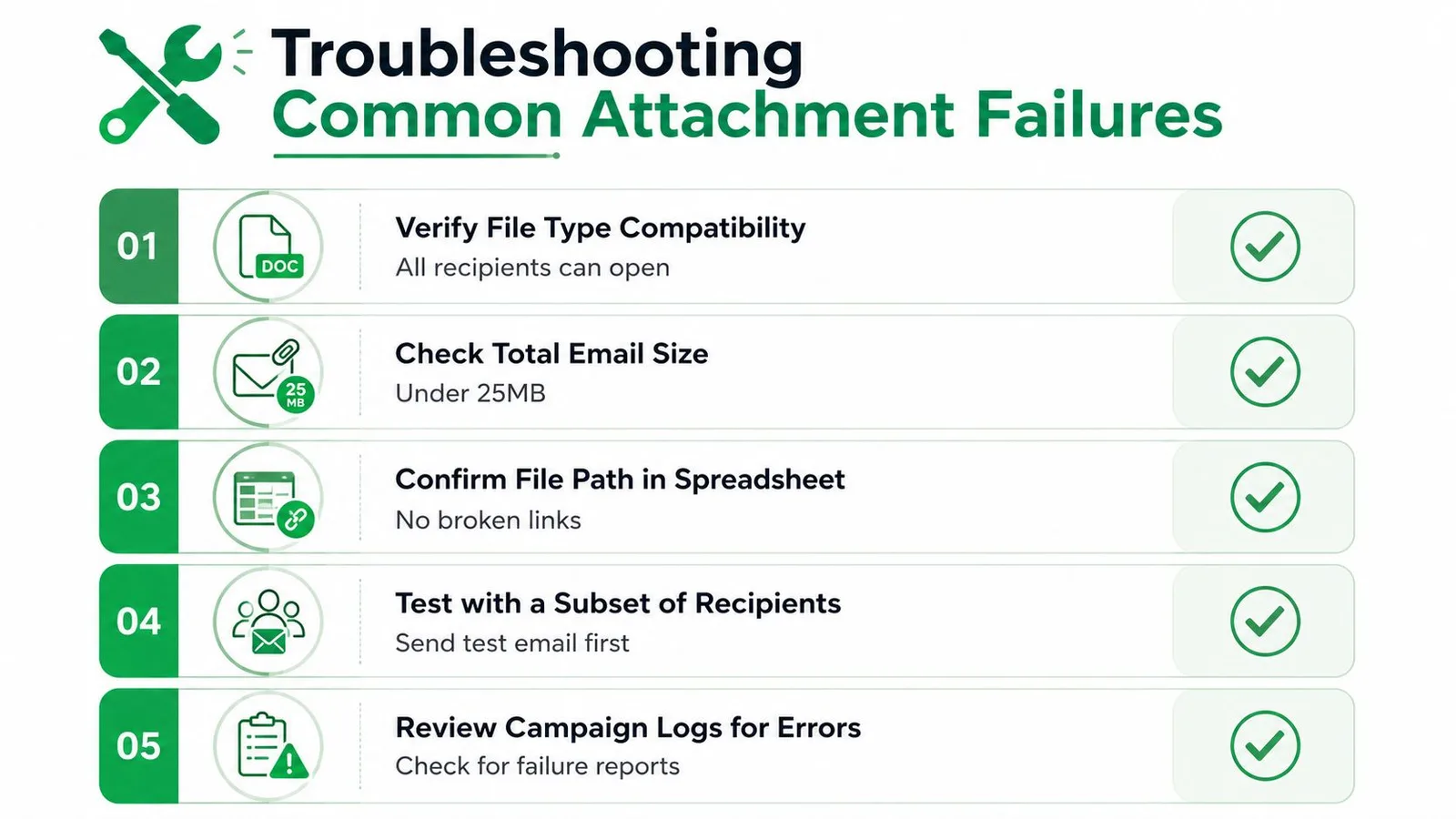
This usually indicates that the total message payload exceeded Gmail’s transport allowance. Check the combined size of every file, the body content, and encoding overhead. Compress the document or replace the direct attachment with a deliberately permissioned Drive link.
The recipient can’t open the file
A Drive link can work for the sender and fail for the recipient because the file is restricted to an account, organization, or internal group. Review the file’s sharing policy, test from an account that represents the recipient, and avoid broad access settings when the document contains sensitive information. A working link isn’t enough. It must provide the intended level of access without exposing the file to an unintended audience.
The wrong file reached the wrong person
Start with the spreadsheet, not the email client. Compare the recipient address, file reference, and filename in the same row, then open the source document and verify its internal content. Sorting the sheet after adding file references can break a manually maintained relationship if the attachment data isn’t moved with the recipient record.
For recurring campaigns, add a validation column that flags blank references, unexpected filename patterns, or records missing a recipient address. Keep a review copy of the final sheet so the team can determine exactly which row drove each send.
The file type or encoding causes trouble
Use formats recipients can open without special software and test across the email providers your audience uses. A file that opens correctly in Gmail may still create a poor experience for a recipient using Outlook, a mobile device, or a restricted corporate environment. If a document contains unusual fonts, embedded media, or complex formatting, export a controlled PDF and inspect it before the send.
When messages bounce or fail, record the exact error and recipient address rather than restarting the campaign blindly. Bounce-back troubleshooting guidance helps separate an address problem from a message, permission, or transport problem.
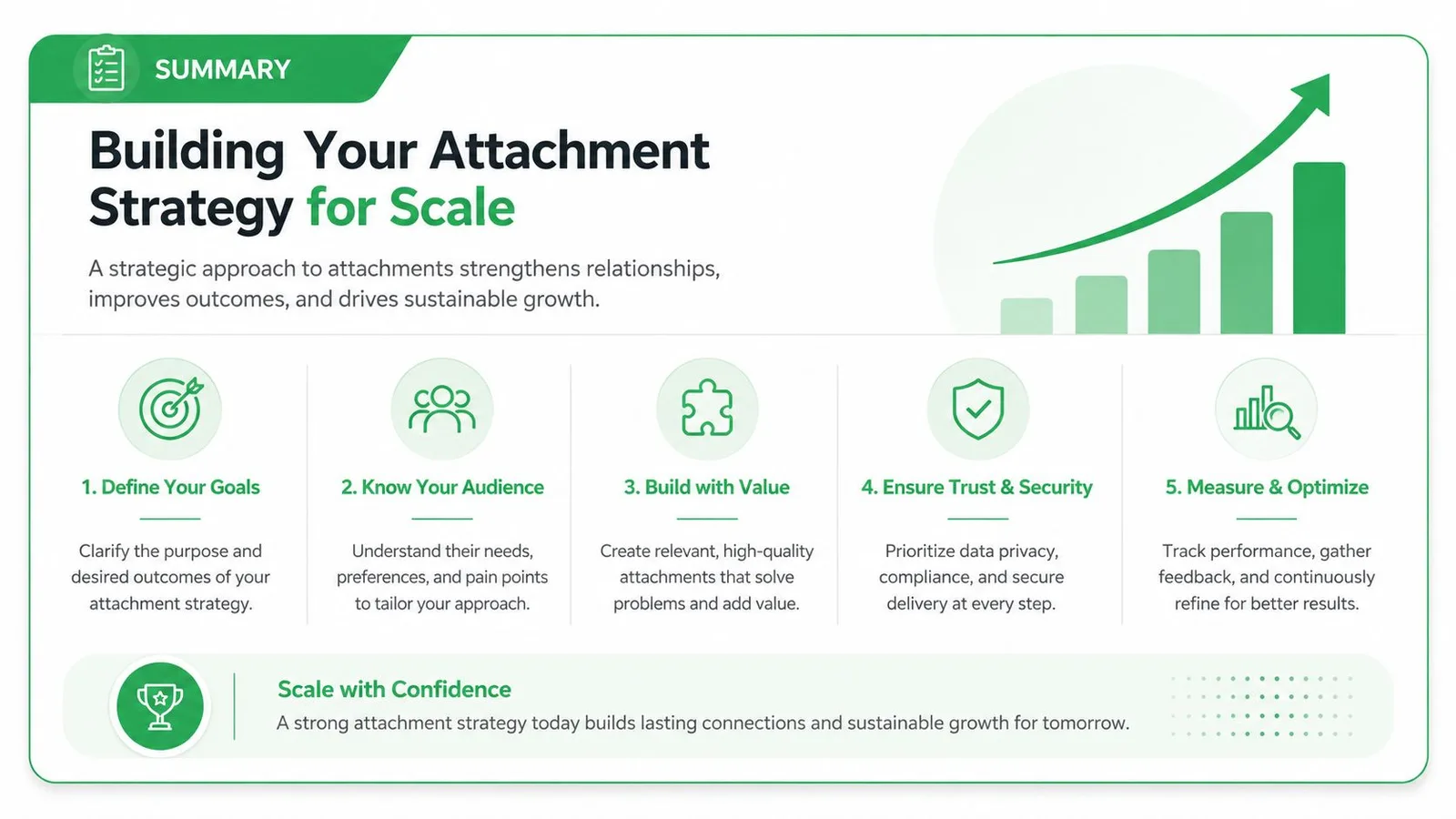
Building Your Attachment Strategy for Scale
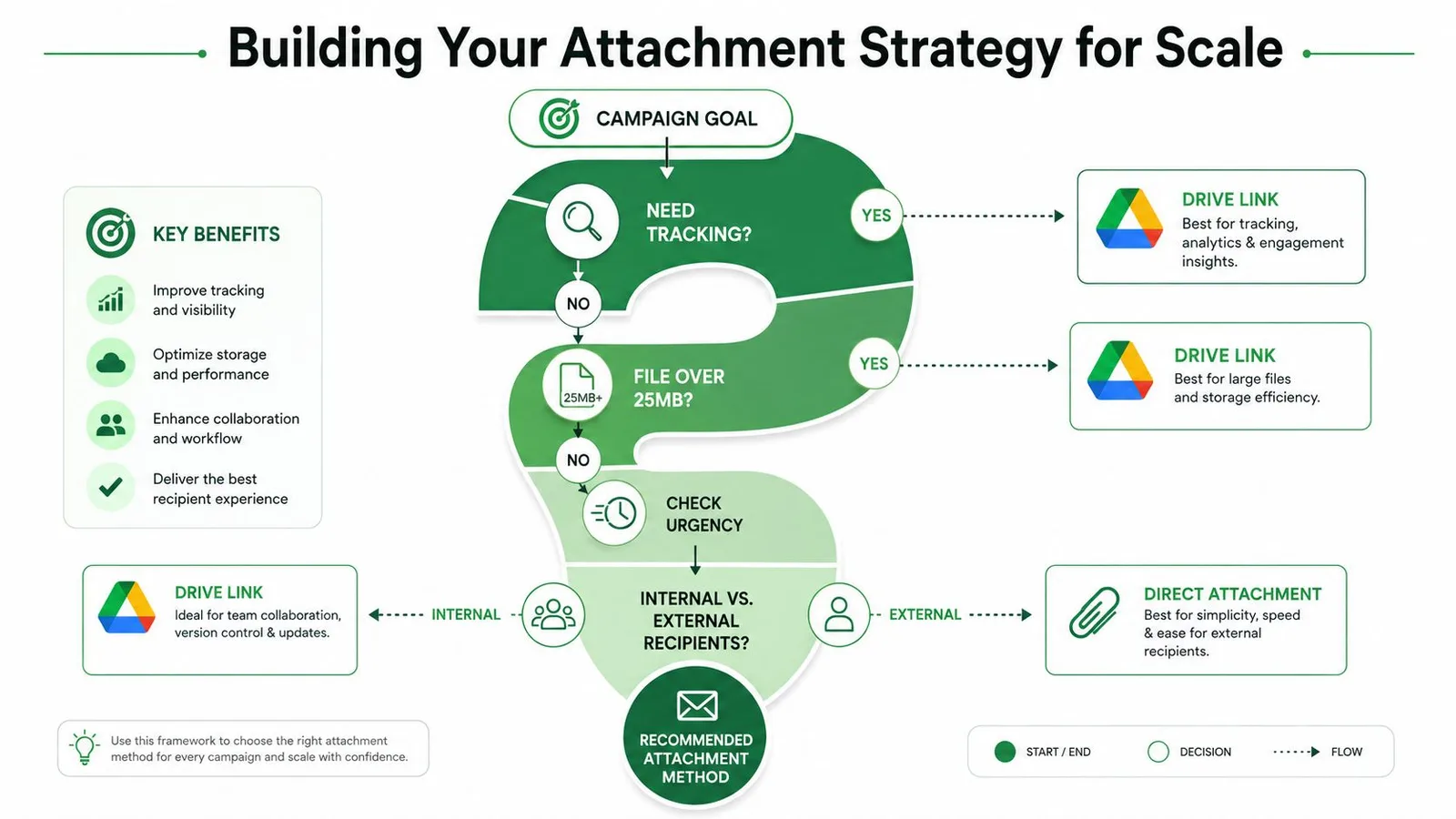
A scalable workflow starts with a decision, not a button. Ask four questions before preparing the sheet:
- Does the recipient need an offline copy? Use a direct attachment when the answer is yes and the file fits comfortably within the account’s message constraints.
- Will the file change or require access tracking? Prefer a controlled Drive link when version management or engagement matters.
- Is the document sensitive? Use the narrowest practical permission model, verify the row-to-file match, and retain an audit record.
- Does the recipient need several files? Combine them into a usable package or link to a structured folder, rather than creating a confusing group of attachments.
Keep the spreadsheet operationally boring. Use stable column names, one recipient per row, explicit file references, and a review status. Store campaign files in a dedicated Drive structure, restrict access according to the audience, and make the final preview part of the approval process.
Sending capacity also needs a documented plan. Mail merge is capped at 1,500 recipients per day, and each send counts the recipient again, so repeated messages to the same address consume daily recipient quota, according to Google Workspace sending-limit documentation. Google Workspace users also face broader recipient ceilings of 10,000 total recipients per day, 3,000 external recipients per day, and 2,000 unique external recipients per day, with a 25 MB total attachment cap per message, as summarized by Cornell’s Google Workspace limits page.
Mail Merge for Gmail supports spreadsheet-based personalization, attachment management, previewing, scheduling, and per-row delivery and engagement statuses within the Google Workspace workflow. If your team needs to test attachment mapping before a campaign, visit Mail Merge for Gmail and use it to structure the send around verified files, deliberate permissions, and a clear decision to attach or link.
Ready to send your first campaign?
Install Mail Merge for Gmail from the Google Workspace Marketplace and send up to 50 personalized emails per day for free.
Get started for freeMore reading
More from Guides
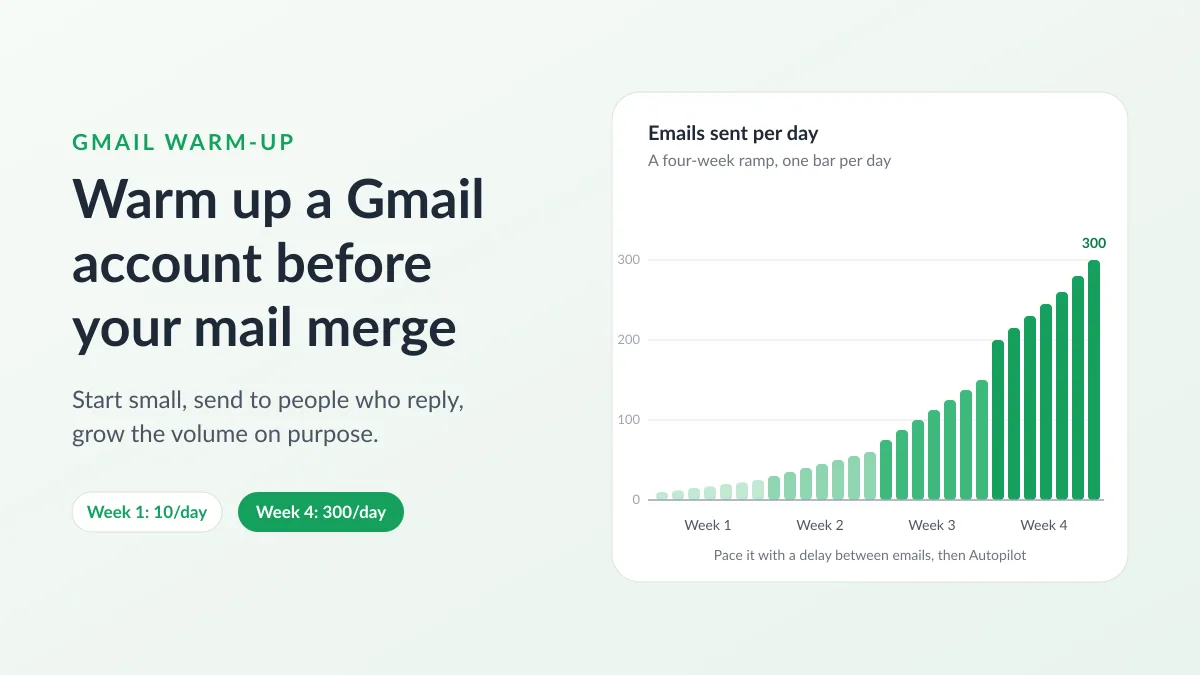
Gmail Warm-Up: How to Warm Up a Gmail Account Before a Mail Merge
Gmail warm-up explained with Google's own ramp-up rules: who needs it, a four-week manual schedule from Google Sheets, and how Mail Merge's warm-up works.

Mail Merge with CC and BCC in Gmail: Copy the Right People on Every Email
Learn how to run a mail merge with CC and BCC from Google Sheets, set up the columns, preview the result and see how copied recipients count toward your daily quota.

Gmail Sending Limit Reached: What It Means and How to Finish Your Campaign
Hit the Gmail sending limit reached error? Learn the real daily limits, when you can send again, and how to split a mail merge into safe daily batches.