


















PDF Mail Merge: Send Personalized PDFs in Gmail
Master PDF mail merge in Gmail. Learn how to easily send personalized PDF documents and automate your outreach in 2026. Get started with our guide today!
You usually notice the need for PDF mail merge when a simple email blast stops being enough. A prospect needs a custom price sheet. An attendee needs the right ticket. A customer expects their own invoice, not a generic attachment sent to everyone on the list.
The manual version is painful. You export a PDF, rename it, attach it, send it, repeat, then spend more time checking whether Alex got Sam’s file by mistake. That’s exactly where a proper PDF mail merge workflow helps. The point isn’t just to personalize text in the email. The point is to send the right PDF to the right person from a spreadsheet-driven process you can trust.
Automating Your Personalized Document Outreach
At some point, every team hits the same wall. The invoice is ready, the recipient list is in a sheet, the PDFs are sitting in Drive, and someone still has to match each file to each email without mixing up a single attachment.
That is the core PDF mail merge job.
The hard part usually is not creating the PDF or sending the email by itself. It is keeping the document, recipient data, and Gmail send process tied to the same row all the way through. Microsoft community guidance on Outlook and Adobe workflows reflects that gap. Standard tools often handle one side of the process well, but not the full handoff from spreadsheet to unique PDF attachment to personalized email, so teams end up exporting files and attaching them manually in this Microsoft Answers discussion.
PDF mail merge gets used to describe two different jobs:
-
Filling a PDF form from spreadsheet data
-
Sending a different PDF attachment to each recipient
That distinction is important. For invoices, receipts, offer letters, renewal notices, or event documents, the second workflow is usually the one that matters. Each person needs the right file, attached to the right message, sent from the right Gmail account, with enough visibility to catch mistakes before they go out.
That is why I prefer an end to end setup in Gmail and Google Sheets with one add-on such as Mail Merge for Gmail, instead of stitching together separate tools for document generation, file storage, and email sends. The fewer handoffs you create, the fewer chances you have to send Alex someone else’s invoice.
If you need the spreadsheet-driven pattern behind that setup, this guide to mail merge from Google Sheets with Gmail shows the core mechanics.
A practical rule helps here. If the recipient should receive a unique file, treat the PDF as row-level data, not as a last-minute attachment someone adds by hand.
That changes how you design the whole workflow. You stop asking, “How do we send a batch of emails with a PDF?” and start asking, “How does each row reliably point to one recipient, one message, and one file?” The second question is the one that prevents attachment mistakes at scale.
Setting Up Your PDF Mail Merge Foundation
Bad PDF mail merges usually fail before the first email goes out. The issue is almost always in the setup.
Start with the workflow, not the template
If you’re using Gmail and Google Sheets, install a mail merge add-on first, then decide what the sheet needs to control. That order matters. Teams often start by designing a nice document, then realize they haven’t planned how to attach the right PDF at scale.
A solid base looks like this:
-
Recipient sheet with one row per person
-
Email template with merge tags
-
Attachment source that matches each row correctly
If you need a refresher on the spreadsheet-driven workflow itself, this guide on mail merge from Google Sheets shows the basic pattern clearly.
Build a clean Google Sheet
Microsoft’s mail merge guidance emphasizes preparing the spreadsheet first, then previewing results so you can catch formatting and field-mapping errors before generating output in this mail merge walkthrough. That advice applies directly here.
Use plain, obvious columns. For invoice sends, I usually want something like:
| Column | Purpose |
|---|---|
| Recipient address | |
| FirstName | Greeting personalization |
| InvoiceNumber | Subject line or body copy |
| DueDate | Context inside the message |
| PdfUrl | The file to attach for that row |
A few setup habits save a lot of cleanup later:
-
Keep headers stable. Don’t rename
FirstNametoFirst Namehalfway through. -
Use one row per recipient. Don’t combine contacts in a single row.
-
Check for empty cells in anything your email depends on.
-
Store the attachment reference in its own column. Don’t bury it in notes.
If a column controls personalization or attachments, treat it like production data, not scratchpad data.
Write the template with predictable tags
Your Google Doc or Gmail draft should be simple. Personalization works best when the tags are boring and exact, not clever.
Examples:
-
{{FirstName}} -
{{InvoiceNumber}} -
{{DueDate}}
Don’t over-personalize the attachment email. When someone is opening a receipt or price offer, clarity beats creativity. A short subject line, a one-screen message, and one obvious call to action usually work better than a styled newsletter.
Generating and Attaching Your Personalized PDFs
At this point, the job stops being theoretical. You have a sheet, you have recipient data, and now you need each person to get the right PDF without spending the afternoon checking attachments by hand.
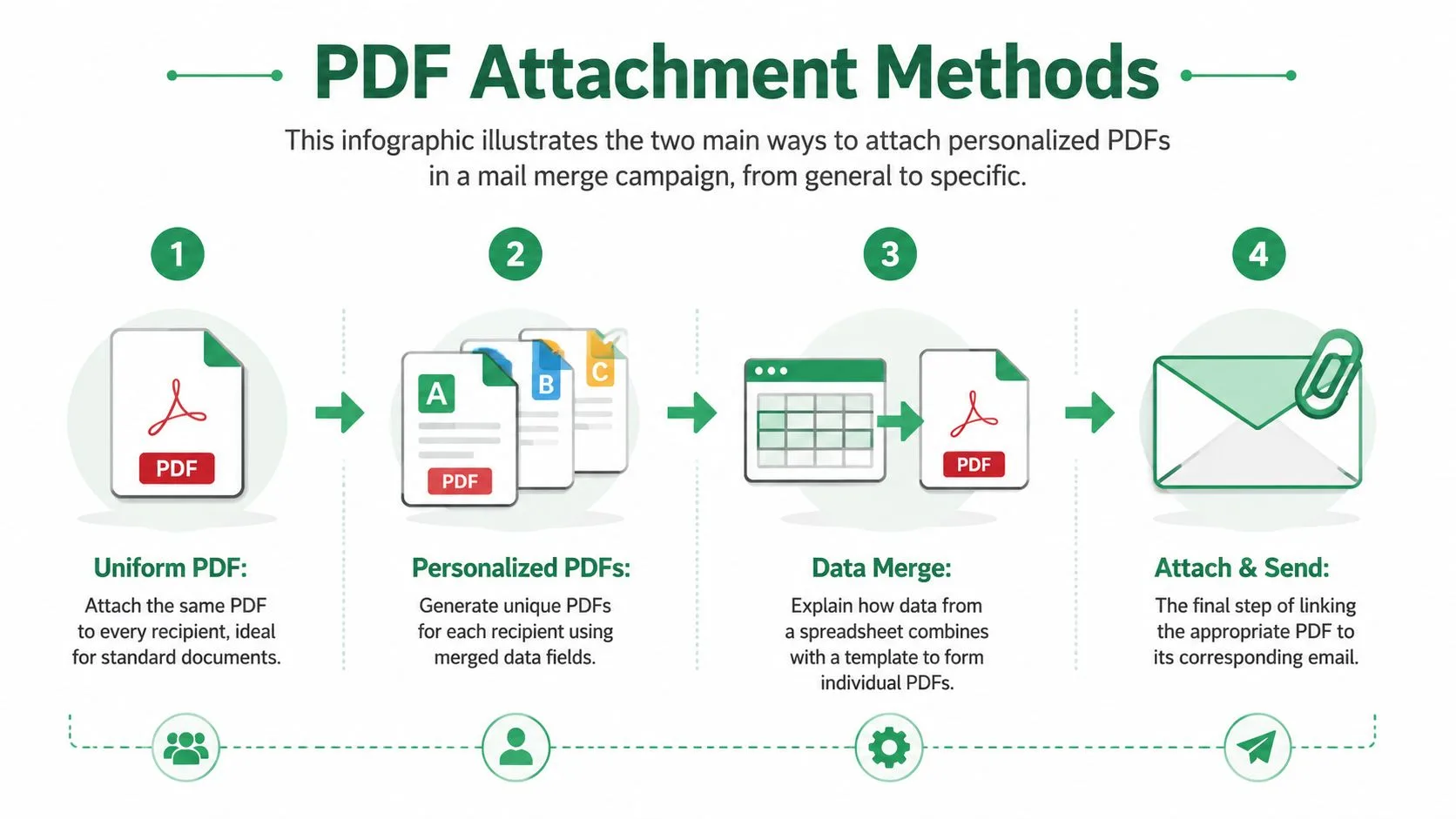
There are two attachment patterns, and choosing the right one early prevents avoidable mistakes later.
Method one for the same PDF for everyone
Use one shared PDF when the attachment does not change by recipient. That fits brochures, event maps, policy documents, standard rate cards, or a general info pack.
The setup is straightforward:
-
Put the PDF in Google Drive
-
Confirm the file permissions work with the add-on you are using
-
Attach that file to the campaign once
This option is easier to audit because the spreadsheet is only driving recipient details and email personalization. There is no row-by-row attachment mapping to verify.
Method two for one PDF per recipient
This is the method that matters for invoices, receipts, quotes, certificates, tickets, and contracts. Each row in the sheet points to a different file, and the add-on pulls the correct attachment for that recipient from the value in that row.
The workflow looks like this:
-
Generate or collect one PDF for each recipient
-
Give each file a name that is easy to verify
-
Upload the files to Drive or another location supported by your workflow
-
Place the correct file URL in the attachment column for each row
-
Map that column as the attachment source in the merge tool
The naming convention matters. A file like invoice-1048-jane-smith.pdf is easy to check against the sheet. A file like final-version-new.pdf creates avoidable risk, especially once someone asks you to resend one document three days later.
For invoice runs, I check three things before generating anything:
-
The attachment column is filled for every sendable row
-
The URL opens the expected PDF
-
The file name matches the customer or invoice number in the same row
That takes a few minutes and catches the mistakes that usually cause support emails.
Here is the practical decision view:
| Method | Best For | Google Sheet Setup |
|---|---|---|
| Same PDF for all | Brochures, maps, shared event details, standard information | No per-row attachment mapping |
| Different PDF per recipient | Invoices, receipts, tickets, certificates, custom quotes | One attachment URL column mapped row by row |
The useful part of this workflow is the integration. You are not creating PDFs in one tool, exporting a CSV into another, then manually attaching files in Gmail. A Google Sheets based add-on such as Mail Merge for Gmail can handle the sheet data, personalized message, and per-row PDF attachment in one process. That is what makes PDF mail merge practical for recurring invoice sends, not just occasional admin work.
If you want a closer example of the row-based setup, this guide to mail merge with attachments in Gmail and Google Sheets shows the attachment mapping model clearly.
One common gotcha is assuming standard Word mail merge covers this whole process. It usually does not. Creating separate PDFs per recipient and sending those PDFs as personalized Gmail attachments are related tasks, but they are different steps. If your goal is end-to-end delivery from Sheets through Gmail, verify that your add-on handles both the document attachment logic and the send logic before you build the campaign around it.
Configuring and Sending Your Campaign in Gmail
Once the sheet and PDFs are ready, the send itself should feel boring. That’s a good sign.
Open your Google Sheet, launch the add-on, and connect the campaign to the right Gmail draft or compose window. This is the point where one product can handle the spreadsheet-driven recipient list, personalized message content, and row-based attachments. Mail Merge for Gmail is one example of that type of add-on in Google Workspace. The core job is to read each row, personalize the email, and attach the file specified for that recipient.
Draft the email like a real one to one message
Your subject line should sound like something a human would send manually.
Good examples:
-
Your invoice {{InvoiceNumber}} -
Your event ticket -
Your updated price offer
Inside the body, keep it direct. Mention what’s attached, what the recipient should do next, and who they can reply to if something looks wrong. If the attachment is the main event, don’t hide it under too much marketing copy.
One practical limit is throughput. Google Workspace add-ons can generate hundreds of PDFs in seconds and send up to 1,500 personalized emails per day directly from Gmail, according to the Google Workspace Marketplace listing for PDF Mail Merge. That volume is useful, but it also means a mistake can scale fast.
Preview before you send anything
Preview is not optional. It’s your final quality gate.
Check these items before launch:
-
Subject tags resolve correctly
-
Greeting fields aren’t blank
-
The attachment column points to the expected file
-
Your own test email opens the correct PDF
-
Formatting stays intact on desktop and mobile
A single test email catches the kind of mistake that can otherwise go to an entire list.
If you want to see the Gmail-based workflow in action, this video gives a quick product-level walkthrough before you send live:
Schedule the send if timing matters. Immediate sending is fine for receipts and invoices. Scheduled delivery is often better for offers, reminders, and event communications when you want the email to land during working hours.
Best Practices for Deliverability and Tracking
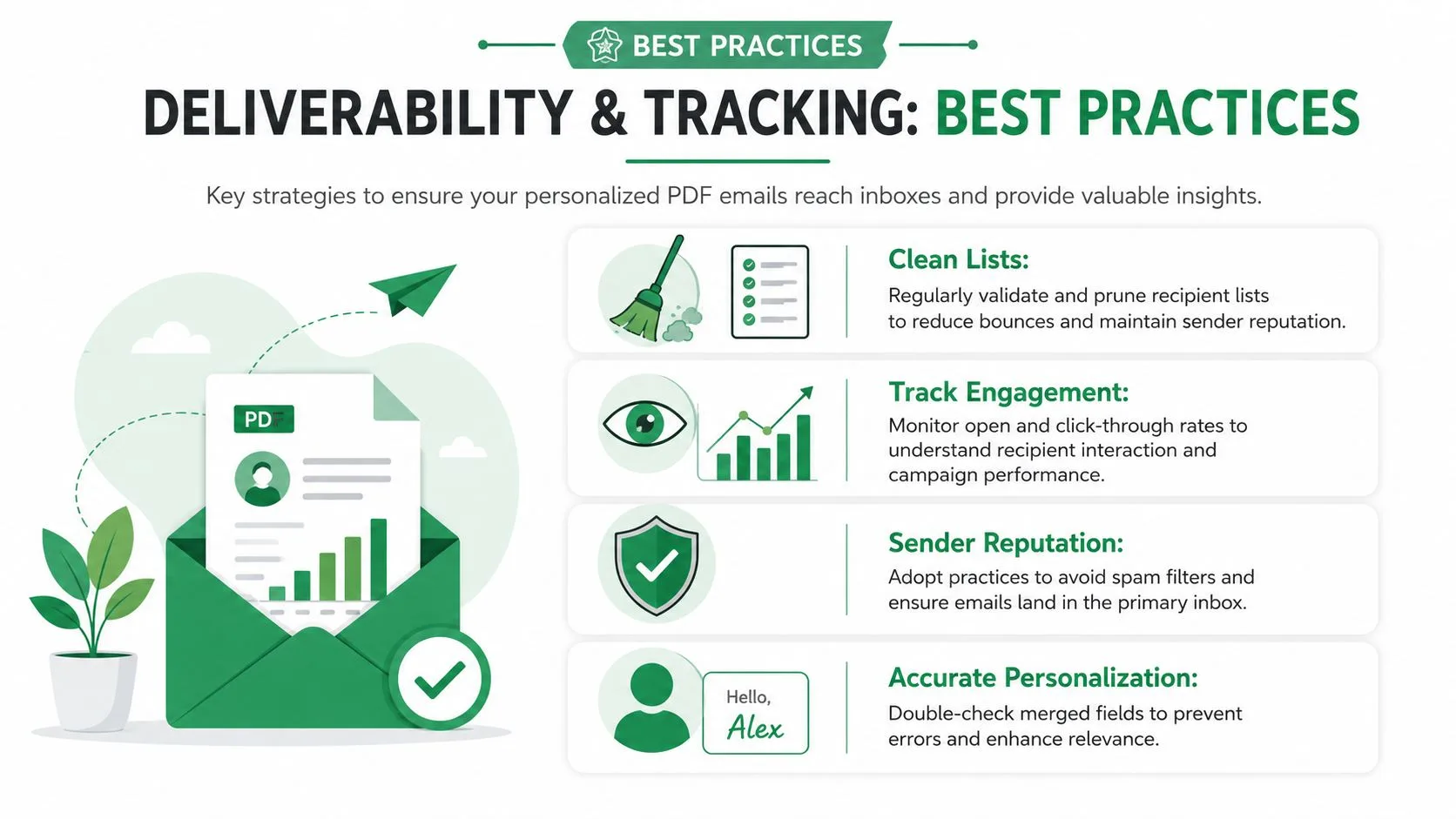
Attachments make email more useful, but they also make mistakes more expensive. Deliverability starts with restraint.
Keep attachments small and expected
There’s a technical ceiling and there’s a practical ceiling. Those aren’t the same thing.
In day-to-day sending, the PDF should stay below 20MB because that’s the technical limit discussed in the product brief. In actual use, staying under 1MB is the safer field rule because large attachments can trigger anti-spam filtering more easily. If your invoice pack, ticket, or receipt is oversized, compress it before you send.
A few habits help:
-
Trim graphics so the PDF isn’t heavier than it needs to be
-
Avoid stuffing multiple documents into one send unless the recipient expects them
-
Use clear email copy so the attachment doesn’t look suspicious
-
Send from a normal working account that already has a history of legitimate outbound mail
For sensitive documents, don’t treat email like an afterthought. This guide on sending documents securely by email is worth reviewing before you build recurring workflows.
Use tracking as a row by row audit trail
Tracking isn’t just for marketing campaigns. With personalized PDFs, it also acts like an operations log.
What matters most is whether the status comes back to the sheet in a way your team can act on. When delivery and engagement data write back to each row, you can see who was sent, who opened, who clicked, and who needs a follow-up. That’s much easier than searching through Sent Mail and trying to reconstruct what happened.
If you’re sending invoices or offers, that row-level visibility is often the difference between a clean process and a support mess.
Troubleshooting Common PDF Mail Merge Issues
Most failures come from mapping errors, not from Gmail itself.
If attachments aren’t showing up, check the file-sharing setup first. A restricted file or folder breaks the attachment step even when the email merge itself looks fine. For shared-file workflows, the file needs sharing permissions that allow the process to access it.
If the wrong recipient gets the wrong PDF, stop and audit the spreadsheet. This is almost always a row-matching problem. File names that include the recipient name or email make this much easier to catch.
If your generated PDFs still show raw tags like {{Name}}, the document generation step didn’t resolve the fields before export. Mail merge has always relied on combining a main document with a data source, and that legacy still shapes modern tools, as explained in SMU’s mail merge documentation. When templates, fields, and data tables don’t line up, the output fails in predictable ways.
The good news is that these are usually easy fixes. Clean the sheet. Recheck the attachment column. Send another test to yourself before restarting the batch.
If you want a Gmail-and-Google-Sheets workflow that can personalize emails and send different attachments per recipient, Mail Merge for Gmail is built for that spreadsheet-driven process. It’s a practical option for invoices, receipts, offers, tickets, and other PDF-heavy outreach where accuracy matters as much as speed.
Ready to send your first campaign?
Install Mail Merge for Gmail from the Google Workspace Marketplace and send up to 50 personalized emails per day for free.
Get started for freeMore reading
More from Guides
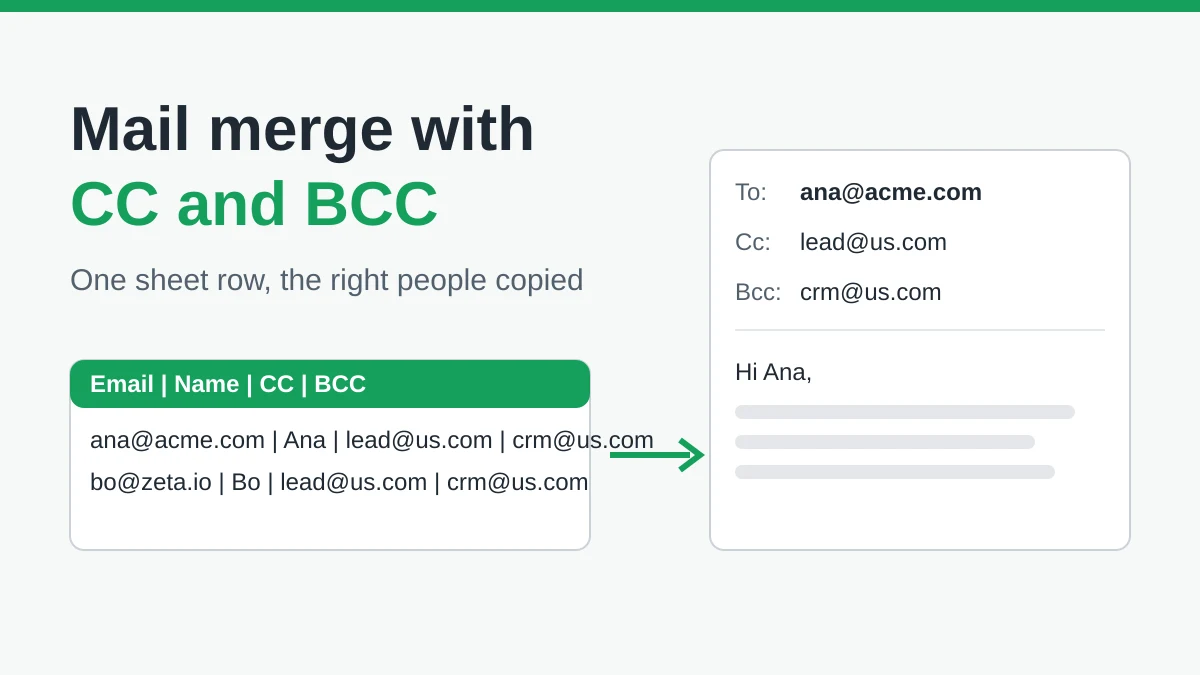
Mail Merge with CC and BCC in Gmail: Copy the Right People on Every Email
Learn how to run a mail merge with CC and BCC from Google Sheets, set up the columns, preview the result and see how copied recipients count toward your daily quota.
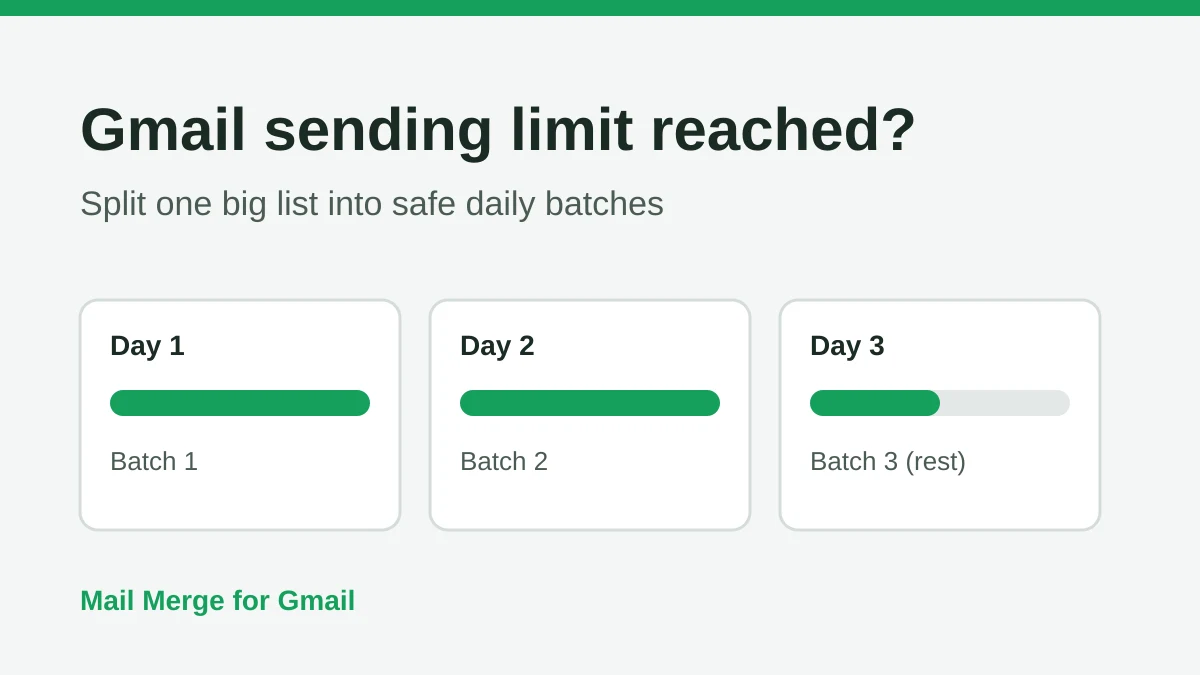
Gmail Sending Limit Reached: What It Means and How to Finish Your Campaign
Hit the Gmail sending limit reached error? Learn the real daily limits, when you can send again, and how to split a mail merge into safe daily batches.

Personalized Email Gmail: The Complete Guide
Master your personalized email Gmail workflow. Learn to merge Sheets data, track opens, and scale one-to-one outreach without leaving your inbox.