


















Google Sheets to Gmail Mail Merge: A Practical Guide
Learn how to send personalized emails from Google Sheets to Gmail. A practical 2026 walkthrough on setup, templates, tracking, and avoiding common pitfalls.
You’ve got a Google Sheet full of prospects, a Gmail draft that sounds personal, and a deadline that won’t move. Copying each name, company, and follow-up detail into separate messages feels manageable until one row shifts, one address is duplicated, or one recipient receives a greeting meant for someone else. A Google Sheets to Gmail mail merge workflow removes much of that repetition, but only when the spreadsheet and template are prepared with production-level care.
The send button is the easy part. The work lies in clean headers, valid email values, disciplined merge fields, realistic volume planning, and a preview process that catches mistakes before they reach customers. This guide focuses on those details, including the constraints that generic walkthroughs often leave out.
Why Teams Move From Copy-Paste to Sheets-to-Gmail Mail Merge
The familiar failure starts with a perfectly ordinary campaign. An operations lead has a Sheet containing 200 leads, a different company mention for each row, and a follow-up date that needs to appear in the message. The first few emails go smoothly. By row 47, a pasted value lands in the wrong column, a name is misspelled, and one recipient sees another company’s reference.
Copy-paste fails because Gmail doesn’t know that the message content came from a structured record. The sender has to manage the recipient, greeting, subject line, body copy, and any attachments separately. A mail merge gives those elements a shared source of truth, so each row can supply its own values while the Gmail draft remains consistent.
Practical rule: Treat the Sheet as campaign data, not as a temporary clipboard.
Google’s native integration lets Gmail connect to a Google Sheet, use column data as personalization tags, and associate a single Sheet with up to 1,500 recipients. The feature was added on June 27, 2023, and Google said it would replace the older multi-send experience, with rollout starting for Rapid Release domains immediately and for Scheduled Release domains on July 19, 2023. Google’s Workspace update documents that product change.
That makes Sheets-to-Gmail an appealingly small toolchain. You can keep the list in Sheets, compose in Gmail, and avoid exporting a CSV into a separate email service. The trade-off is that the workflow inherits Gmail’s sending rules and depends heavily on spreadsheet hygiene. For teams preparing community announcements, a resource such as setup church email without apps can also help clarify when a lightweight Gmail-centered workflow is appropriate and when a broader mailing system is needed.
The connection between Gmail and spreadsheet workflows has a long history. Google Docs and Spreadsheets were integrated with Gmail on January 28, 2007, initially allowing users to open attached Microsoft Word DOC files inside Gmail, as recorded in the History of Gmail. Today’s merge workflow extends that relationship from handling attachments to using spreadsheet records for personalized outreach.
Preparing Your Google Sheet for a Clean Merge
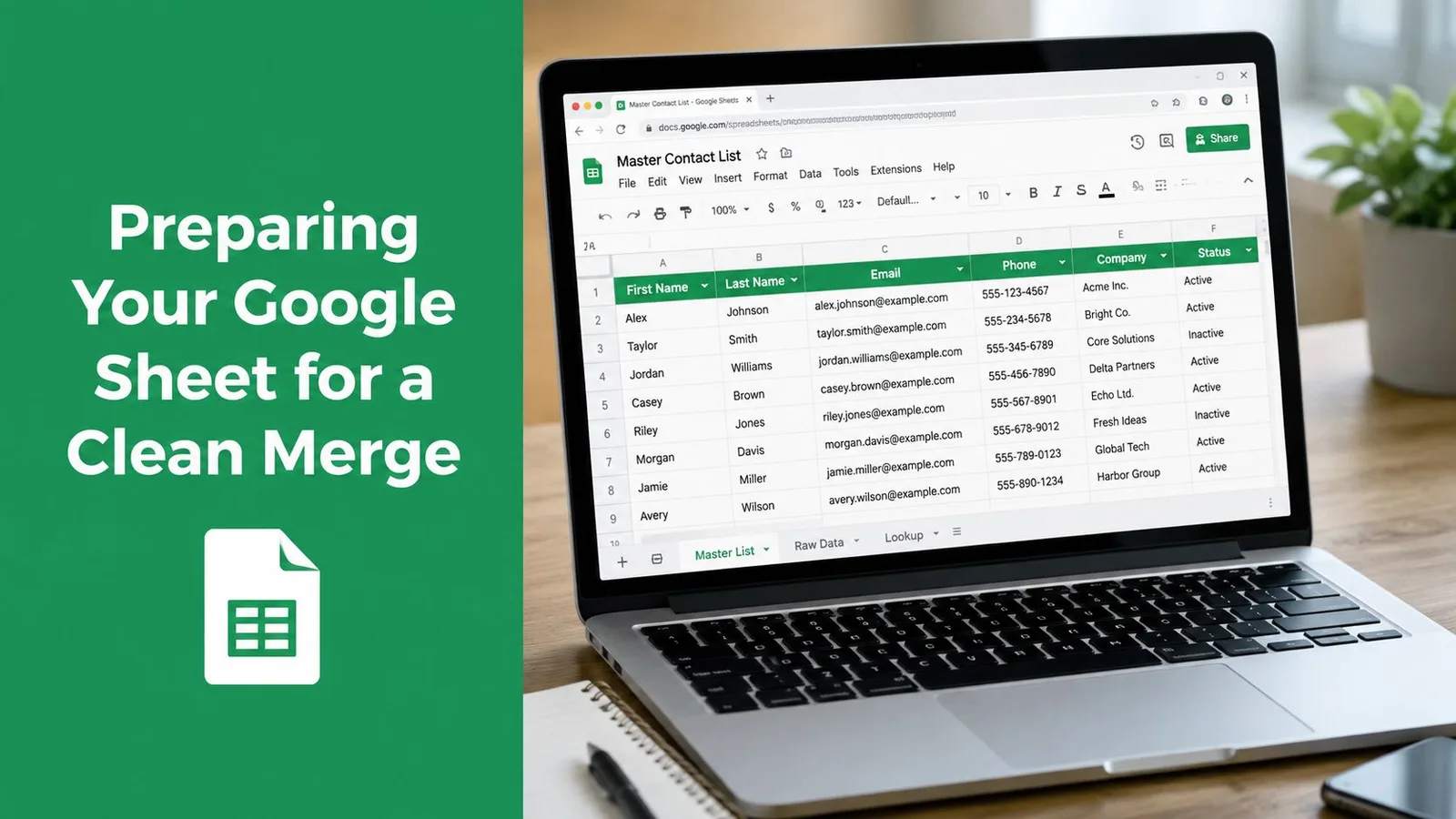
A reliable merge begins with a boring, well-structured Sheet. Use one header row at the top, keep each field in its own column, remove merged cells, and avoid decorative formatting that makes the data difficult for an integration to interpret. Give the email address its own dedicated column, with one address per cell and no commas, secondary addresses, or commentary.
The most important rule is exact field matching. If your draft uses {{Company}}, the Sheet needs a corresponding header that the merge tool recognizes as Company. A header such as company name, Company Name, or Company may not map as expected, depending on the tool’s matching behavior. This is the most common source of broken personalization because the message can render the placeholder as-is instead of raising an obvious error.
Clean the source before mapping fields
Start by removing blank rows and checking that every email cell contains a plausible value. Use TRIM to remove accidental spaces, and rebuild combined fields when necessary rather than relying on inconsistent text such as “Jane Smith, Acme.” If first and last names are stored together, split them into separate columns and review the results manually.
A practical preparation pass looks like this:
- Standardize headers: Choose simple names such as
Email,First Name,Company, andInvoice Link, then use those names consistently in the Gmail draft. - Normalize values: Trim whitespace, remove stray punctuation, and keep dates or identifiers in a predictable format.
- Remove duplicates: Check the email column and any alternate contact columns before a send. A duplicate can create an embarrassing double delivery.
- Add campaign fields: Create status columns such as
Sent,Replied, andBouncedbefore sending, so the Sheet can track the lifecycle of every row.
For a deeper treatment of validation rules and spreadsheet checks, use this guide to spreadsheet data validation. Going slowly here saves more time than debugging a template after a live send has already started.
Building a Gmail Template That Personalizes Every Field
A Gmail draft is the contract between your spreadsheet and the inbox. The Sheet defines the available values, while the draft defines where those values appear. Keep the contract simple: use clear placeholders in the subject and body, and make sure every placeholder corresponds to a clean header.
A subject such as A quick note for {{Company}} is more useful than a generic subject because the recipient can immediately see why the message may be relevant. In the body, Hi {{First Name}}, I noticed your team is working on {{Project}} gives the message a personal frame without requiring a separate draft for every row. The merge tool reads the tokens from each row and substitutes the matching values.
Subject-line personalization can be useful, but don’t assume it will solve weak targeting. A relevant subject and a concise body work together. Keep the template short enough to scan, then let the Sheet provide the details that vary from recipient to recipient.
Plan for missing values
A blank First Name field shouldn’t produce an awkward greeting. Either clean the row before sending or use a fallback approach supported by your chosen tool, such as a generic greeting when the preferred value is missing. Don’t insert complicated logic into the draft if the same result can be achieved by adding a prepared column in Sheets.
CC and BCC can also come from per-recipient columns when the workflow supports them. That can be useful for routing a message to an account owner, but it requires strict validation because a stray space or malformed address can affect the entire row. Attachments need the same discipline. A Drive-hosted file should be associated with the intended record, and the workflow should be tested to confirm that one recipient isn’t exposed to another recipient’s document.
Previewing matters more than speed. Send a test to one internal record, inspect the subject, greeting, links, formatting, CC or BCC behavior, and attachment access, then review a small sample before the complete merge. Teams building more automated workflows may also compare this approach with an email API for GTM engineers when they need programmatic control beyond a Gmail draft.
Understanding the 1,500 Recipient Daily Limit
The 1,500-recipient mail merge limit is a product constraint, not a vague recommendation. Google’s Workspace documentation says mail merge is capped at 1,500 messages or recipients per day, even though a user account’s general daily sending limit is 2,000 messages. The same documentation distinguishes the mail merge cap from broader Workspace recipient allowances. See the current Gmail sending limits in Google Workspace before planning a large campaign.
This distinction changes the schedule. A Sheet with more rows than the daily merge allowance needs a queue, a status field, and a process for moving unsent records into the next sending window. Don’t treat the general account limit as extra mail merge capacity. The merge rule applies specifically to this workflow.
| Channel | Limit | Window | Practical impact |
|---|---|---|---|
| General Gmail sending | 2,000 messages | Daily | The account-wide message ceiling is higher than the mail merge allowance. |
| Gmail mail merge | 1,500 messages or recipients | Daily | Plan larger campaigns across multiple sending windows. |
| Sheet-linked recipient set | 1,500 recipients | Per linked merge | Keep the source list within the supported merge size. |
The safest operational assumption is simple: 1,500 is the hard planning ceiling for mail merge. Keep the next batch identifiable with a status column rather than manually rebuilding the Sheet after each send.
Previewing, Scheduling, and Tracking Sends Back in Your Sheet
A merge shouldn’t begin with the full audience. Create an internal test row, or a small group of internal addresses, and inspect the rendered messages before any external recipient receives them. Check placeholder substitution, accented characters, line breaks, links, sender identity, CC and BCC behavior, and attachment permissions. A preview catches problems that a spreadsheet-only inspection can’t reveal.
Make the Sheet the campaign dashboard
Add operational columns before launch. Useful fields include:
- Sent At: Record when the row was processed.
- Message ID: Preserve the Gmail identifier when the workflow exposes it.
- Open and click status: Store engagement signals when tracking is enabled.
- Bounce status: Mark delivery failures and move those rows to a quarantine tab.
- Reply snippet: Give the team enough context to triage without opening every record.
Scheduling should protect review time. A trigger or supported scheduling feature can release queued rows in controlled batches rather than forcing the operator to monitor the send button continuously. The objective isn’t to make the campaign look automated. It’s to create a repeatable process that leaves room for validation and exception handling.
The feedback loop is where Sheets becomes more than a contact list. A sent message updates its row, a bounce removes the address from the active queue, and a reply can assign the record for follow-up. For teams that need open reporting inside Gmail workflows, this guide to tracking email opens in Gmail provides useful context about what that measurement involves.
Don’t treat engagement fields as perfect truth. Opens can be affected by mail clients and privacy settings, while clicks depend on link handling and tracking configuration. Use them as operational signals, then give replies and delivery failures priority because those events directly affect the next action.
Spreadsheet Hygiene and Deliverability Traps Most Guides Skip
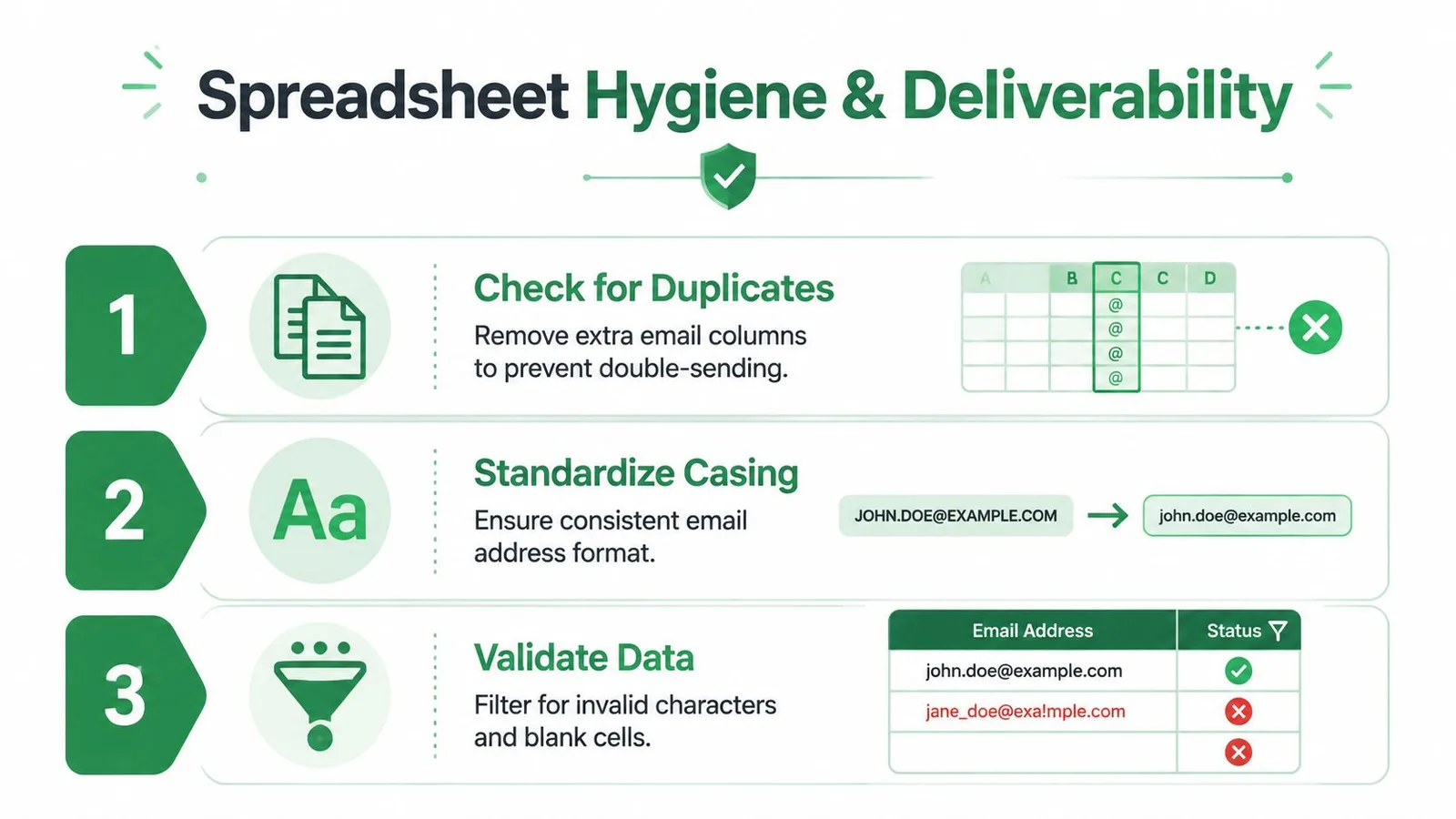
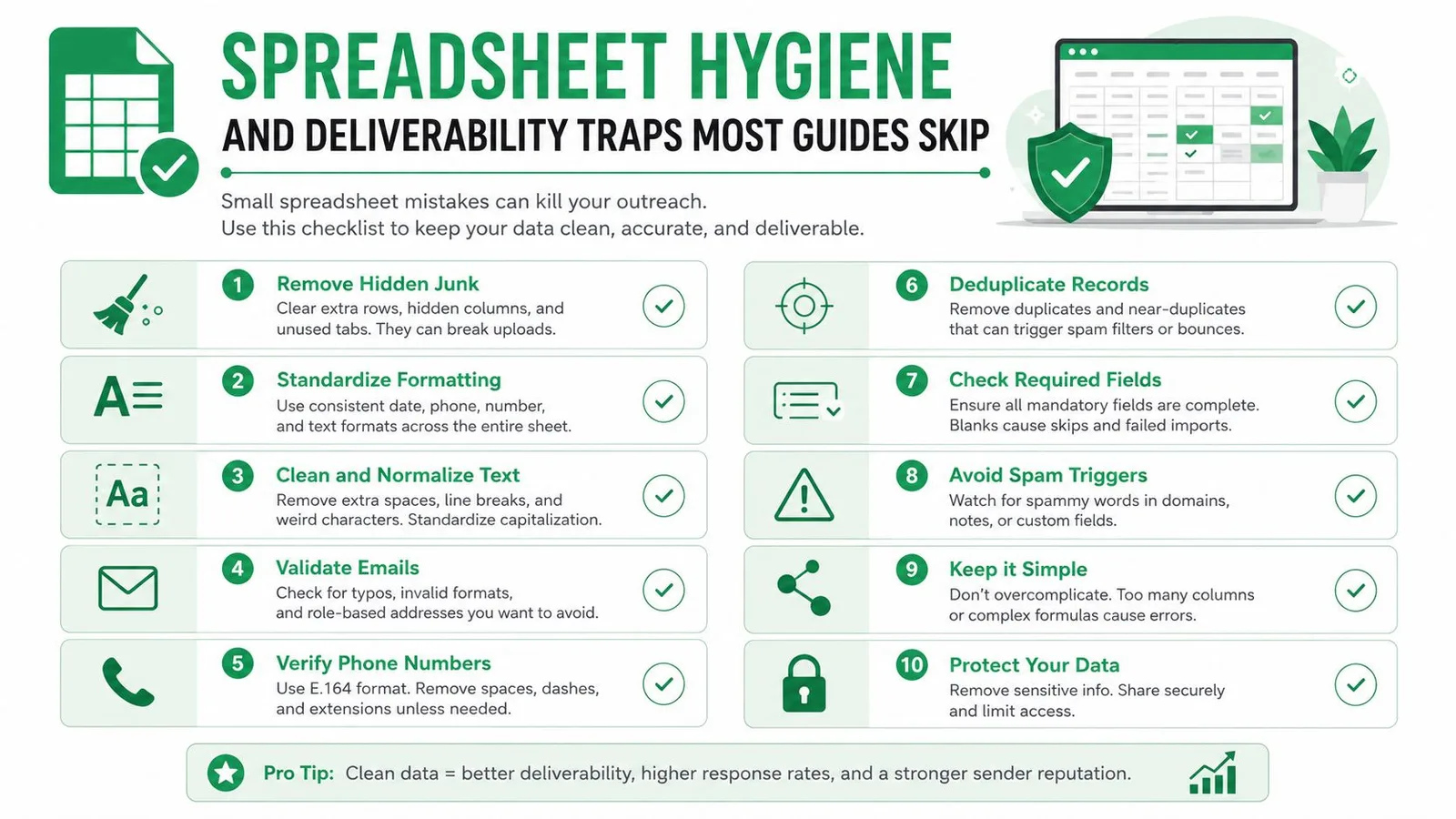
Mail merge isn’t set and forget. Many failures look technical but begin with ordinary data mistakes: duplicate email columns, inconsistent header names, blank cells, and whitespace around CC values. A merge can execute successfully while still sending the wrong content or sending twice to the same person.
The Sheet should pass a preflight review before every campaign:
- Check duplicate destinations: Compare the primary email column with alternate address fields and remove repeated records.
- Standardize casing and spacing: Keep headers consistent and trim values throughout the active range.
- Validate characters: Filter malformed addresses, blank cells, and unexpected punctuation before they reach Gmail.
- Review consent and suppression fields: Keep unsubscribed or excluded contacts out of the sending range.
- Quarantine failures: Move bounced records away from the active audience instead of repeatedly retrying them.
A common assumption is that personalization automatically makes outreach safe for deliverability. It doesn’t. Messages can still share a highly repetitive structure, and a new or poorly managed sending account can attract filtering when the campaign volume and recipient expectations don’t align. Gmail also can’t compensate for irrelevant contacts, missing unsubscribe handling, or repeated sends to people who have already declined.
Use formulas such as UNIQUE to support deduplication, but review the results rather than trusting a formula blindly. Normalize domains before splitting names or applying segmentation, and put an unsubscribe path in the footer when the message type and applicable rules require it. The spreadsheet is production data, so protect it with clear ownership, controlled edits, and a documented exclusion process.
Choosing the Right Sheets-to-Gmail Setup for Your Team
The right setup depends on how much control your campaign needs. Native Gmail mail merge is the lowest-friction choice when a team already works in Sheets, sends occasional personalized messages, and wants a human to inspect drafts. It avoids moving data into another system, but it offers less automation and reporting depth than a purpose-built platform.
A Google Workspace add-on sits between native Gmail and a full outreach platform. It can connect the Sheet to reusable templates, merge fields, scheduled batches, and status columns without requiring the team to build the whole workflow. Mail Merge for Gmail is one example of this model. Its product information describes a Sheets-based process for importing recipients, selecting or creating a Gmail template, previewing, sending, and writing delivery and engagement statuses back to the spreadsheet. Review its Google Sheets mail merge add-on overview alongside your actual requirements.
| Setup | Best for | Key trade-off |
|---|---|---|
| Native Gmail merge | Occasional sends with human review | Simple to operate, but limited automation and campaign reporting |
| Google Workspace add-on | Repeatable Sheets-based outreach | More workflow support, with an added tool and permission model |
| Dedicated email platform | Sequences, suppression, advanced analytics, and compliance workflows | Stronger campaign controls, but more integrations, cost, and governance work |
Before choosing, test the Sheet rather than a clean sample. Confirm support for attachments, CC and BCC, HTML formatting, unsubscribe links, duplicate suppression, scheduling, and write-back status. The least complex system that handles your volume and reporting needs is usually the most maintainable choice.
Mail Merge for Gmail connects your Google Sheet to Gmail for personalized sends, previewing, scheduling, tracking, and per-row status updates without requiring a separate contact database. If your team needs a repeatable Sheets-to-Gmail workflow with fields, attachments, and engagement data kept close to the source list, visit Mail Merge for Gmail and test it with a real campaign sheet.
Ready to send your first campaign?
Install Mail Merge for Gmail from the Google Workspace Marketplace and send up to 50 personalized emails per day for free.
Get started for freeMore reading
More from Guides
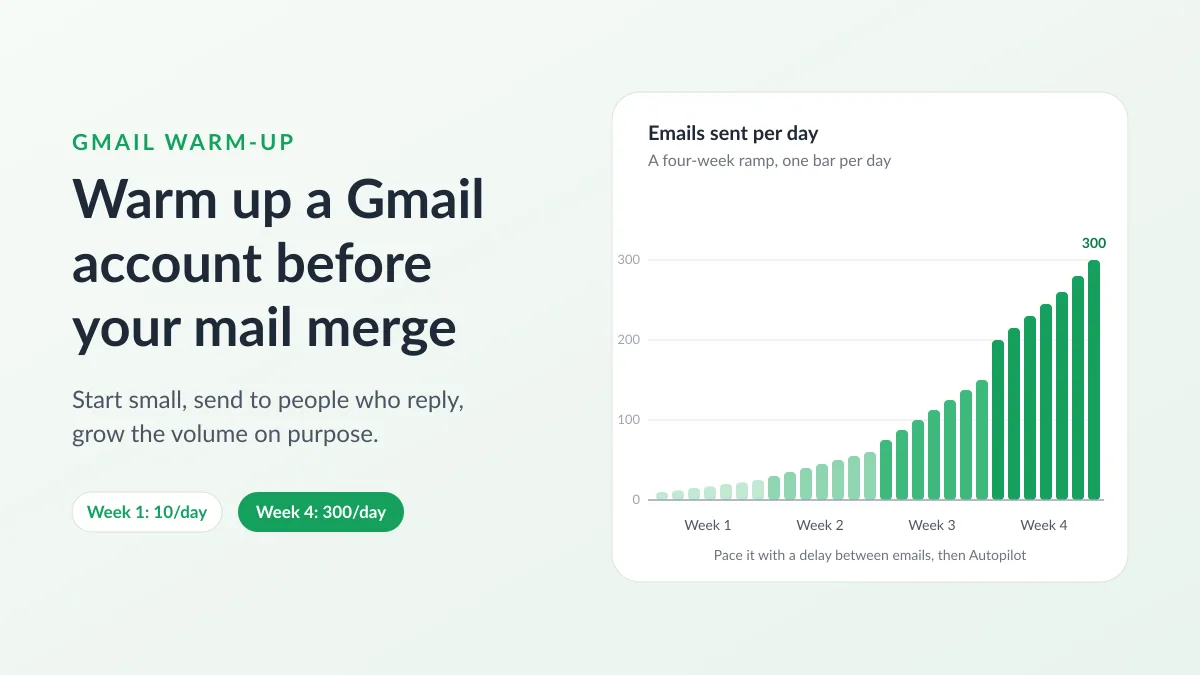
Gmail Warm-Up: How to Warm Up a Gmail Account Before a Mail Merge
Gmail warm-up explained with Google's own ramp-up rules: who needs it, a four-week manual schedule from Google Sheets, and how Mail Merge's warm-up works.

Mail Merge with CC and BCC in Gmail: Copy the Right People on Every Email
Learn how to run a mail merge with CC and BCC from Google Sheets, set up the columns, preview the result and see how copied recipients count toward your daily quota.

Gmail Sending Limit Reached: What It Means and How to Finish Your Campaign
Hit the Gmail sending limit reached error? Learn the real daily limits, when you can send again, and how to split a mail merge into safe daily batches.