


















Incoming Email Servers: A Practical Guide for 2026
Learn how incoming email servers work, compare IMAP vs POP3, and apply proven server settings to land more of your Gmail outreach in the primary inbox.

An incoming email server catches and inspects messages before they ever hit your inbox. Think of it as a digital mailroom: it accepts the delivery, checks who sent it, filters out the junk, and ultimately decides if a message lands in Primary, Promotions, or Spam.
Understanding the Key Concepts
Your incoming email server acts as the first gatekeeper for any message addressed to your domain. Picture a meticulous mailroom clerk scanning envelopes, checking IDs, and routing letters to the right pigeonhole.
Incoming servers perform a few core actions:
- Receive Messages, Accept mail from other servers and queue it for processing.
- Verify Authentication, Run checks on SPF, DKIM, and DMARC to confirm the sender’s identity.
- Filter Spam, Apply content and reputation checks to weed out junk.
- Route to Mailbox, Deliver the clean mail to specific folders like Primary, Promotions, or Spam.
Consider what happens when someone replies to a campaign sent via Mail Merge for Gmail. The incoming server inspects that reply, validates where it came from, and hands it off to Gmail. From there, Mail Merge for Gmail logs the “Replied” status directly back to your Google Sheet.
How the Process Flows in Plain Terms
- A sending server hands an email to the receiving server.
- The receiving server checks technical signals like SPF, DKIM, and DMARC.
- It scores the sender’s reputation and scans the content for spam signals.
- It routes the accepted mail to the right folder and makes it available over IMAP or POP3.
A good incoming server acts as a gatekeeper rather than just passive storage. It protects recipients and directly influences deliverability.
Why This Matters for Outreach
When your outreach messages are personalized and sent from properly warmed accounts, incoming servers are far more likely to place replies in Primary instead of Spam. That folder placement dictates your response rates and determines how tools like Mail Merge for Gmail track engagement.
Quick Reference: Core Actions
| Core Action | What It Does |
|---|---|
| Receive Messages | Accepts SMTP connections and queues messages for processing. |
| Authenticate Sender | Checks SPF, DKIM, and DMARC to verify legitimacy. |
| Score Reputation | Uses IP and sender history to make trust decisions. |
| Filter Content | Applies heuristics and blocklists to stop junk. |
| Route Mail | Delivers messages to the user’s mailbox or spam folder. |
Imagine a sales rep sending a personalized batch through Mail Merge for Gmail. Replies flow back, and the incoming server verifies DKIM before delivering the message. Mail Merge for Gmail then reads that reply status, without scanning your inbox, through authorized access and writes “Replied” to the spreadsheet.
Troubleshooting Signals to Watch
- Replies landing in Spam? Check your authentication records and sending cadence.
- Messages never arriving? Review provider filtering and your reputation history.
- Inconsistent folder assignment? Monitor engagement metrics like open and reply rates.
Read also: Check out our guide on outgoing email servers for how the sending side complements incoming decisions How Outgoing Email Servers Work
Comparing IMAP and POP3 in Real Workflows
IMAP and POP3 do far more than just fetch your mail. They determine what you see, where it lives, and whether tools like Mail Merge for Gmail can accurately read reply status. IMAP holds messages on the server and syncs everything across your devices. POP3, by contrast, usually downloads and strips messages off the server, which makes juggling multiple devices a headache.
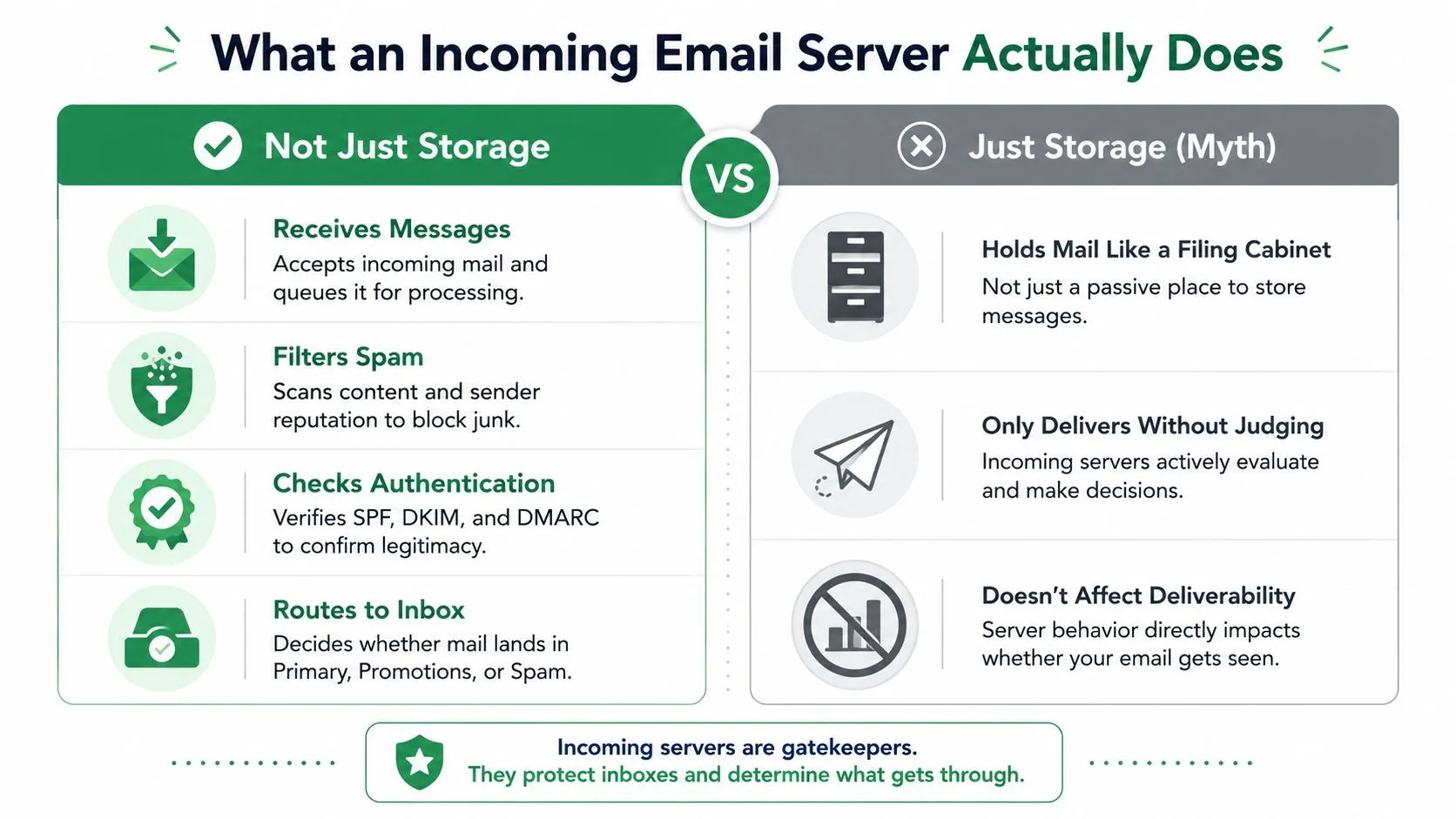
This infographic visualizes the active roles an incoming email server performs versus the myth that it is only passive storage.
Think of IMAP like a central noticeboard in an office. Every device pins and updates notes that everyone else can see. A sales rep launches a Mail Merge for Gmail campaign from their desktop, then catches replies on their phone, IMAP makes sure that reply shows up on both screens and that the “Replied” flag is visible to the add-on.
POP3 works differently. It acts more like a courier handing mail to whoever opens the mailbox first. If the desktop downloads and removes messages by default, the phone never sees those replies. Reply tracking and team visibility fall apart, and you end up leaning harder on manual backups.
IMAP preserves shared state; POP3 often creates device silos that hide replies.
Benefits You Actually Feel
- Synchronized Read/Reply State, IMAP pushes read and reply flags across every device, so Mail Merge for Gmail can spot replies through authorized access and write statuses back to your sheet without ever scanning your inbox directly.
- Server-side Backups, With IMAP, the server keeps messages, so losing or resetting a device doesn’t mean losing your mail.
- Shared Inboxes, Teams working out of a shared mailbox need IMAP to view the same conversation threads in real time.
Common POP3 Pitfalls
- Downloads then deletes by default, which causes replies to vanish across devices.
- Local storage increases the backup burden and makes migrating to a new machine a chore.
- Less compatible with modern OAuth flows that many providers now require for add-ons.
Now let’s move from concept to action with a concrete scenario that shows how protocol choice plays out in practice.
- A sales rep runs a 200-recipient campaign with Mail Merge for Gmail from a desktop using IMAP.
- Recipients reply; the incoming server routes those replies to the mailbox and marks them as unread.
- The rep checks replies on a phone while a teammate reviews the shared inbox, both see the same conversation thread.
- Mail Merge for Gmail detects the replies and writes Replied into the Google Sheet row by row, preserving campaign analytics.
If that same workflow ran on POP3 with default settings, step 2 might strip messages from the server entirely, step 3 could miss replies altogether, and Mail Merge for Gmail would lose the reliable reply signals it needs for reporting.
IMAP vs POP3 in Daily Use
| Feature | IMAP | POP3 |
|---|---|---|
| Multi-device sync | Yes | Usually no |
| Server retention | Keeps messages | Downloads then removes |
| Backup simplicity | Easier | Harder |
| Shared mailbox support | Strong | Weak |
| Compatibility with modern tools | High | Lower |
In short, IMAP wins for any setup where multiple people or devices need to see the same mail. POP3 can still function for a single-device, offline setup, but the trade-offs add up quickly when you’re running outreach campaigns.
Troubleshooting Tips
- If replies are missing, verify the account actually uses IMAP and that IMAP is enabled in your provider settings.
- For hybrid setups, configure POP3 clients to “leave a copy on server” so Mail Merge for Gmail and other devices still catch replies.
- Prefer OAuth logins over basic passwords to maintain secure, tokenized access that most providers now require.
The practical takeaway: choose IMAP for multi-device, team, and outreach workflows where visibility and reliable reply tracking matter. POP3 works for single-device, offline use, but it introduces risks that quietly undermine deliverability insights and Mail Merge for Gmail reporting.
Server Settings Hostnames and Ports You Need
Getting email to flow into your client, whether that’s Outlook, Thunderbird, or a tool that connects to your Gmail account, comes down to copying the right hostname and port number. Mess these up and you’re locked out. Simple as that.
Think of the hostname as the street address of a building and the port as the specific entrance you need to use. Show up at the wrong entrance and nobody’s letting you in, even if you’re at the right address.
Here are the combinations you’ll actually encounter day to day:
- Gmail IMAP: imap.gmail.com on port 993 with SSL/TLS. (Note: gmail-smtp-in.l.google.com handles server-to-server delivery, that’s a different thing entirely and not what your email client needs.)
- Outlook/Exchange: outlook.office365.com for IMAP on port 993 with SSL/TLS, or Exchange ActiveSync through its own endpoints.
- Yahoo IMAP: imap.mail.yahoo.com on port 993 with SSL/TLS.
Why do port numbers keep showing up? Because they determine how your connection gets encrypted, or doesn’t.
Port 993 is the standard for IMAP over SSL/TLS. The moment you connect, everything’s encrypted. No negotiation, no window of opportunity for someone snooping on your credentials or message content.
Port 143 handles plain IMAP with STARTTLS. The connection starts unencrypted, then upgrades to TLS. It works in theory, but if anything interferes with that upgrade, you’re sending login details in the clear. It’s the difference between having a private conversation and shouting across a room hoping nobody’s listening.
For POP3, the older protocol, you’ll see port 995 for SSL/TLS and port 110 for unencrypted connections. Stick with 995 if you must use POP3. Plain port 110 is a relic you should avoid.
Encryption and OAuth Explained
Encryption just means your client and the server agree to scramble everything between them. Nobody watching the network can read your emails or grab your password. Port 993 is the equivalent of a sealed courier bag, contents protected from the moment it leaves your machine. Port 143 with STARTTLS is more like a normal envelope that gets sealed partway through delivery, which leaves a gap where things could be exposed.
These days, most providers have moved past asking for your actual password when connecting a third-party app. OAuth 2.0 lets an application request access to your mailbox through a time-limited token. You grant permission, the app gets a token, and that token can be revoked anytime. Your real password never leaves the provider’s login page.
This setup matters a lot for tools built inside Google’s ecosystem, add-ons that need mailbox access can request only the specific permissions they need, get your consent, and operate without ever storing your credentials.
Use OAuth 2.0 wherever it’s offered. It dramatically reduces the risk of your password leaking and makes it easy to revoke access if something feels off.
Practical Provider Settings at a Glance
- Gmail IMAP: imap.gmail.com, port 993, SSL/TLS, OAuth 2.0 recommended
- Outlook IMAP: outlook.office365.com, port 993, SSL/TLS, Modern Auth preferred
- Yahoo IMAP: imap.mail.yahoo.com, port 993, SSL/TLS, app passwords or OAuth depending on your account type
Quick Checklist for a Working Connection
- Choose IMAP if you need multi-device sync and want shared inbox visibility across clients.
- Enter the provider’s IMAP hostname exactly as listed, typos here are the number one cause of failed connections.
- Set port 993 with SSL/TLS.
- Use OAuth 2.0 if available; fall back to app-specific passwords only if OAuth isn’t an option.
- Double-check that IMAP is actually enabled in your provider’s settings panel. Gmail, for instance, lets you toggle this off.
- Send a test email and verify that read/reply status syncs across your devices. If flags don’t propagate, something’s still misconfigured.
Common Mistakes and How to Avoid Them
Using POP3 when you need synced state. POP3 downloads messages and typically removes them from the server. Reply tracking falls apart because each device sees a different version of your inbox. Switch to IMAP if you’re running Mail Merge for Gmail and need replies visible across the board.
Picking port 143 without confirming STARTTLS is enabled. If the TLS upgrade fails or gets intercepted, your credentials travel unencrypted. Port 993 eliminates that risk entirely, there’s no fallback to plain text.
Wrong hostname or skipping the OAuth consent flow. Authentication failures usually trace back to a hostname typo or an incomplete OAuth grant. Copy the values exactly as provided by your provider and walk through the full consent screen.
What This Means for Mail Merge for Gmail
Mail Merge for Gmail needs servers that preserve reply state and support secure token-based access. Running IMAP on port 993 with OAuth 2.0 keeps replies synced across devices and lets status updates write back to your spreadsheet, all without your Google password ever touching a third-party system. It’s the setup that just works and stays out of your way.
How Incoming Servers Decide What Reaches You
Picture an incoming email server as a nightclub bouncer, not a passive mailbox. It checks ID, scans the guest list, and watches how people behave once inside. This is why reputation, authentication, and engagement matter far more than raw sending volume.
Reputation scoring is that first glance from the bouncer. Servers build reputation from IP history, sending patterns, and complaint rates. A strong reputation gives messages priority handling. A poor one raises suspicion and often routes mail straight to Spam.
Consider a warmed Gmail account sending small, personalized batches, it earns trust. Now contrast that with a new account blasting thousands of identical emails. The second approach looks like a crowd about to cause trouble. Controlling your cadence and audience hygiene is non-negotiable if you want consistent inbox placement.
How Authentication Works
Authentication functions like the ID check at the door. SPF, DKIM, and DMARC are the three key checks most receiving servers rely on. SPF specifies which servers can send mail for your domain. DKIM attaches a cryptographic signature to each message. DMARC ties these mechanisms to the visible From address, making spoofing considerably harder.
Strong authentication is the single most actionable technical step you can take to reduce rejections and improve placement.
Passing authentication doesn’t guarantee Primary placement, but failing these checks almost always damages deliverability. Tools and add-ons using accepted OAuth flows avoid exposing passwords while still proving authorized access to servers.
- SPF verifies authorized senders and helps servers decide whether to accept or flag incoming mail.
- DKIM confirms message content wasn’t altered during transit.
- DMARC enforces alignment and provides reporting so you can identify who’s failing checks.
Behavioral Signals The Server Watches
Once identity checks pass, servers shift focus to behavior. Engagement metrics, opens, clicks, and replies, function as crowd reactions inside the club. High reply rates and consistent opens signal that recipients genuinely value the messages.
Practical levers within your control include:
- Sending consistency: Schedule steady, predictable sends rather than erratic spikes.
- List hygiene: Remove inactive addresses to reduce bounces and complaint rates.
- Personalization: One-to-one style content drives meaningful replies and opens.
Steps to diagnose placement issues:
- Confirm SPF, DKIM, and DMARC are valid and properly aligned.
- Review sending cadence and reduce bursty patterns.
- Clean lists to remove low-engagement or invalid addresses.
- Measure replies and opens to track signal improvement over time.
Real-World Implication for Mail Merge for Gmail
Mail Merge for Gmail benefits directly from these mechanics because it encourages personalized templates and controlled sending volumes. When replies land and engagement stays high, Gmail’s incoming systems increasingly favor messages from those accounts and domains. This makes Mail Merge for Gmail’s per-row status updates, like Replied, more reliable and meaningful for campaign analytics.
Quick checklist for better deliverability:
- Use authenticated domains and monitor DMARC reports regularly.
- Warm new accounts slowly; start small and grow volume gradually.
- Prioritize replies and opens over raw send totals.
- Track trends and adjust cadence before reputation takes a hit.
Read also: Learn more about email routing and DNS priority in our guide on How MX Records Affect Delivery.
Troubleshooting the Most Common Connection Issues
When email suddenly stops coming through, the symptoms usually narrow things down to a handful of predictable culprits. Missing messages, endless timeouts, or repeated login prompts each tell a different story about where things broke down, whether that’s your email client, a third-party add-on, or the incoming email servers themselves. Here’s how to read those signals and fix them quickly.
Common Symptoms and Quick Diagnoses
-
Messages that never show up If mail isn’t arriving at all, the provider likely filtered or rejected it before it ever reached IMAP or POP3. Check your spam folder or quarantine first, and confirm the sender passed SPF, DKIM, and DMARC checks.
-
Client stuck on connection timeout This usually points to a wrong hostname, a blocked port, or an unreliable network. Start by verifying the incoming server address, and default to port 993 for IMAP over SSL/TLS, it resolves the majority of timeout headaches.
-
Authentication denied or constant login prompts An expired app password, incorrect credentials, or missing OAuth consent will trigger these errors. Regenerate your app password or run through the OAuth flow again to clear it up.
If a tool displays “Not Connected” but Gmail still receives mail normally, the issue is almost certainly in the client or add-on settings, not the incoming email servers themselves.
Fast Troubleshooting Steps Worth Trying Right Now
1. Confirm IMAP Is Actually Enabled Many providers let you toggle IMAP access on and off. When it’s disabled, clients and add-ons can’t sync replies or track read states. Turn it back on and try again.
2. Double-Check Hostname and Port Use the exact provider hostname (like imap.gmail.com) paired with port 993 and SSL/TLS. Typos here are behind more connection failures than anything else.
3. Reauthenticate the Right Way OAuth 2.0 is the preferred route whenever it’s available. If your account relies on app-specific passwords, generate a fresh one and paste it directly into the client.
4. Watch for Provider Security Alerts Gmail and Outlook both send alerts when a new client connects. Click through the link in that alert to approve the access and mark it as legitimate.
- If timeouts keep happening, switch networks to rule out a firewall or ISP blocking the port.
- If rejections pile up, verify the account hasn’t hit rate limits or triggered a temporary lockout.
Reading Sync Status in Tools Like Mail Merge for Gmail
- “Connected” means the add-on holds a valid token and can query message state through the provider’s APIs or IMAP.
- “Partially Synced” indicates some metadata came through but the full mailbox sync didn’t complete, usually a permissions or scope issue.
- “Failed” points to bad credentials, revoked access, or a server-side block.
These status messages tell you exactly where to focus: reauthorize the add-on, update the client, or reach out to the provider.
A Short Checklist for Fixes That Actually Stick
- Stick with IMAP on port 993 using SSL/TLS for dependable multi-device sync.
- Prefer OAuth for token-based access; reserve app passwords for situations where OAuth isn’t supported.
- When a tool throws persistent auth errors, revoke its access and grant it fresh permissions.
- Keep an eye on provider security messages and spam quarantines, caught replies hide there more often than you’d expect.
Most sync problems come down to small misconfigurations. Start with hostnames, ports, and authentication. If those check out, then dig into provider logs or contact support.
A Real-World Quick Fix
- Symptom: Replies aren’t showing up, and a mail merge tool displays “Partially Synced.”
- Action: Confirm IMAP is enabled, reauthorize OAuth inside the tool, and verify the connection uses imap.gmail.com on port 993.
- Result: Replies reappear, the add-on writes Replied back into the sheet, and sync status returns to Connected.
Working through issues in this order helps you figure out whether the incoming email servers, the client, or the add-on is to blame, and most of the time, you’ll have it sorted within ten minutes.
Applying Server Knowledge to Better Gmail Outreach
Here’s something most guides skip: the way an incoming email server responds to your messages isn’t just a technical footnote. It’s a direct line of feedback you can use to shape your entire outreach approach.
Think of it like this. An incoming server pays close attention to your sending patterns. It rewards steady, small-volume sends that feel like a real back-and-forth, not a sudden blast. Pacing genuinely matters here, and a little restraint goes a long way.
Keeping your contact list clean is another signal. Fewer bounces and spam complaints directly boost your sender reputation, which helps your messages land in the inbox instead of the trash. Prune contacts who never engage, and always process unsubscribe requests immediately, every ignored request is a tiny red flag.
The real advantage comes when you treat server responses as data. When a tool like Mail Merge for Gmail writes statuses like Sent, Opened, Clicked, or Replied right back into your Google Sheets, you’re looking at a live dashboard of what’s working and what isn’t.
How to Turn Server Signals Into Better Sends
After each campaign, glance at your delivery and engagement rows. If bounce rates creep past a safe threshold, pause and investigate before sending another batch.
For new domains or accounts, warm them up gradually. Start with tiny batches and slowly increase volume over days or weeks. This slow build tells the server you’re a legitimate sender, not a bot.
Personalization is a powerful signal. A subject line and first sentence that feel human can significantly increase your reply rate, and replies are one of the strongest positive engagement signals an incoming server notices.
Treat incoming servers like helpful gatekeepers that reward trustworthy behavior rather than obstacles to circumvent.
Practical Steps to Improve Replies
- Begin with a warmup plan for every new account or domain. Track your progress right inside the spreadsheet so you can see what’s changing.
- Remove addresses that haven’t opened anything after a set window, say, 90 days. This keeps your list healthy and protects your reputation.
- Reauthorize your OAuth tokens periodically, and confirm IMAP is set to port 993 with SSL/TLS enabled. This keeps reply tracking reliable and secure.
A few more things that make a difference over time:
- Use IMAP to keep reply states synced across all your devices. It also ensures your add-on can detect replies accurately.
- Favor OAuth 2.0 over stored passwords whenever possible. It keeps your access secure and makes it easy to revoke if needed.
- Watch engagement trends closely and adjust your sending cadence before your reputation takes a hit, not after.
For a deeper look at how these signals connect to your broader email strategy, read our guide on How Email Authentication Improves Deliverability.
Technical setup gets you halfway to the inbox. The other half is disciplined sending that consistently signals you’re a trusted human behind the keyboard.
Frequently Asked Questions About Incoming Servers
Does a Recipient Using POP3 Change What Your Outreach Tool Sees?
Yes, and it can quietly break your workflow. When a recipient’s mailbox is set to download and remove messages via POP3, your outreach tool may not see replies in real time. The message gets pulled off the server by one device and essentially disappears from your view.
This is why reply tracking fails more often than people expect. If you’re running outreach campaigns, aim for workflows where IMAP keeps messages on the server so everything stays synced.
Can Legitimate Emails Be Delayed by Server-Side Queuing, and Is That Normal?
Absolutely. Mail servers queue messages during traffic spikes, temporary rate limits, or when the receiving end is slow to respond. A short delay of a few minutes is completely ordinary.
If you’re seeing persistent deferrals though, that’s a different story. That usually points to reputation problems, authentication failures, or routing issues worth digging into.
Does Simply Enabling IMAP Improve Sending Reputation?
Here’s the nuance: enabling IMAP gives you better visibility and more accurate reply tracking, but it doesn’t directly boost your sender reputation. Reputation is built on authentication, engagement rates, and consistent sending patterns.
That said, the metrics IMAP helps you capture can inform smarter decisions that protect your reputation over time. It’s an indirect benefit, not a direct one.
What Hostnames and Ports Should I Expect to Use?
Most providers stick to a predictable setup. Here’s what you’ll commonly run into:
| Protocol | Hostname | Port | Security |
|---|---|---|---|
| IMAP | imap.gmail.com | 993 | SSL/TLS |
| IMAP | imap.mail.yahoo.com | 993 | SSL/TLS |
| POP3 | (provider-specific) | 995 | SSL/TLS |
These are the standard secure configurations you’ll see across major providers.
How Do Security Options Affect Third-Party Tools?
OAuth 2.0 makes this much cleaner. Instead of storing your password, third-party tools can use OAuth tokens to access your mailbox state. This means less risk for you and easier reauthorization when tokens expire.
It’s a far safer approach than the old “app password” method, and most modern tools support it now.
What Quick Steps Fix Common Sync Problems?
When things go sideways, start with these basics:
- Confirm IMAP is actually enabled in your provider settings
- Double-check the hostname and port number match your provider’s docs
- Reauthorize OAuth if your tool shows a connection error
- Look for any security alerts from your provider about blocked sign-ins
Most sync issues come down to one of these four things.
For reliable Gmail outreach try Mail Merge for Gmail https://merge.email
Ready to send your first campaign?
Install Mail Merge for Gmail from the Google Workspace Marketplace and send up to 50 personalized emails per day for free.
Get started for freeMore reading
More from Comparisons

Soft Bounce vs Hard Bounce: Causes, Codes, and Fixes
Learn the real differences between soft bounce vs hard bounce, including SMTP codes, common causes, deliverability impact, and step-by-step remediation tactics.

10 Email Scheduling Tools to Compare in 2026
Compare 10 email scheduling tools for sales, recruiting, events, and education, with pricing, privacy, deliverability, and Gmail workflow guidance.

Top 9 YAMM Alternatives to Upgrade Your Email Marketing Strategy in 2025
Alternatives to YAMM: Discover why Mail Merge for Gmail is the #1 choice in 2025 to supercharge your email campaigns with ease and power.