


















How to Remove Duplicate Emails in Google Sheets Before a Mail Merge
Learn how to remove duplicate emails in Google Sheets before a mail merge with Remove duplicates, UNIQUE and COUNTIF, so no contact gets the same message twice.
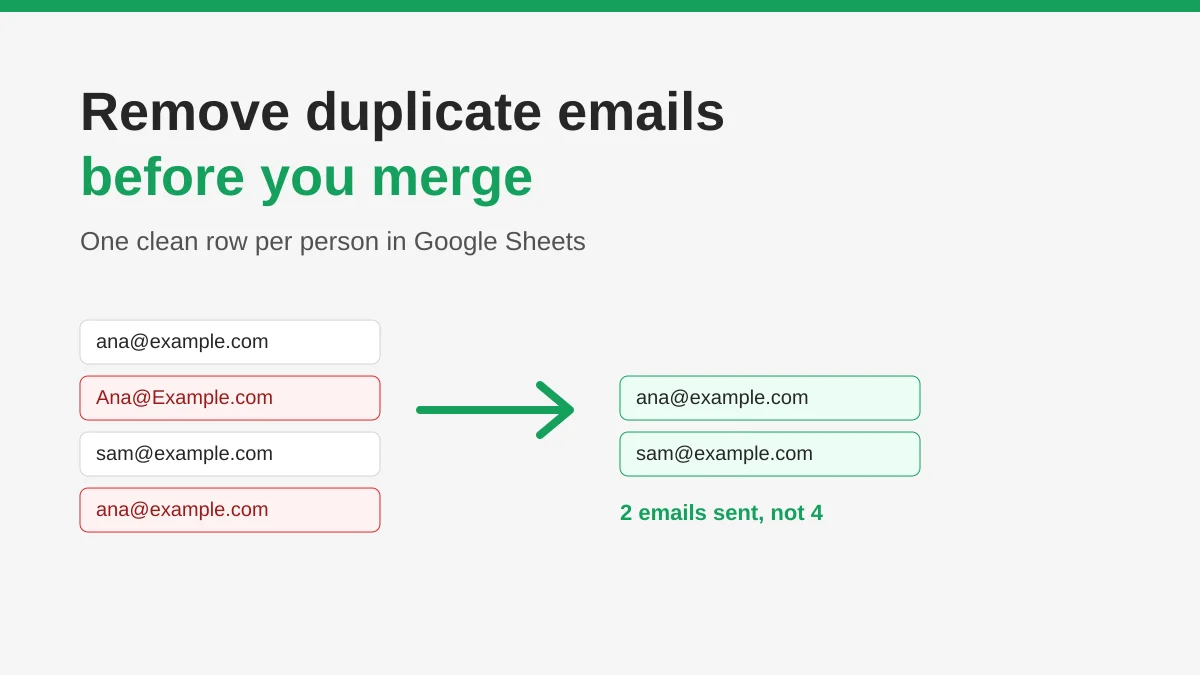
Sending the same message twice to one person is the quickest way to look careless. If you need to remove duplicate emails in Google Sheets before a mail merge, the good news is that Sheets already has the tools. The trick is choosing the right one for your list, because a duplicate is rarely as obvious as two identical rows.
This guide walks through three methods, shows how to catch the sneaky near-duplicates, and explains why a clean list also protects your daily sending allowance.
Why duplicates matter before you merge
A mail merge sends one message per row. If an address appears three times, that person receives three emails. Besides annoying the recipient, repeats cost you in other ways:
- They use up your daily sending allowance. Google counts recipients, and its Gmail sending limits apply to personal accounts at 500 per day, with Google Workspace accounts allowed more. See our guide to the Gmail sending limit for the numbers in detail.
- They can inflate open and click counts, which makes your campaign reporting harder to trust.
- Repeated messages push people to hit spam or unsubscribe, which hurts your sender reputation.
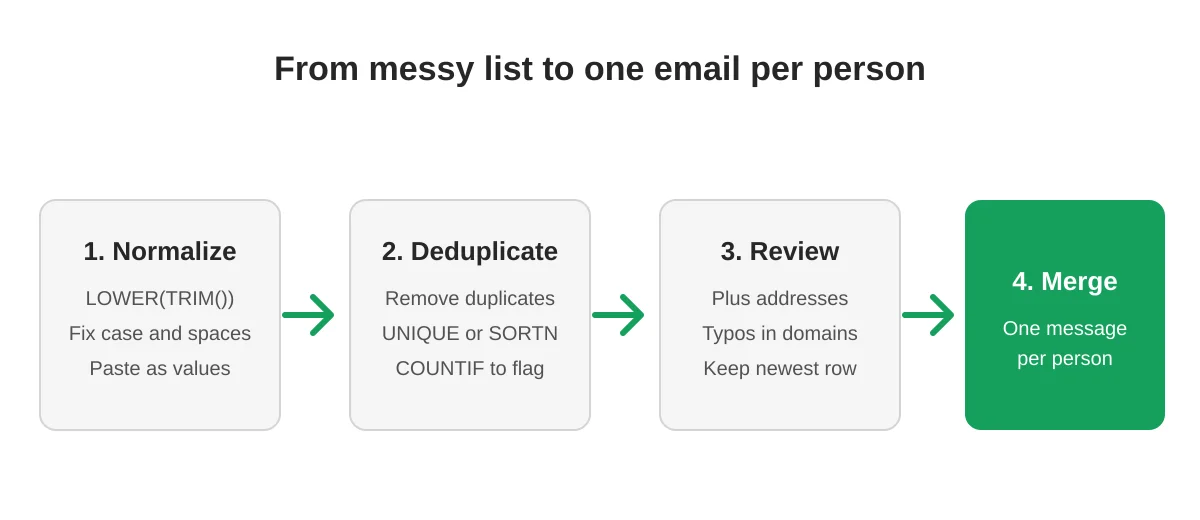
Step 1: Normalize the email column first
Duplicates hide behind formatting. Ana@Example.com with a trailing space and ana@example.com are the same inbox but look different to a formula. Add a helper column next to your emails with this formula:
=LOWER(TRIM(A2))Fill it down, then copy the results and use Paste special, Values only, over the original column. Now every address is lowercase and free of stray spaces. Google’s own data cleanup help page also offers a Trim whitespace option under Data, Data cleanup.
Work on a copy of the sheet if the original is your master list. Several of the next steps delete rows.
Step 2: Choose a method to remove duplicates
Method A: The built-in Remove duplicates tool
This is the fastest option for a one-off list.
- Select the email column, or the whole table if you want to keep each row’s other data.
- Open Data, then Data cleanup, then Remove duplicates.
- Tick “Data has header row”, then choose the column that holds the email address.
- Click Remove duplicates.
Sheets keeps the first occurrence and deletes the rest. According to Google’s documentation, cells that differ only by letter case, formatting or formulas count as duplicates, so case differences are handled for you. Whitespace is not, which is why Step 1 comes first.
Pick only the email column when you check columns. If you tick every column, two rows for the same person with different last names would both survive.
Method B: UNIQUE for a live clean list
If you want to keep the original data untouched, build a separate tab with a formula:
=UNIQUE(Contacts!A2:D500)UNIQUE compares whole rows, so it only removes rows that match in every column. To dedupe by email alone, wrap it differently:
=SORTN(Contacts!A2:D500, 9^9, 2, 1, TRUE)This keeps one row for each distinct value in column 1. The result updates when the source changes, which suits a list that you keep adding to. Copy the result and paste it as values into a campaign tab before you merge.
Method C: COUNTIF to flag before you delete
When rows carry different details and you want to decide which one to keep, flag them first. In a helper column enter:
=COUNTIF($A$2:$A2, $A2)Fill it down. The first time an address appears it shows 1, the second time 2, and so on. Filter the helper column for values greater than 1 and you see every repeat. Review them, copy any newer information such as a changed job title into the row you are keeping, and then delete the repeats.
Step 3: Check for near-duplicates
Exact matching misses some of the trickiest repeats:
- Plus addressing.
sam+sales@example.comandsam@example.comnormally reach the same inbox. - Typos.
gmial.comrows are not duplicates but they will bounce. Our guide on spreadsheet data validation shows how to catch them. - Role versus personal addresses.
info@and a named person at the same company are different recipients, so keep both unless you have a reason not to.
Sort the cleaned sheet by the domain part of the address and scan it. A few minutes of review is cheap compared with a duplicate send.
Step 4: Run the merge from the clean sheet
Once the list is clean, point your campaign at it. With Mail Merge for Gmail you write the message in a template, map columns such as first name to merge tags, send yourself a test email and then launch from the same sheet. If you are new to the flow, our step by step mail merge guide covers it from the start.
Keep these habits for the next campaign:
- Keep one master tab and never merge from it directly. Copy the cleaned data to a campaign tab.
- Add a status column and remove anyone who already unsubscribed. See suppression list management.
- Dedupe again whenever you paste in a fresh import.
Frequently asked questions
Does Remove duplicates treat uppercase and lowercase emails as the same?
Yes. Google’s help page says cells that differ only in letter case, formatting or formulas are considered duplicates. Trailing spaces still make values differ, so trim first.
Will Remove duplicates change my original data?
It deletes the repeated rows in place. Make a copy of the tab first, or use UNIQUE to produce a separate clean list.
How do I keep the most recent row instead of the first?
Sort the sheet so the newest rows come first, for example by a date column in descending order, and then run Remove duplicates. Sheets keeps the first occurrence it finds.
Do duplicate recipients count against my daily limit?
Yes. Google counts each recipient you send to, so repeated addresses spend allowance for no benefit. Mail Merge for Gmail also deducts every To, Cc and Bcc address from your daily quota.
Should I remove duplicates inside the same company?
Not automatically. Different people at one domain are different recipients. Only remove rows that point to the same person.
Send once, to the right people
A clean sheet means each person hears from you once, your quota goes to real recipients, and your reports reflect real engagement. Normalize the column, remove the repeats, review the oddities and then launch your campaign with Mail Merge for Gmail.
Ready to send your first campaign?
Install Mail Merge for Gmail from the Google Workspace Marketplace and send up to 50 personalized emails per day for free.
Get started for freeMore reading
More from Tutorials
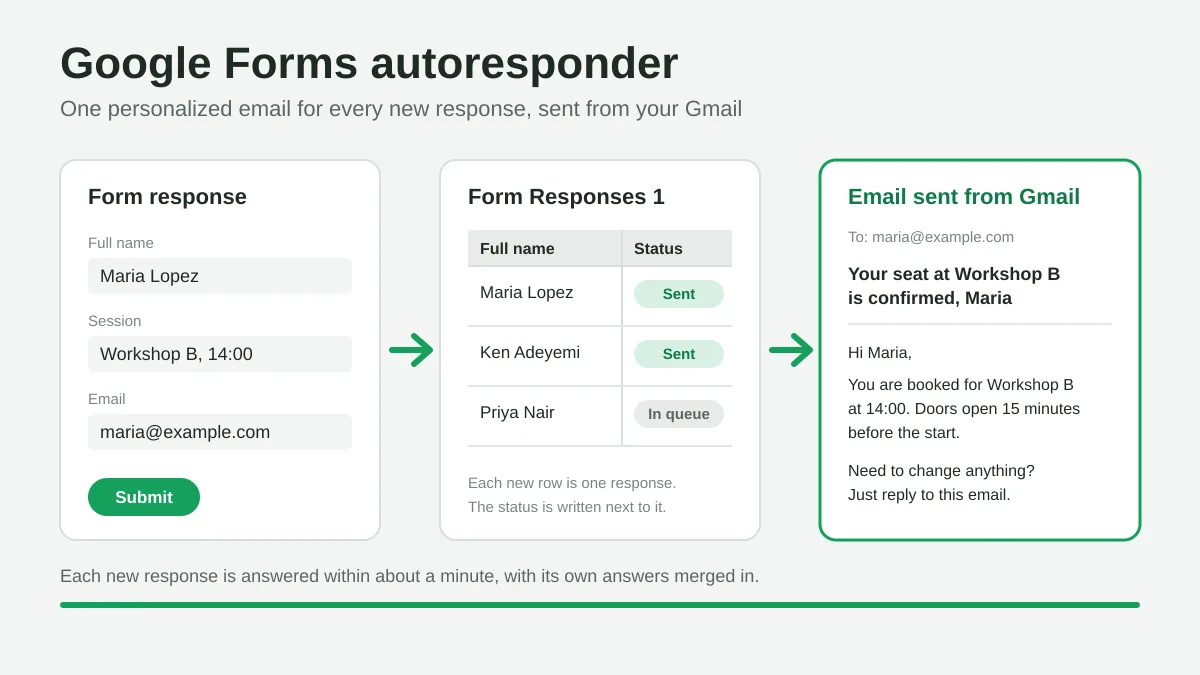
Google Forms Autoresponder: A Personalized Email for Every Response
Set up a Google Forms autoresponder that emails every new response from Gmail, personalized with the answers, using Google Sheets and Mail Merge for Gmail.
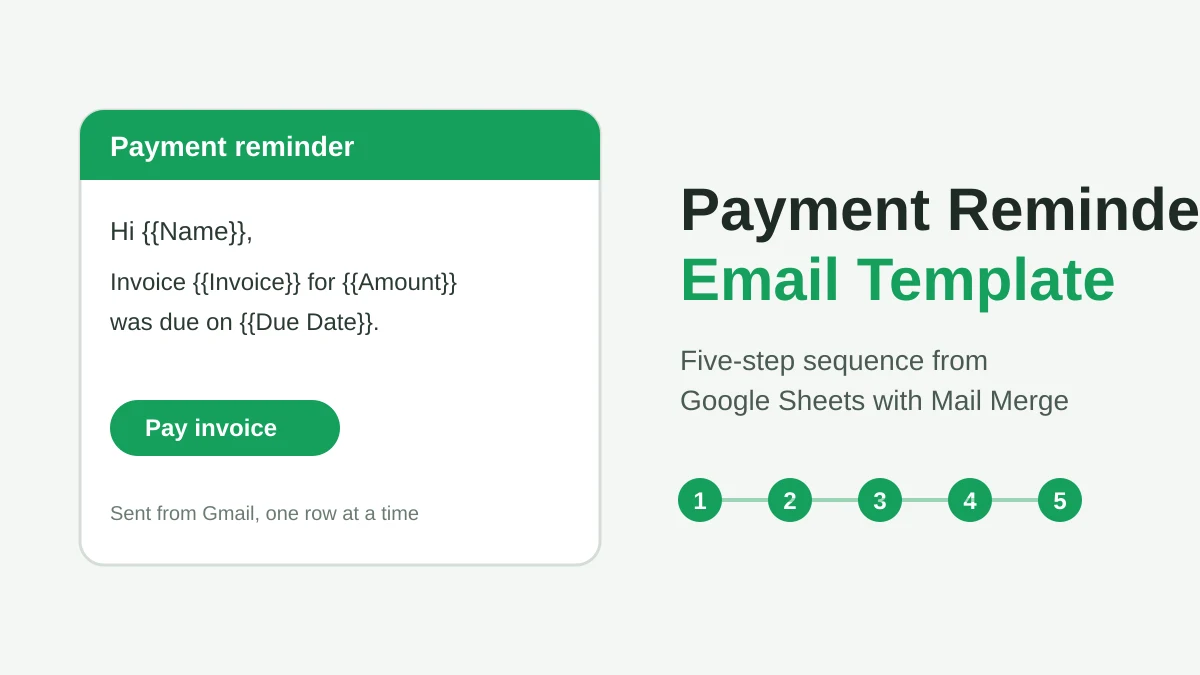
Payment Reminder Email Template: Five Messages You Can Send from Google Sheets
Copy a payment reminder email template for each stage of an overdue invoice, then send every reminder from Google Sheets through Gmail with personalized merge fields.
How to Build Targeted Email Lists That Actually Convert
Learn how to build targeted email lists that drive opens, clicks, and replies. Practical steps for sourcing, segmenting, cleaning, and GDPR-compliant outreach.