


















How to Export Outlook Emails to Gmail Without Losing Data
Learn how to export Outlook emails to Gmail with 4 proven methods, preserve folders and attachments, and fix common migration issues fast.

You’re looking at a crowded Outlook mailbox, preparing to move to Gmail, and assuming the job is simple: export the mail, upload the file, and carry on. That assumption is where most migration trouble starts. Outlook-to-Gmail migration is usually a copy process, not a clean move, and the method you choose determines whether folders, attachments, timestamps, and message status arrive intact.
The safest approach is to preserve the original Outlook data, choose a transfer method that matches your mailbox and folder structure, then verify the destination before retiring the old account. The instructions below show how to export Outlook emails to Gmail without treating a PST file as a magic one-step solution.
Why Exporting Outlook to Gmail Is Not a One Click Move
A small business owner often discovers the problem after the apparent migration has finished. The inbox is visible in Gmail, but Sent Mail is incomplete, nested Outlook folders are missing, and an attachment that opened perfectly in Outlook now needs checking. The original mailbox still contains everything, which is useful, but it also reveals that the export created a second copy rather than relocating the first one.
Microsoft’s workflow is built around exporting Outlook data to a PST file. Gmail’s import paths are designed around bringing in mail and contacts, while Google Workspace offers service-based migration and a dedicated Outlook sync tool. These are separate workflows, so there isn’t a universal button that transfers every Outlook item, folder, calendar entry, and contact into an identical Gmail structure. Microsoft’s Outlook import and export documentation describes the export process as part of Outlook’s built-in data portability model, including mail, contacts, and calendar data.
What usually survives the transfer
Message content, attachments, and original dates can generally be preserved when the migration tool reads the mailbox correctly. That doesn’t mean every method handles them identically. Folder structures from Outlook typically become Gmail labels or label combinations, because Gmail and Outlook organize mail differently.
Read and unread status can also vary by method. A message may arrive with its content and attachment intact but require a status check, especially after synchronization or staged copying. Formatting deserves the same treatment. HTML messages, signatures, embedded images, and unusual Outlook elements should be tested with representative samples rather than assumed to be perfect.
Why the PST file causes confusion
A PST is an archive container, not a Gmail mailbox. Exporting it gives you a local copy that can later be processed by another tool, but Gmail generally doesn’t treat the file as a direct replacement for an existing Outlook profile. Google’s migration guidance emphasizes copying data from an external email service into Gmail, which is different from uploading a PST directly into a consumer Gmail account. Its Gmail migration service overview makes that service-based distinction clear.
Use this mental model:
Export preserves a source copy. Migration copies selected data into Gmail. Verification proves whether the destination is complete.
That model prevents the most expensive mistake, deleting or disabling Outlook before confirming folder parity and message samples in Gmail.
What to Prepare Before You Move Any Email
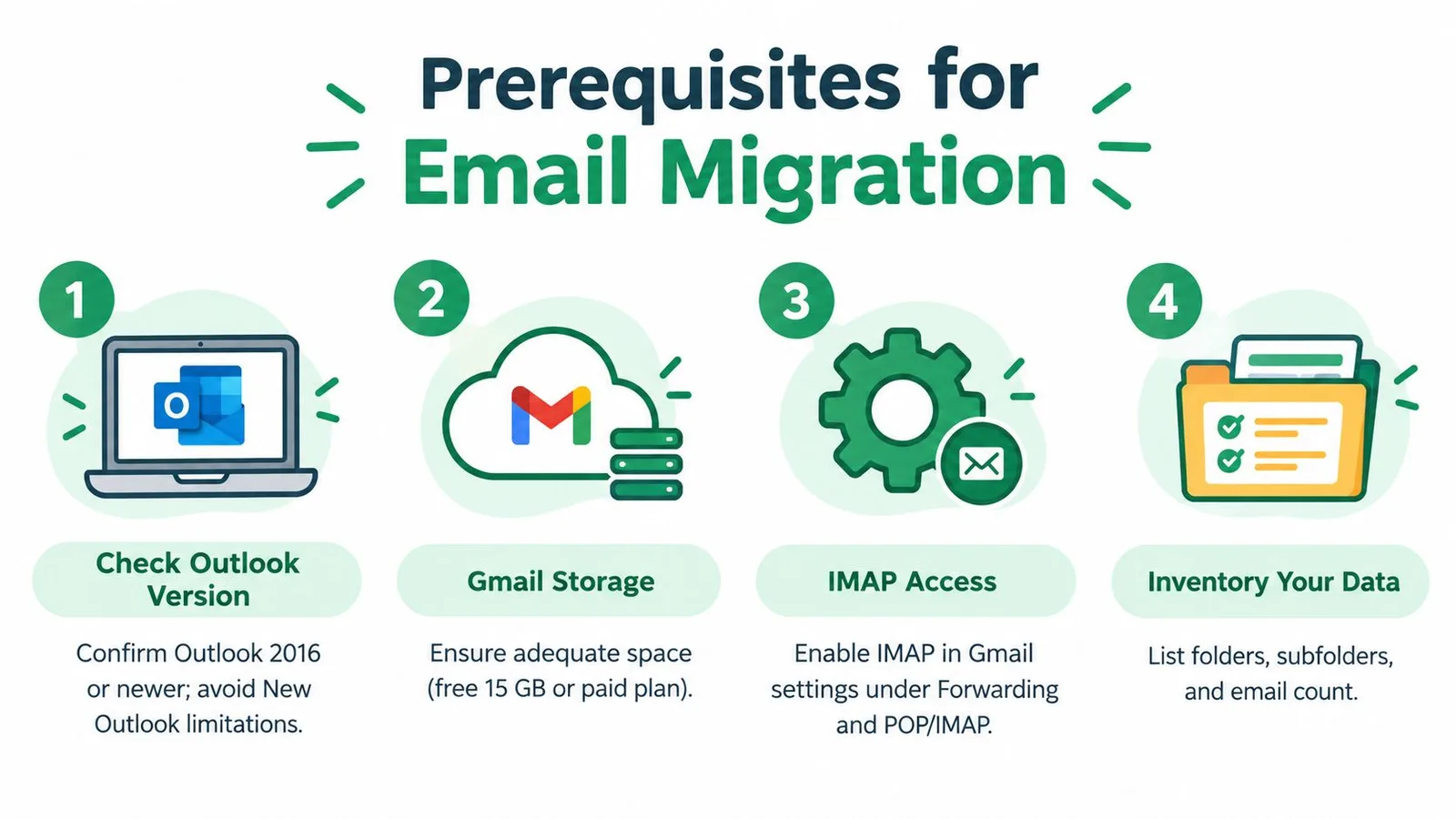
Preparation determines whether the transfer is controlled or improvised. Start by identifying which Outlook application you use. Classic Outlook has the established PST export wizard, while Microsoft’s current New Outlook has an important limitation: its support documentation states that importing a mailbox or calendar with a PST file is currently unsupported. Microsoft’s PST export instructions also specify that the wizard ends after you choose Outlook Data File (.pst), select a destination, and finish the export.
Confirm the destination before copying
Check the Gmail account’s available storage and make sure the account can receive the volume you plan to migrate. If you’re using Gmail through Google Workspace, confirm that the administrator permits the migration service or GWSMO. For a personal Gmail account, check the available import and IMAP options before committing to a PST-based workflow.
Review your Outlook folder tree manually. Include Inbox, Sent Items, Archive, Deleted Items where appropriate, custom folders, and nested folders. Partial exports often happen because someone selects one folder and assumes Outlook has included the rest. Write down the folder names and a practical sample of important messages, including old messages, messages with attachments, and messages with distinctive subjects.
Keep the source untouched
Exporting Outlook data creates a copy. Don’t delete the PST, remove Outlook, or empty the original mailbox until Gmail passes your checks. For business mail, a managed backup for Microsoft 365 can provide an additional preservation layer before migration, particularly when the mailbox contains records that must remain available during troubleshooting.
Decide how much operational risk you can accept:
- PST archival: Use this when offline completeness matters and you need a durable local archive.
- IMAP synchronization: Use this when Gmail must be added to Outlook and messages copied into Gmail’s server-side folders.
- Google migration tooling: Use this for larger or more complex mailboxes, especially in Google Workspace.
- Small import workflows: Use Gmail’s import features only when the transfer is limited and the folder structure is uncomplicated.
Make the readiness decision
Before starting, confirm these items:
- Outlook version: Know whether you’re using classic Outlook or New Outlook.
- Destination account: Verify Gmail access, storage, and administrator permissions.
- Folder inventory: Record every folder and nested folder that matters.
- Source protection: Keep Outlook and the exported data available until validation is complete.
- Batch plan: Prepare staged copying for a large mailbox instead of dragging everything at once.
If the mailbox includes thousands of messages or many folders, plan for controlled batches and post-transfer reconciliation. A migration that takes longer but produces a verifiable result is preferable to a fast copy that leaves Sent or Archive behind.
Choosing the Right Migration Method for Your Mailbox
The right method depends less on the word “export” and more on the relationship between mailbox size, folder complexity, account type, and synchronization needs. A handful of messages can tolerate a lightweight workflow. A business mailbox with multiple nested folders needs a process that can be monitored and reconciled.
Google Workspace Sync for Microsoft Outlook, or GWSMO, supports importing data from an existing Outlook profile or from a PST file exported from Outlook into a Google Account. Google’s GWSMO import documentation makes this a Google Workspace path, not a general promise that every consumer Gmail account can accept a PST directly.
| Method | Best For | Preserves Folders and Labels | Limitation to Know |
|---|---|---|---|
| IMAP through Outlook | Mailboxes where you need server synchronization into Gmail | Outlook folders can be copied into Gmail’s label structure | Manual copying can be slow and may create sync issues |
| Google Workspace migration tooling | Larger organizational mailboxes and managed migrations | Designed for structured service-based transfers | Requires Google Workspace administration and setup |
| PST with GWSMO | Google Workspace users who already have a clean Outlook export | Imports supported Outlook data into a Google Account | The PST must be exported first, and GWSMO is tied to Google Workspace |
| Gmail import or forwarding | Small, straightforward transfers and future incoming mail | Basic mail import can work for limited needs | It isn’t a complete mailbox reconstruction and may not preserve every folder relationship |
Choose by operational risk
IMAP is practical when Outlook remains your working interface during the copy. You add the Gmail account to Outlook, then copy messages into the Gmail folders. This gives you visibility into the operation, but manual handling becomes less attractive as folder count and message volume increase.
Google’s migration tooling is the stronger choice for managed environments. Google positions its data migration service as a way to copy existing email, data, and contacts from an external email service into Gmail. That makes it more appropriate when administrators need a repeatable process across organizational accounts.
GWSMO fits a specific Google Workspace scenario. It can bring an exported PST into a Google Account, but it shouldn’t be confused with a universal PST upload feature for consumer Gmail. If you’re supporting a broader business transition, guidance on how to migrate Aussie SMB email accounts can help frame the account, hosting, and DNS decisions that sit around the mailbox copy.
For teams that also manage inbound mail in Gmail, understanding incoming email servers helps separate mailbox migration from the later task of configuring how new messages reach the destination. Don’t use forwarding as a substitute for historical migration, and don’t use a manual drag-and-drop process when the mailbox requires systematic folder coverage.
How to Move Your Outlook Emails Into Gmail Step by Step
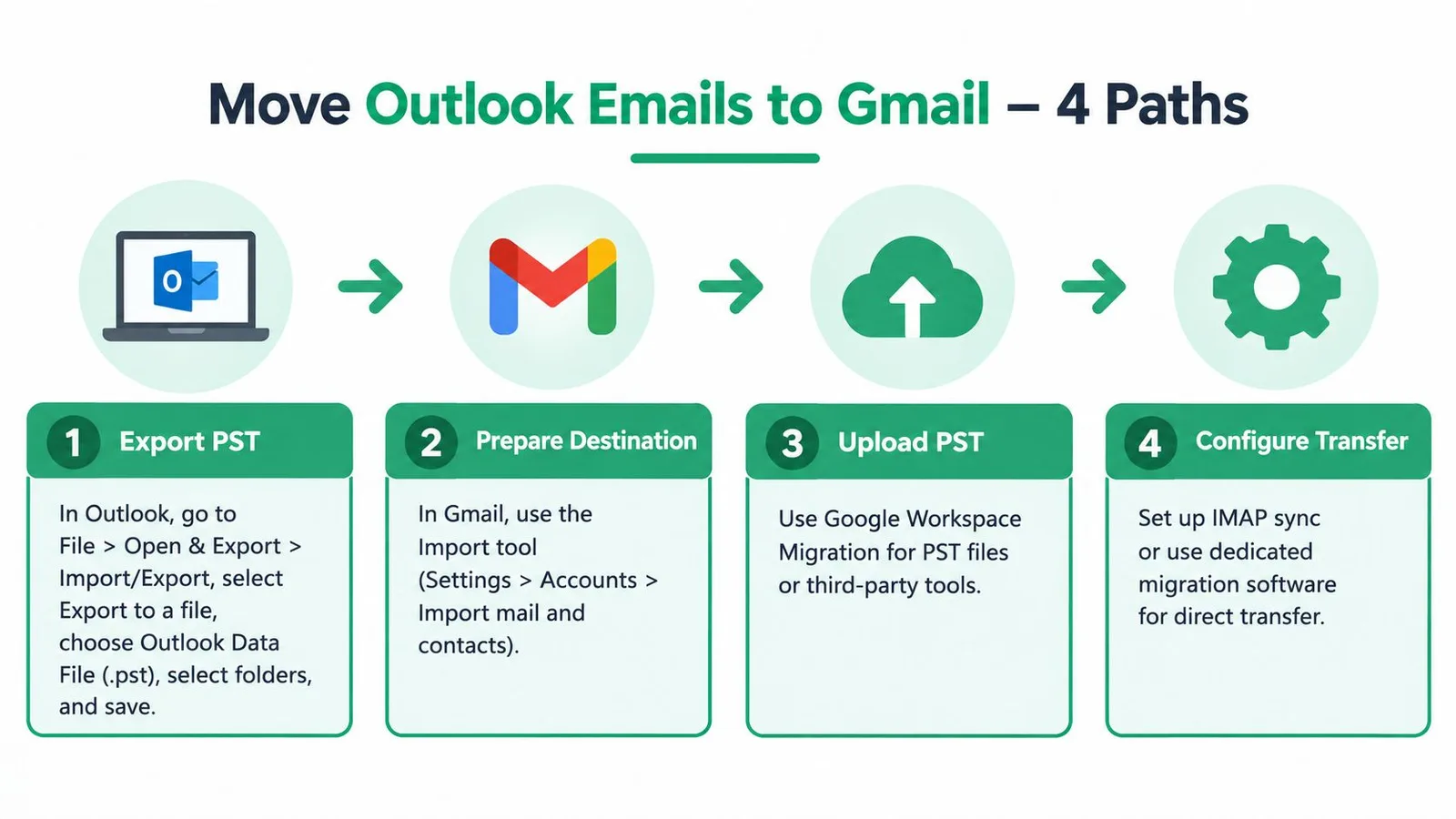
Begin with a preservation copy, then use the method that matches your environment. Microsoft’s built-in workflow starts at File > Open & Export > Import/Export, continues with Export to a file, and ends with Outlook Data File (.pst). Microsoft documents this as the standard archive format for moving mail out of Outlook before processing it for Gmail in another workflow. The full Outlook export sequence confirms those menu choices.
Export a PST from classic Outlook
Open classic Outlook and select File, then Open & Export, followed by Import/Export. Choose Export to a file, select Outlook Data File (.pst), and select the folders you want to include. Enable the option to include subfolders when it appears, choose a local destination, and complete the wizard.
Treat folder selection as a deliberate audit point. Expand the Outlook tree and confirm that Inbox, Sent Items, Archive, custom folders, and nested folders are included. If the wizard is configured around a selected folder, check whether the export scope includes the entire branch or only the highlighted folder. Keep the resulting PST in a protected location and don’t alter the source mailbox yet.
A PST alone doesn’t finish the Gmail migration. For Google Workspace, use a supported migration tool or GWSMO to process the exported file. For consumer Gmail, don’t assume that the general import screen accepts a PST as a direct mailbox replacement.
Copy through IMAP in Outlook
Add the Gmail account to Outlook using IMAP, then allow Outlook to display the Gmail folder structure. Create or identify the Gmail labels and destination folders you want to use before copying messages. Select a manageable group in an Outlook folder and copy it into the corresponding Gmail folder rather than moving the original items.
For larger mailboxes, copy in batches of 500 to 1,000 messages, a batching recommendation documented in a Texas A&M University migration guide. Staged copying reduces the size of each operation and makes failures easier to isolate. After every batch, wait for synchronization and inspect Gmail before starting the next one.
In Gmail, Outlook folders appear through Gmail’s label model, but the visual presentation may not match Outlook exactly. Check that messages with attachments open correctly, that dates match the Outlook originals, and that read and unread states are reasonable. Sample both ordinary messages and complex HTML messages with inline images or unusual formatting.
Use Google Workspace migration tooling
For an organizational migration, configure Google’s data migration service in the Workspace administrator environment. Select the source email service and destination Google Workspace account, provide the required source credentials or connection details, define the data categories to copy, and start with a controlled mailbox or limited scope if your administration process permits it.
Google’s service-based workflow is preferable to blind manual drag-and-drop when mailbox size and folder count create reliability concerns. Track which folders are included, watch the migration status, and review errors rather than treating a completed task as proof that every item arrived.
Once the copy finishes, compare the Outlook inventory with the Gmail label tree. Open representative messages from Inbox, Sent, Archive, and nested folders. Confirm attachment access, message dates, and status. Keep the source available until those checks are complete.
Import a PST with GWSMO
Install and configure GWSMO for the Google Workspace account, then select the option to import data from the exported Outlook profile or PST file. Point the tool to the correct PST and choose the data you want to bring into the Google Account. The file must already exist, because GWSMO doesn’t replace the Outlook export step.
Watch the destination during processing. GWSMO can map Outlook data into the Google environment, but Gmail’s labels won’t necessarily resemble the original Outlook tree perfectly. Review the folder mapping and inspect message samples after the import. If a folder is absent, don’t re-run the whole process immediately. Identify whether it was excluded during export, omitted during import selection, or mapped differently.
This video provides a visual reference for the broader Outlook-to-Gmail transfer process:
Across all four paths, the validation rule is the same: compare folder parity, inspect sample messages, and confirm the original data remains available. A green completion message is useful, but it isn’t a substitute for checking what users need to retrieve.
Fixing Common Problems After Exporting to Gmail
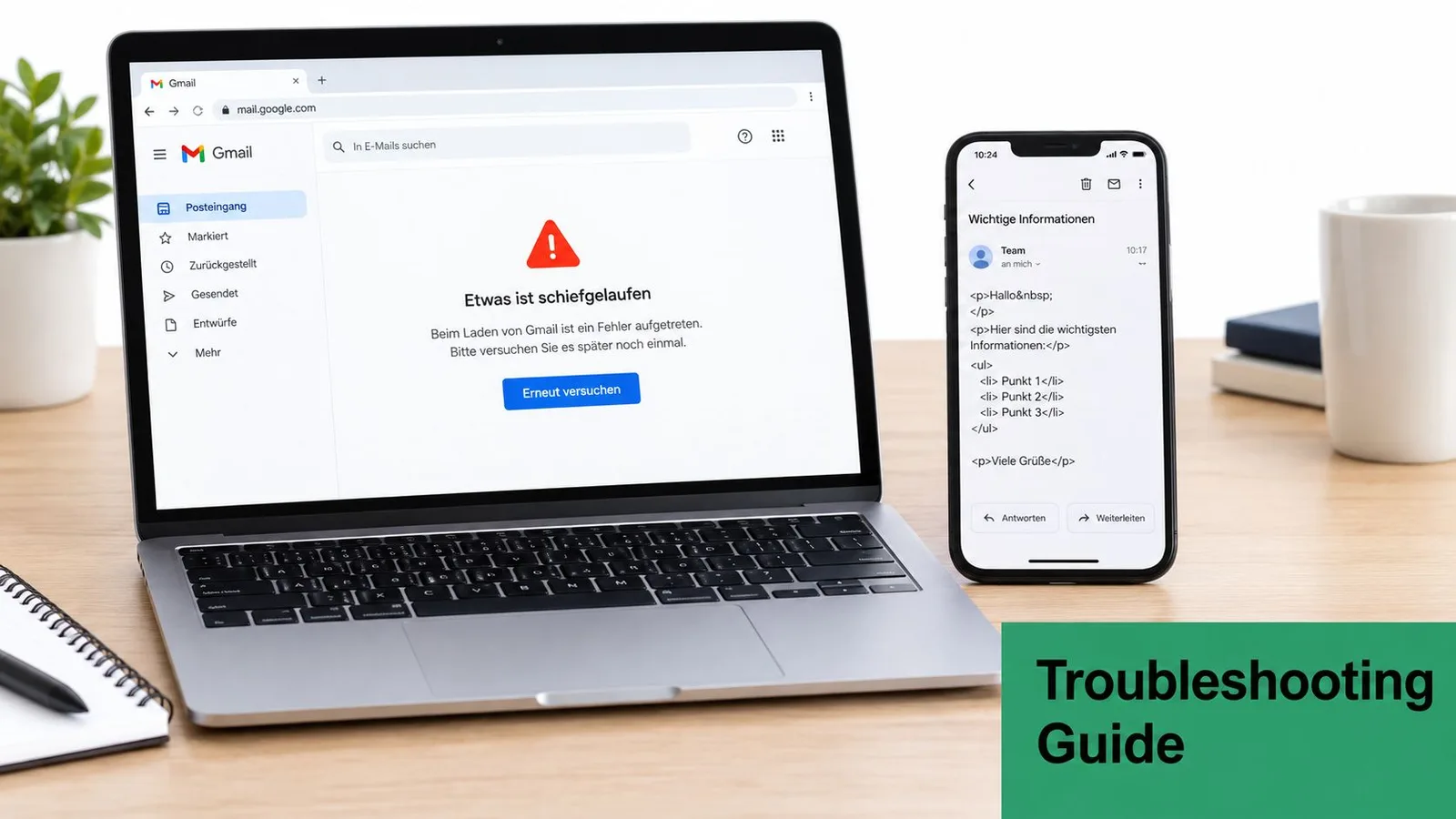
Most post-migration failures have a recognizable cause. A missing folder usually points to an incomplete export or an import selection that covered only part of the Outlook tree. Broken formatting may reflect how Gmail renders an Outlook-created HTML message, while duplicate messages often result from repeating a copy after the first transfer had already completed.
For larger transfers, Microsoft community guidance on moving Outlook mail points toward Google’s migration tooling or IMAP-based transfer rather than manual drag-and-drop. Mailbox size and folder count affect reliability and throughput, so a workflow that works for a few messages can become unreliable across a complex archive.
Missing Sent, Archive, or nested folders
Some PST workflows are folder-based, and certain processes export one folder at a time. If Inbox appears but Sent or Archive doesn’t, return to the Outlook folder tree and confirm that each required branch was explicitly included. Compare the Gmail label list with the source inventory before copying only the missing branch.
One-line fix: export or migrate the omitted folder separately, then validate it without disturbing completed folders.
New Outlook cannot complete a round trip
New Outlook can export a PST, but Microsoft’s current support position says that importing a mailbox or calendar from a PST isn’t supported in New Outlook. Users who expect to export, edit, and re-import within the same application can therefore hit a product limitation rather than a corrupted file.
One-line fix: use classic Outlook or an appropriate Google Workspace migration path to process the PST, and keep the original file unchanged.
Direct PST-to-IMAP sync becomes messy
A PST is a local Outlook data file, while IMAP synchronizes with a server mailbox. Directly forcing those models together can produce duplicate messages, inconsistent folders, or stalled synchronization. Treat the PST as an archive source and use a supported migration or controlled copy process instead of improvising a direct handoff.
One-line fix: choose either a clean PST import path or an IMAP copy path, not an untested hybrid that handles the same messages twice.
The export appears to have moved the mail
It didn’t. Outlook export creates a copy, which is why the original mailbox remains available after the PST is created. This is a protection, not a failure. Keep the source until folder parity, sample message content, attachments, dates, and message status have been checked.
If duplicates are present, stop copying and identify the overlap by folder, date, or subject before restarting. For messages that bounce after the migration, separate historical mailbox problems from future sending configuration and review bounce-back messages as a distinct deliverability issue.
Final Checks to Keep Every Email Intact in Gmail
A migration is complete when users can find the mail they need, not when a tool reports that processing has ended. Compare the Gmail label structure against the Outlook folder inventory. Check Inbox, Sent, Archive, custom folders, and nested folders individually, and investigate any branch that has no clear destination.
Open representative messages from each important folder. Confirm that the original date is visible, attachments download or open, HTML formatting is usable, and read or unread status is acceptable. Include older messages and messages with unusual attachments in the sample, because a recent plain-text message doesn’t test the difficult parts of the migration.
Keep the PST and the original Outlook account protected until the checks pass. If Gmail is becoming the primary operational mailbox, test new incoming mail, replies, searches, labels, and any shared workflow that depends on the account. For ongoing outreach, review email authentication separately so historical migration and future sending reliability don’t get confused.
A final preservation checklist should answer four questions:
- Folder parity: Does every required Outlook folder have a Gmail label or documented destination?
- Content integrity: Do sampled messages retain their body content, attachments, and dates?
- Operational access: Can users search, reply, archive, and receive new mail in Gmail?
- Recovery readiness: Is the original Outlook data still available if a missing item appears later?
Once those answers are clear, document the migration date, retain the archive according to your organization’s policy, and only then consider reducing dependence on Outlook.
Mail Merge for Gmail helps you continue customer outreach from the Gmail account you’ve just organized, using Google Sheets for recipients, personalized templates, attachments, scheduling, tracking, and unsubscribe management. Visit Mail Merge for Gmail to see how it can support structured, personalized sending without requiring another inbox migration.
Ready to send your first campaign?
Install Mail Merge for Gmail from the Google Workspace Marketplace and send up to 50 personalized emails per day for free.
Get started for freeMore reading
More from Guides
Gmail Warm-Up: How to Warm Up a Gmail Account Before a Mail Merge
Gmail warm-up explained with Google's own ramp-up rules: who needs it, a four-week manual schedule from Google Sheets, and how Mail Merge's warm-up works.

Mail Merge with CC and BCC in Gmail: Copy the Right People on Every Email
Learn how to run a mail merge with CC and BCC from Google Sheets, set up the columns, preview the result and see how copied recipients count toward your daily quota.

Gmail Sending Limit Reached: What It Means and How to Finish Your Campaign
Hit the Gmail sending limit reached error? Learn the real daily limits, when you can send again, and how to split a mail merge into safe daily batches.