


















How to Send Mail to Multiple Recipients in Gmail
Learn how to send mail to multiple recipients in Gmail using Mail Merge for Sheets. Step-by-step setup, scheduling, deliverability tips, and tracking.
You’ve got a list of customers, prospects, candidates, or event attendees, and Gmail makes the obvious solution look easy: paste the addresses into a recipient field and click Send. That shortcut can expose private addresses, send one generic message to everyone, or consume your account’s quota much faster than expected.
The practical answer depends on your goal. To and Cc work for visible collaboration, Bcc protects addresses for a simple private announcement, and mail merge creates separate personalized messages for outreach that needs better control. This workflow shows how to estimate true recipient volume, prepare a Google Sheet, personalize messages, send within Gmail’s limits, and use per-recipient tracking to identify what happened after launch.
Why Sending to Multiple Recipients Is Trickier Than It Looks
A sales representative pastes a long list into Gmail before a meeting. The message looks like one email in the Sent folder, but Gmail processes every address in To, Cc, and Bcc as a recipient. If the list contains hundreds of addresses, one careless blast can quickly create bounces, spam complaints, throttling, or a temporary account restriction.
The privacy mistake is just as common. Cc exposes every address to every recipient, while Bcc hides the list but sends identical content to everyone. Bcc is appropriate for a one-off private announcement, but it doesn’t provide individual personalization, recipient-level reporting, or a clean reply workflow.
Practical rule: If recipients need to collaborate visibly, use To or Cc. If they shouldn’t see one another, use Bcc for a simple announcement or send separate messages through mail merge.
Choose the workflow before adding addresses
For a small internal update, put the people responsible for action in To and add observers in Cc. For a customer notice where recipients don’t know one another, place your own address in To and the list in Bcc. For sales, recruiting, fundraising, or customer follow-up, use one personalized message per person instead of a shared thread.
That distinction matters because the history of multi-recipient email has moved from simple distribution toward measurable communication. Enterprise documentation describes recipient-level merge histories, batch records, and status outcomes such as sent, opened, clicked, replied, bounced, and unsubscribed in modern sending workflows. Oracle NetSuite’s bulk merge history documentation illustrates how individual communication records can be retained instead of treating a campaign as one undifferentiated action.
Estimate people, not messages
Before sending, count rows in your list, then add any CC or Bcc addresses that will be included on each message. A mail merge turns each qualifying spreadsheet row into its own recipient-level send, so the sheet becomes the planning source and the reporting record.
By the end of this process, you’ll have a clean recipient sheet, a template with working merge fields, a tested batch, and status data showing which messages were sent or engaged with. That preparation is more reliable than trusting the apparent number of messages in Gmail’s interface.
How Gmail Counts Recipients Behind the Scenes
Gmail’s quota math is based on recipients, not merely the number of times you click Send. Google’s support guidance states that a long-established personal Gmail account may have a 500-email rolling 24-hour limit, and each address in To, Cc, or Bcc counts individually. Google’s sending-limit example explains that one address in To plus ten in Bcc counts as eleven emails against the limit.
Google Workspace provides a higher ceiling, but it still counts every recipient. A Workspace user can send up to 2,000 recipients per day, with up to 500 external recipients in one message. Google Workspace’s Gmail sending limits also explains that recipients across To, Cc, and Bcc are counted separately, and that Gmail mail merge, formerly called multi-send, is limited to 1,500 recipients per day.
Gmail Recipient Counting Rules at a Glance
| Recipient Source | Personal Gmail | Google Workspace |
|---|---|---|
| Daily recipient ceiling | 500 recipients per rolling 24 hours | 2,000 recipients per day |
| External recipients in one message | Up to 500 | Up to 500 |
| To, Cc, and Bcc | Each address counts | Each address counts |
| Gmail mail merge | Not covered by the Workspace mail merge allowance | Up to 1,500 recipients per day |
Bcc doesn’t bypass the quota. A message with your address in To and a large hidden list in Bcc still consumes one allowance unit for every address. Forwarding or replying to a thread can also add another group of recipients, especially when Cc is carried into the reply.
Sending methods introduce another layer. Google Workspace accounts can send up to 2,000 recipients per day, while SMTP or IMAP submission may limit a message to 100 recipients. Microsoft 365 and Exchange Online have their own constraints, including a 30-messages-per-minute rate and a 10,000-recipient rolling 24-hour cap. This provider-limit comparison shows why the sending method and mailbox provider both matter.
The practical consequence is simple. A CC or Bcc blast that looks like one email to you may represent hundreds of counted recipients to Gmail. Mail merge avoids the exposed group thread by creating one message per spreadsheet row, while still requiring you to plan around the account’s actual quota.
Preparing Your Recipient Sheet in Google Sheets
A useful mail-merge sheet has one row per recipient and one clearly named column for each value you want to use. Start with Email, First Name, and Company, then add campaign-specific fields such as Invoice ID, Event Date, Role, or Attachment File.
Keep operational fields beside the merge data. A Send column can separate the test batch from the full audience, while later columns can hold status, timestamps, and follow-up notes. Treat the sheet as the source of truth, not as a temporary place to paste addresses.
Bring in contacts without losing structure
You can import a CSV export, paste records from a CRM, or copy a prepared range from another Google Sheet. If your contacts live in Google Contacts, export or transfer the relevant group into a sheet first, then map the resulting email field into a consistent Email column.
For broader list-management guidance, the Alignmint mailing list guide is useful when you need to think about list organization, ownership, and maintenance before launching a campaign.
Clean the rows before connecting the add-on
Remove blank email cells, normalize obvious formatting inconsistencies, and inspect duplicates before drafting. Google Sheets can help with this using formulas such as UNIQUE to surface repeated addresses and FILTER to isolate rows that meet conditions such as a populated email field and an enabled Send value.
A practical layout might look like this:
| First Name | Company | Send | Status | |
|---|---|---|---|---|
| person@example.com | Jordan | Example Co | TRUE | Ready |
| other@example.com | Priya | Sample Ltd | FALSE | Test |
Use Data validation to create a dropdown for fields such as Send, Segment, or Status. A Boolean Send column also gives you a controlled test batch. Set it to TRUE for your own address and a small group of internal reviewers, then switch only approved rows to TRUE after checking the preview.
When the sheet is ready, open the Google Sheets add-on menu and connect it to Mail Merge for Gmail. Authorize the requested Google scopes, choose the Email column as the recipient source, and map the remaining headers to merge fields. The Google Sheets mail merge add-on guide provides a focused reference for that connection process.
Building a Personalized Template That Actually Converts
Open a new Gmail compose window and write as though you’re emailing one person. Keep the first paragraph short, make the sender recognizable, and give the reader one clear next action instead of several competing links.
Mail merge fields should match your sheet headers. Use tokens such as {{First Name}}, {{Company}}, or {{Invoice ID}}, then use the preview or merge-field controls to verify that each token resolves correctly. A name token alone is weak personalization. The message becomes more credible when the body also uses a relevant company, role, project, or document field.

Keep the message easy to recognize
Use a subject under 60 characters as a practical editorial guideline, and put a familiar sender name near the start of the message. Add a plain-text fallback line for readers who don’t load rich formatting, and keep the call to action focused on one reply, booking link, confirmation, or document review.
Personalization depth affects expected replies. Benchmark-style data place generic templates around 0.5% to 2% reply rates, basic personalization around 2% to 4%, moderate personalization around 4% to 7%, and high-research personalization around 7% to 12%. The personalization benchmark source supports the operational lesson: deeper relevance can materially outperform a message that only inserts a first name.
Handle CC, Bcc, and attachments deliberately
Use CC only for a small, intentional group that should be visible on every individual message. Leave CC and Bcc blank when each send should remain a private To-only conversation. Bcc protects addresses, but it doesn’t make a generic campaign feel personal or reduce Gmail’s recipient counting.
For per-recipient documents, place the matching filename in an Attachment File column and use the add-on’s attachment mapping. This works well for invoices, proposals, certificates, or event documents, provided the filenames are consistent and each row points to the intended file. The mail merge formatting guide is a useful reference when your template includes richer formatting or custom HTML.
Previewing, Sending, and Scheduling the Campaign
Return to the Google Sheet and choose Mail Merge, then Send Emails. Confirm the sender account, Gmail draft, recipient range, and mappings for To, CC, BCC, and attachments before the add-on queues anything.
Use Send Preview before the actual run. Preview your own row and at least one row for each meaningful variation, such as a missing company, a different attachment, or an optional paragraph. Stray curly braces, blank fields, and malformed links are much easier to fix before delivery than after hundreds of recipients receive them.
Select timing based on the campaign
Choose Send Immediately when timing matters, such as a meeting confirmation or deadline reminder. Choose Schedule Send when you want to stage outreach across working hours, account for recipient time zones, or prepare the next morning’s campaign without launching it immediately.
Mail merge batching helps keep a campaign inside provider constraints. The product workflow is designed around groups of around 40 messages, and its daily personalized-send limit is 1,500 recipients. A 1,200-row list therefore runs as roughly 30 batches rather than one giant blast, subject to account and provider limits. Those figures are operational details of the Mail Merge for Gmail workflow, so verify the current add-on settings and Gmail allowance before a large campaign.
Keep the sheet open while the run processes. Watch the Status column move from Queued to Sent, and stop if rows remain stalled, errors appear, or Gmail begins showing throttling warnings. A campaign isn’t finished merely because the add-on started it. Confirming completion protects you from assuming that unprocessed rows reached the inbox.
Tracking Opens, Clicks, and Replies Without a Separate Email
The recipient sheet becomes the campaign dashboard after launch. Per-row reporting lets you distinguish a message that was sent from one that was opened, clicked, or answered, which is far more useful than treating the entire batch as successful.
Mail Merge for Gmail can write statuses such as Sent, Opened, Clicked, Bounced, and Replied back to the relevant row, with timestamps and event details where available. A click event may identify the link involved, while a reply event can point you toward the Gmail conversation that needs attention.
Read engagement as a queue
Don’t treat every open as buying intent. Image proxying, privacy controls, and link-tracking blockers can make open and click signals incomplete, so reply rate is usually the more actionable primary metric for direct outreach. An open tells you that a message may have been viewed. A reply creates a conversation you can qualify.
| Status Column | What It Means | Suggested Action |
|---|---|---|
| Sent | The message was processed for the row | Check for later delivery or engagement signals |
| Opened | An open event was recorded | Review context before considering a follow-up |
| Clicked | A tracked link received an interaction | Prioritize a relevant, non-repetitive response |
| Bounced | Delivery failed | Correct, suppress, or investigate the address |
| Replied | The recipient answered | Move the row into active conversation handling |
Share the useful view, not the whole database
Collaborators can review a filtered Google Sheets view that exposes campaign progress while limiting unnecessary personal data. Keep addresses, notes, and sensitive fields restricted, then share only the columns needed for pipeline review.
Warm responders should move into a follow-up segment while the conversation is relevant. Cold rows shouldn’t automatically receive another identical message. Suppress them, change the nurture path, or review the original targeting before attempting another contact. The Gmail email-open tracking guide covers the mechanics of interpreting these engagement events inside a Gmail-centered workflow.
Compliance, Privacy, and the Habits That Protect Your Inbox
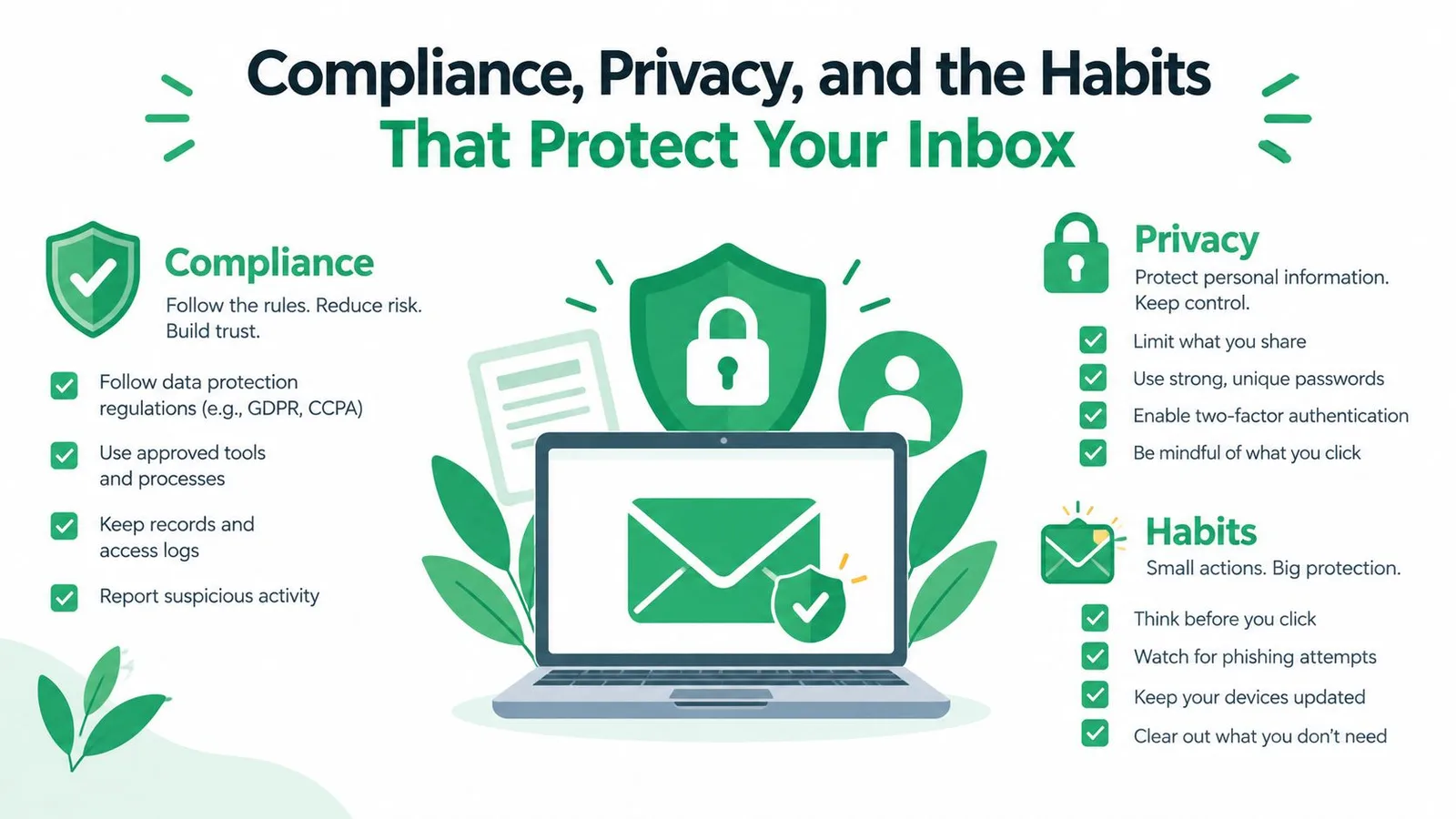
Sending to multiple recipients is a compliance workflow, not just a faster way to fill a recipient field. Cc can disclose personal email addresses, while Bcc hides them from other recipients. Guidance referencing the European Data Protection Board recommends using Bcc by default when sending to multiple people, making privacy a deliberate control rather than an afterthought. This explanation of To, Cc, and Bcc provides useful context for the distinction.
Marketing-style outreach also needs a clear identity and an effective opt-out path. Depending on the audience and jurisdiction, review obligations under GDPR, CAN-SPAM, and CASL, identify the sender in the signature, include a physical address, and make unsubscribing straightforward. A reply-based opt-out can work when the communication context and consent basis support it, but it must be monitored and honored.
Protect reputation as well as privacy
Authenticate the sending domain with SPF, DKIM, and DMARC, apply your suppression list, and keep repetitive outreach controlled. Avoid spammy trigger language, maintain a sensible balance between images and text, and warm up a new account with lower-volume campaigns before increasing activity.
Modern sender guidance increasingly treats bulk mail as a deliverability issue rather than a simple CC or Bcc question. Current guidance emphasizes authentication and one-click unsubscribe for marketing mail under RFC 8058. This sender-guidelines checklist explains why unsubscribe mechanics and sender reputation now belong in the same pre-send review as recipient privacy.
Before launch, check:
- Recipient data: The sheet has clean addresses, no unintended duplicates, and a suppression list applied.
- Domain setup: SPF, DKIM, and DMARC are aligned for the sending domain.
- Template quality: The subject stays under 60 characters, merge fields resolve, and the sender is recognizable.
- Privacy controls: To, CC, and BCC mappings match the intended audience, with no accidental address disclosure.
- Compliance path: The signature identifies you, the physical address is present where required, and opt-outs are easy to submit.
- Testing: A test row was sent to yourself, links were checked, attachments matched, and the first batch is monitored.
Use that checklist before every substantial send, not only the first one. A clean sheet, controlled batching, and recipient-level records give you a practical audit trail while protecting the inbox that sends your everyday one-to-one mail.
Mail Merge for Gmail connects Google Sheets with Gmail so you can import recipients, personalize messages, preview rows, schedule sends, and write delivery and engagement statuses back to the sheet. Visit Mail Merge for Gmail to set up a controlled multi-recipient workflow that keeps privacy, quota planning, and follow-up tracking in the same place.
Ready to send your first campaign?
Install Mail Merge for Gmail from the Google Workspace Marketplace and send up to 50 personalized emails per day for free.
Get started for freeMore reading
More from Guides
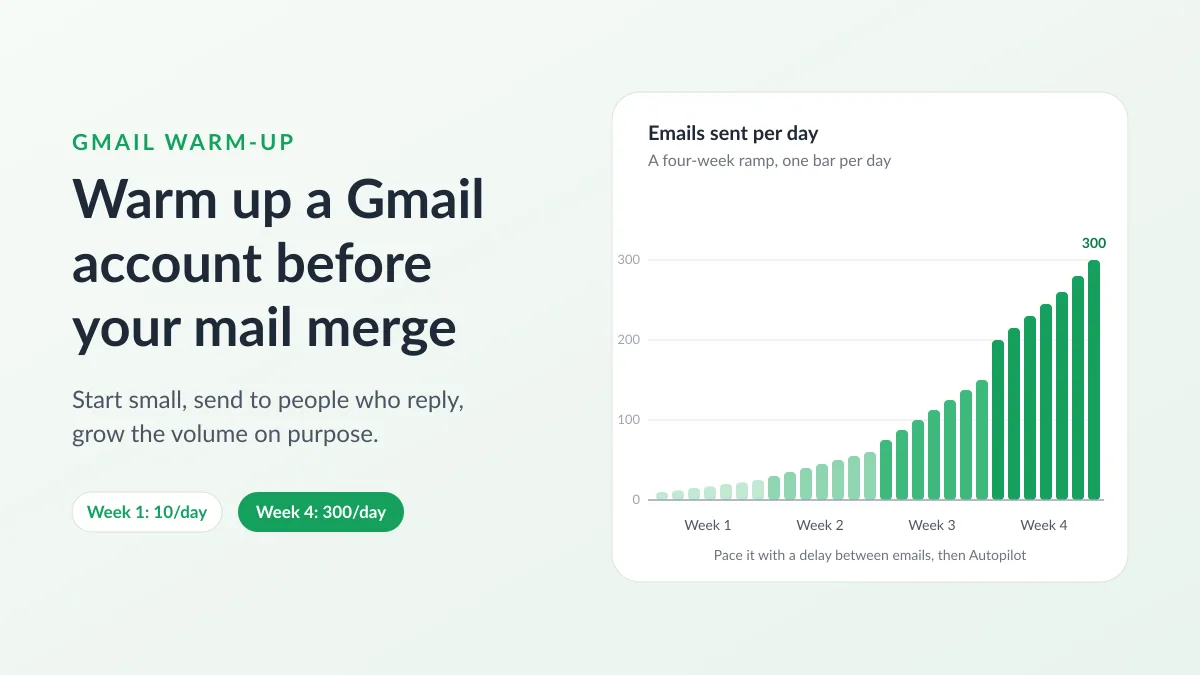
Gmail Warm-Up: How to Warm Up a Gmail Account Before a Mail Merge
Gmail warm-up explained with Google's own ramp-up rules: who needs it, a four-week manual schedule from Google Sheets, and how Mail Merge's warm-up works.

Mail Merge with CC and BCC in Gmail: Copy the Right People on Every Email
Learn how to run a mail merge with CC and BCC from Google Sheets, set up the columns, preview the result and see how copied recipients count toward your daily quota.

Gmail Sending Limit Reached: What It Means and How to Finish Your Campaign
Hit the Gmail sending limit reached error? Learn the real daily limits, when you can send again, and how to split a mail merge into safe daily batches.