


















How to Import Emails to Gmail from Outlook in 2026
Need to import emails to Gmail from Outlook? This guide shows you how to migrate from Outlook.com or desktop PST files, step-by-step, while preserving folders.
Your Outlook history usually isn’t just “old email.” It’s customer approvals, renewal threads, invoices, hiring conversations, and years of decisions you may need again. Meanwhile, your day-to-day work has already moved into Gmail. That split inbox setup works until the moment you need one message fast and can’t remember whether it lives in Outlook webmail, the Outlook desktop app, or a local archive file buried on one laptop.
Those who import emails to Gmail from Outlook aren’t trying to do something fancy. They want one searchable home for mail, fewer missed threads, and less context-switching. That’s a sensible goal. Gmail search is strong, and if the rest of your workflow already sits in Google Workspace, consolidating mail usually makes daily work simpler.
The catch is that “Outlook” can mean two very different things. Sometimes your mail lives in a web account such as Outlook.com or Microsoft 365 webmail. Other times it lives in the Outlook desktop app and has been exported or stored in a local PST file. Those paths do not migrate the same way, and using the wrong method is where people lose folder structure, thread context, or patience.
Unifying Your Inboxes from Outlook to Gmail
A common scenario looks like this. Your current team sends and receives everything in Gmail, but your older records still sit in Outlook. You search Gmail first, don’t find what you need, open Outlook, search again, and then wonder which system has the final version of the conversation.
That friction adds up. It slows down support replies, sales follow-ups, finance checks, and basic admin work. A unified mailbox doesn’t just save clicks. It reduces the chance that an important message gets overlooked because it lives in the “other” inbox.
When clients ask whether this migration is worth doing, the answer usually depends on one thing. Are they still actively referring back to old Outlook conversations? If yes, moving that history into Gmail is often the cleanest option. It gives you one place to search, one interface to train people on, and fewer handoffs between tools.
If you also juggle multiple Google identities, it helps to get that side cleaned up before or during the move. This guide on how to log into another Gmail account is useful if your migration also involves switching between personal and work inboxes during the transition.
Keep the old Outlook data intact until you’ve verified the Gmail copy. Migration is easier to fix when the source is still available.
There’s a clear path forward, but the right path depends on where your Outlook mail lives. That’s the decision that determines whether this is a smooth background import or a more deliberate archive migration.
Choosing the Right Migration Path for Your Outlook Setup
A migration can look successful on day one and still create cleanup work for weeks. I see this all the time. Messages arrive in Gmail, but threads split apart, archive folders flatten out, and users start asking why a five-email exchange now looks like five unrelated items.
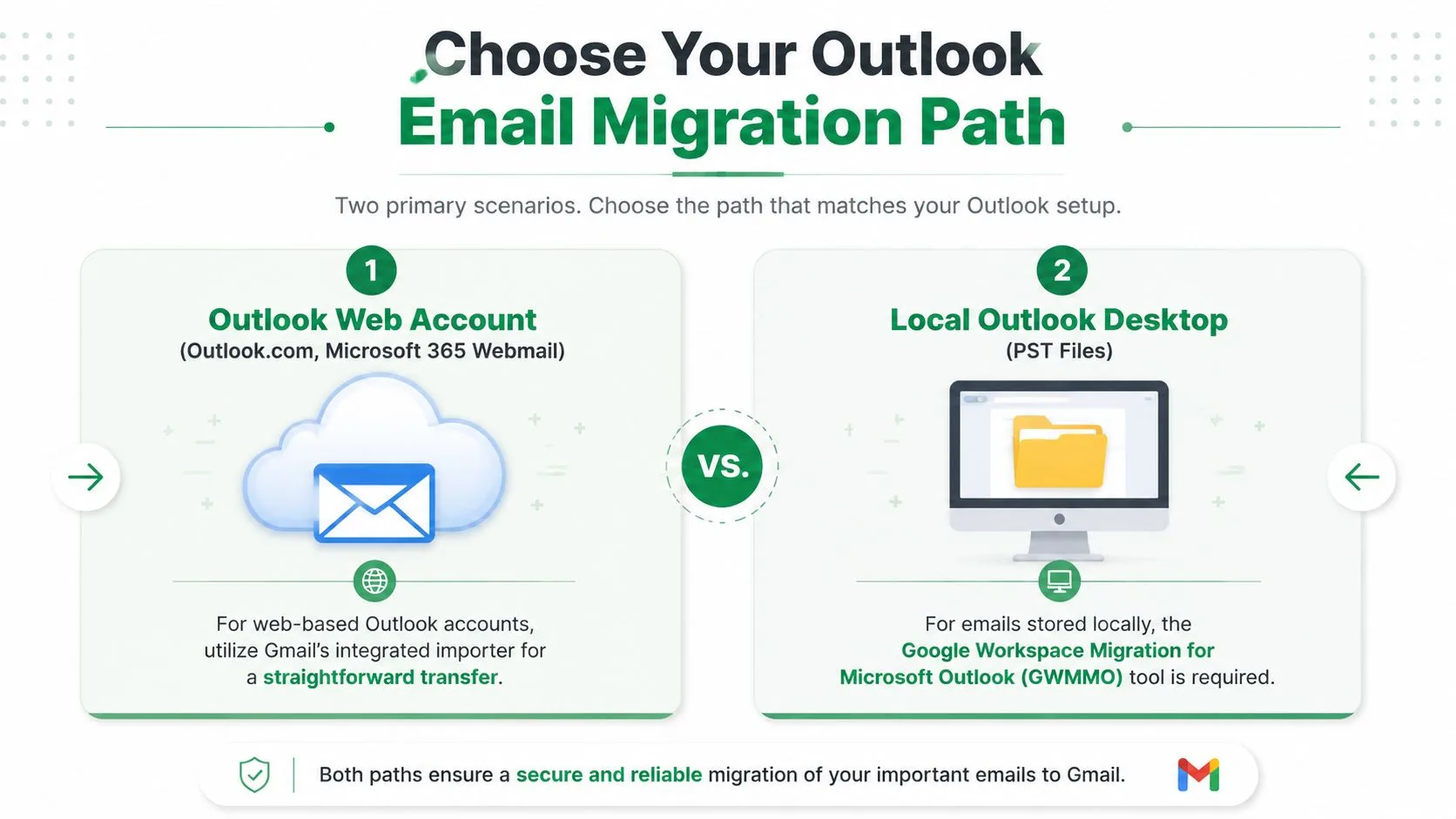
The right method depends on where Outlook stores your mail. Outlook on the web and Outlook desktop with a PST file are not the same job, even if both are called “Outlook” in everyday conversation.
Two Outlook setups that need different tools
| Outlook setup | Best migration method | Best for | Main trade-off |
|---|---|---|---|
| Outlook Web Account | Gmail’s built-in Import mail and contacts | Personal Outlook.com and simpler webmail moves | Fastest setup, but folder handling and conversation continuity can be limited |
| Local Outlook Desktop with PST | Google Workspace Migration for Microsoft Outlook (GWMMO) | Desktop Outlook archives, work mailboxes, PST-based history | More setup, but better control over folders, message history, and related mailbox data |
If your mail lives in Outlook.com or another web-based Microsoft account, Gmail’s built-in importer is usually the practical choice. You connect the account, authorize access, and let Gmail pull the content over.
If your mail lives in the Outlook desktop app or inside a local .pst file, use GWMMO instead. That tool was built for Outlook data files, which makes it the better option for larger archives and mailboxes where structure matters.
The threading and folder problem many guides skip
This is the part users notice after the migration, not during it.
A mailbox is more than a list of messages. It works like a filing cabinet with a conversation log attached. If the import method only grabs raw mail and does a weak job preserving how Outlook grouped it, Gmail can end up with the right messages in the wrong shape. The mail is technically there, but the context is harder to follow.
For business users, conversation history often matters as much as the message itself. Sales, support, recruiting, and finance teams all depend on being able to open one thread and see the back-and-forth in order. Microsoft community discussions have noted that some transfer methods can disrupt that continuity, especially when the process treats messages as individual downloads instead of preserving more of the Outlook structure (Microsoft Answers discussion on threading loss during transfer).
Folder structure causes the same kind of trouble. Outlook users often keep years of mail sorted into project folders, client names, departments, or archive trees. If preserving those folders matters, choose the method that reads Outlook data directly rather than the one that is quickest to start.
Decision rule: Use Gmail’s importer for web-based Outlook accounts. Use GWMMO for desktop Outlook and PST archives, especially if you care about folders, long email threads, or mailbox history that people still reference.
For teams planning a broader Microsoft-to-Google transition, this Office 365 migration playbook 2026 is a useful companion read because it treats mailbox migration as an operating change, not just a file transfer.
Using Gmails Built-in Importer for Outlook Web Accounts
If your mail is in an Outlook web account, Gmail’s built-in importer is the simplest place to start. This method is best when you want Gmail to pull mail directly from the Outlook side without exporting files first.
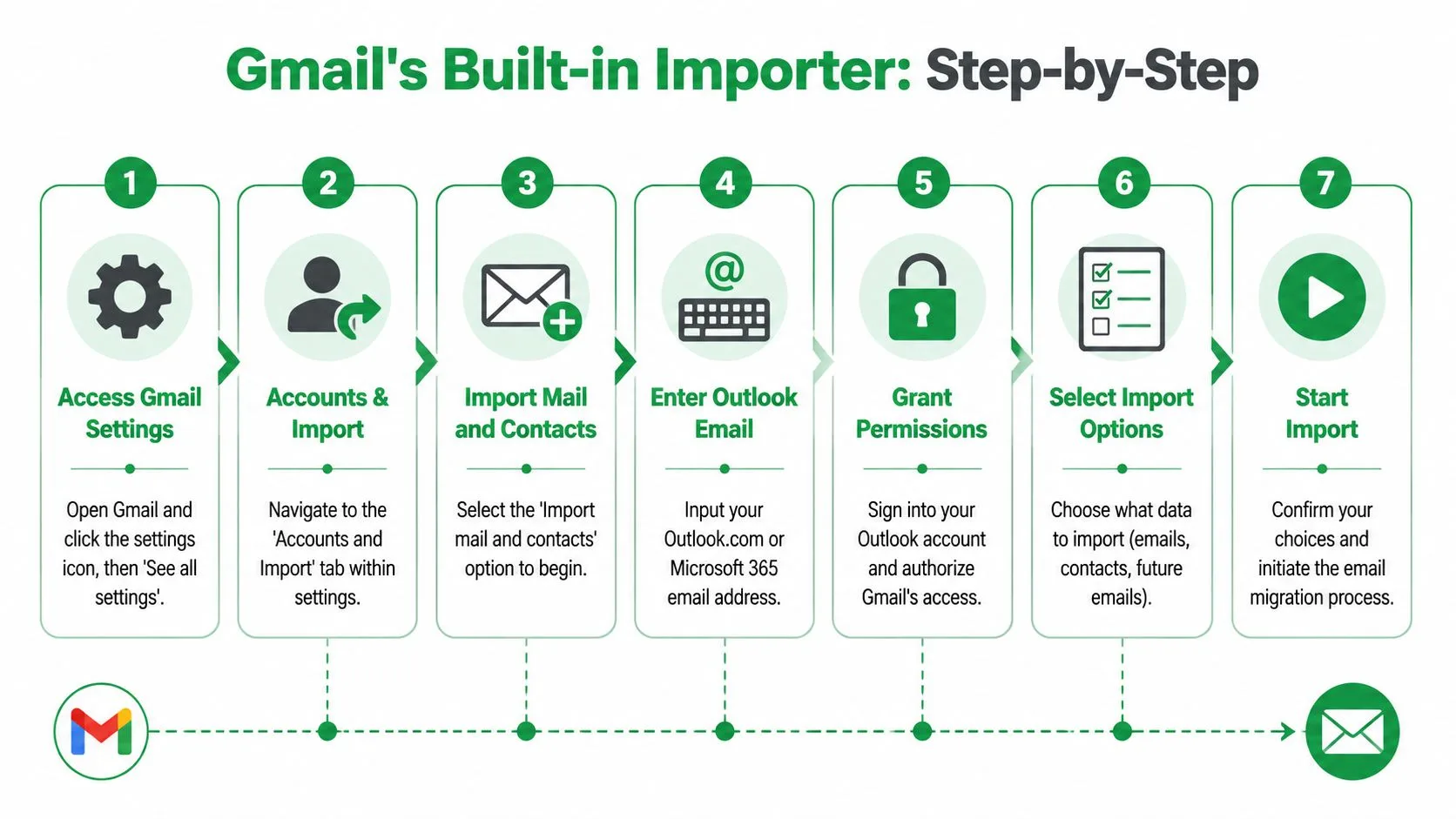
The step-by-step path in Gmail
- Open Gmail.
- Click the gear icon.
- Choose See all settings.
- Open the Accounts and Import tab.
- Click Import mail and contacts.
- Enter your Outlook email address.
- Sign in to Outlook and approve access.
- Choose what to import, then start the process.
That’s the exact menu path that trips people up most often. They look in forwarding, account management, or Google Account settings. It’s all under Accounts and Import inside Gmail itself.
A video walkthrough can help if you want to see the flow before clicking around:
Which boxes to select
When the import window appears, Gmail may offer a few choices such as importing contacts, importing mail, and importing new mail for a period after setup. For a clean mailbox consolidation, it’s advisable to focus on mail first and think carefully before leaving ongoing fetch options enabled.
Practical rule: If your goal is a one-time migration, avoid turning a cleanup project into a long-term dual-delivery setup unless you have a specific reason.
What works well here is simplicity. Gmail handles the retrieval in the background. What doesn’t work well is expecting immediate visibility into every imported message as it arrives. This is a server-to-server job, not a drag-and-drop transfer you can watch in real time.
What to expect after you click start
Gmail’s native Import mail and contacts feature is designed to take up to 2 days for the full process, with that background window allowing Gmail to retrieve headers, body content, and attachments from the Outlook archive (YAMM guide to transferring Outlook emails to Gmail).
That timing matters because users often assume the import has failed when they don’t see everything in the first hour. In practice, Gmail continues working in the background. New mail to Gmail still arrives normally while the older Outlook content is being fetched.
A few practical notes help avoid confusion:
- Leave the source account accessible: Don’t change passwords or revoke access mid-import.
- Be patient with large archives: Gmail doesn’t expose granular progress for every message.
- Expect uneven arrival order: Older mail may appear before or after newer folders depending on how the fetch proceeds.
If you’re handling this move as part of a wider small-business cloud shift, these insights for Indiana cloud migration offer a grounded look at the planning side that often gets ignored until users start asking where their data went.
Migrating Local Outlook PST Files with GWMMO
A local PST changes the job completely. If years of mail live on one Windows PC instead of an Outlook.com or Microsoft 365 mailbox, Gmail’s built-in importer is not the right tool. Use Google Workspace Migration for Microsoft Outlook (GWMMO) for this setup.
That choice matters for two reasons users notice right away. First, PST-based moves often include the mail people care about most: old project folders, sent mail, and archived conversations. Second, if you pick the wrong method, Gmail may end up with the messages but not the structure people rely on to find them. I see this a lot in small office migrations. The mail arrives, but folder history is flattened, labels are messy, and conversation threads look broken because related messages landed under different labels.
Export the PST cleanly before you migrate
Start in Outlook desktop:
File > Open & Export > Import/Export > Export to a file
Choose Outlook Data File (.pst) and export the mailbox, or only the folders that still matter. This step is less about creating a file and more about deciding what should follow you into Gmail.
Use a little restraint here. Old junk folders, duplicate archives, and half-forgotten local stores only make the Gmail side harder to sort out later. A cleaner PST usually produces cleaner labels after migration.
A few habits help:
- Export only current, useful mail: Leave behind trash, spam, and outdated local copies.
- Use a clear file name: Include the user name and date so you do not guess later.
- Save it locally first: An unstable network share or sync folder can interrupt a long import.
- Check folder names before export: Nested or inconsistent Outlook folders often create confusing labels in Gmail.
The PST works like a packed moving box. If it is disorganized before the move, Gmail will preserve that disorder rather than fix it.
Install GWMMO on the right machine
Install GWMMO on a Windows computer that can open the PST and sign in to the destination Google account. In practice, the safest machine is usually the one that already has Outlook configured and can read the archive without any permission issues.
Keep the environment quiet while you set this up. Close Outlook unless GWMMO needs it open for profile access. Pause anything that may lock the PST, including backup agents or aggressive cloud sync tools. Those background conflicts are a common reason large imports stall.
GWMMO also lets you choose what to bring over. If the Outlook profile still has useful contacts and calendar items, include them in the same planned run. If the goal is email only, keep it email only. Extra data types can add time and create cleanup work if nobody asked for them.
Preserve structure as much as Gmail allows
Point GWMMO to the correct PST, choose the content to migrate, and start the import. The tool does a better job than manual workarounds because it is built for Outlook data rather than forcing a local archive through a web-account workflow.
The trade-off is that Gmail does not use folders the same way Outlook does. Outlook folders usually come across as Gmail labels. That is close, but not identical. A message can sit under multiple labels in Gmail, and conversation view can combine related messages in ways that feel unfamiliar to longtime Outlook users.
If preserving order matters, clean up the Outlook folder tree before you run GWMMO. Merge duplicate folders, fix vague names, and decide whether old archive folders should stay separate or be grouped. After import, you can refine the result by creating and organizing Gmail labels to mirror important Outlook folders.
Threading needs the same kind of realism. Gmail conversation view is not a perfect copy of Outlook’s reading experience. In well-structured mailboxes, related messages usually group sensibly. In messy mailboxes with years of forwarded chains, subject changes, and copied items stored in multiple folders, some conversations will need manual review. That is normal.
GWMMO versus manual PST work
Here is the practical comparison:
| Approach | Best use case | Common downside |
|---|---|---|
| GWMMO | Full PST migrations with folders, sent mail, contacts, and calendars | You still need to review labels and conversation grouping after import |
| Manual drag-and-drop or forwarding | Very small, selective moves | Easy to lose folder context, duplicate messages, or break message history |
| Gmail built-in importer | Live web-based Outlook accounts | It does not directly import local PST archives |
For team migrations, planning the mailbox structure before the move saves more time than any tool choice after the fact. The same principle shows up in other admin work too. These top Google Workspace tools for teams are useful once the mail is in Google, but the migration itself still depends on matching the method to the Outlook setup you have.
If your Outlook history lives in a PST, use GWMMO and expect to do a quick structure review afterward. That is the route that usually keeps both the mail and the way people used that mail recognizable in Gmail.
Verifying the Migration and Organizing Your New Inbox
A migration isn’t finished when the tool says it’s finished. It’s finished when you’ve checked the results and know where your mail landed.
The first pass should be verification, not reorganization. Open Gmail and confirm that the imported Outlook structure appears where you expect. In many cases, Outlook folders come in as Gmail labels, which can look unfamiliar at first if you’re used to a desktop folder tree.
A practical post-migration checklist
Run through these checks before telling users the job is complete:
- Check the label structure: Confirm that major Outlook folders appear in Gmail and that nothing important was flattened into one catch-all area.
- Spot-check old and recent messages: Open a handful of messages from different years and folders, not just the newest items.
- Review attachments manually: Make sure important files still open from migrated mail.
- Search by sender and subject: This often surfaces messages that users think are missing but have landed under a different label.
- Send and receive test messages: Verify the active Gmail account behaves normally after the migration.
One of the best cleanup moves after import is to standardize your label system. If you’re new to Gmail organization, this guide on how to create folders in Gmail is a good refresher, especially because Gmail uses labels instead of traditional folders in the Outlook sense.
Cleaning up the imported structure
Imported mailboxes often arrive with awkward naming. You might see labels prefixed with an account name, old department name, or an archive label that made sense in Outlook years ago but doesn’t fit now.
Clean that up while the move is still fresh. Merge redundant labels, rename unclear ones, and decide what belongs in your long-term structure versus what should remain as a historical archive.
For teams that want to get more value from Gmail after the migration, this roundup of top Google Workspace tools for teams is worth a look because the migration itself is only part of the payoff. The bigger win is making the new environment easier to use.
A successful migration should reduce daily friction. If users can’t find mail faster than before, the technical transfer wasn’t enough.
When to retire the old Outlook account
Don’t shut down Outlook access the moment Gmail looks populated. Keep the old account or archive available during the verification window so users can compare items if something seems off.
Once key folders, searches, and critical messages have been validated, then it makes sense to decommission the old workflow. That includes turning off duplicate notifications, removing old shortcuts from user devices, and setting expectations that Gmail is now the system of record.
Troubleshooting Common Import Issues
Even a well-planned migration can get messy. The good news is that most Outlook-to-Gmail problems are predictable. They usually fall into a small group of issues: the import seems stalled, some content appears missing, or Gmail now has duplicates and oddly named labels.
The import looks stuck
With web-account imports, the most common mistake is assuming silence means failure. Background imports can take time, and Gmail doesn’t give you a satisfying real-time feed of every message coming across.
If the import has been running for a while, check for signs of life instead of refreshing the inbox every few minutes. Search for older messages, review newly created labels, and verify that account access on the Outlook side is still valid.
For PST-based jobs, the usual causes are more technical. Common problems include interrupted sessions causing partial imports, unverified OAuth tokens causing authentication failures, and unmapped custom folders leading to label loss. A dedicated tool like GWMMO mitigates many of these issues and offers 98%+ accuracy for folder hierarchy and header preservation, but you still need to validate the result after the job completes (Shoviv overview of PST migration pitfalls and GWMMO accuracy).
Some emails or folders seem to be missing
Don’t assume data loss immediately. Gmail organizes mail differently than Outlook, so the “missing” message may be present but not where you expect.
Start here:
- Search in All Mail: Imported messages may bypass the inbox view you’re checking.
- Look for labels, not folders: Gmail may show imported structure under labels rather than in a left-pane folder tree that resembles Outlook.
- Test a few known messages: Search by exact sender, subject fragment, or date range.
- Check whether custom Outlook folders mapped cleanly: Deep or unusual folder setups often need extra review.
If you find that only some folders are missing, that usually points to mapping or selection issues during migration rather than a complete failure.
Gmail is showing duplicates
Duplicates happen more often when users retry an import without checking what already landed. It’s understandable. People think the first attempt failed, rerun it, and then Gmail ends up with overlapping copies.
The first rule is simple. Stop rerunning jobs until you confirm what’s already there. Then isolate the duplicates by label, date range, or sender. If you need to clean up the clutter afterward, this guide on how to mass delete emails on Gmail can help you remove imported duplicates without turning the mailbox into a manual cleanup project.
The final sanity check
When troubleshooting, don’t focus only on message count. Focus on usability.
Ask three questions:
- Can users find important messages quickly?
- Do the labels make sense?
- Are the key conversations readable in a way that preserves business context?
If those answers are yes, the migration is in good shape. If not, pause, validate the source, and correct the structure before users build more work on top of a messy mailbox.
If your team has moved into Gmail and now needs a better way to send personalized outreach from the same environment, Mail Merge for Gmail is worth a look. It helps you send personalized, trackable campaigns from Gmail using Google Sheets data, with support for deeper merge fields, scheduling, engagement tracking, unsubscribe management, and shared reporting. One caution when researching it online: because “mail merge for Gmail” is such a descriptive phrase, it’s easy to confuse this product with other Gmail mail merge tools. Double-check that any review or feature comparison is referring to Mail Merge for Gmail, not a competitor with a similar name.
Ready to send your first campaign?
Install Mail Merge for Gmail from the Google Workspace Marketplace and send up to 50 personalized emails per day for free.
Get started for freeMore reading
More from Tutorials
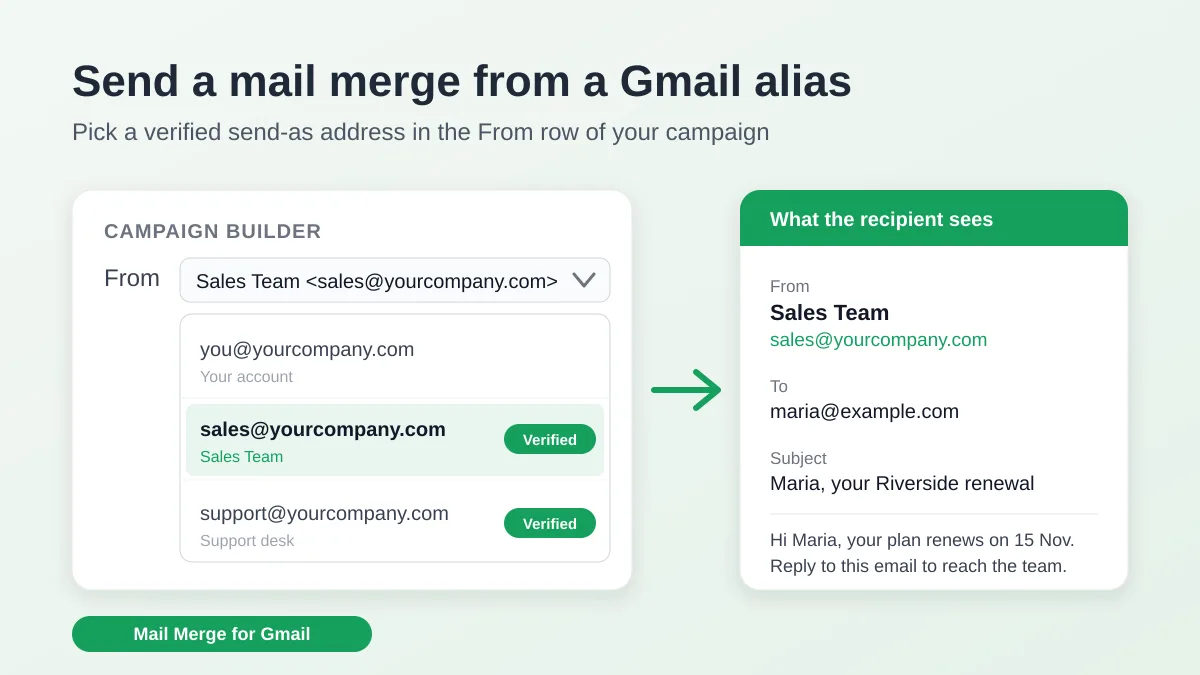
Send a Mail Merge from a Gmail Alias or Shared Mailbox
Send a mail merge from a Gmail alias, group or shared mailbox: set up Send mail as in Gmail, verify the address in Mail Merge and keep replies working.
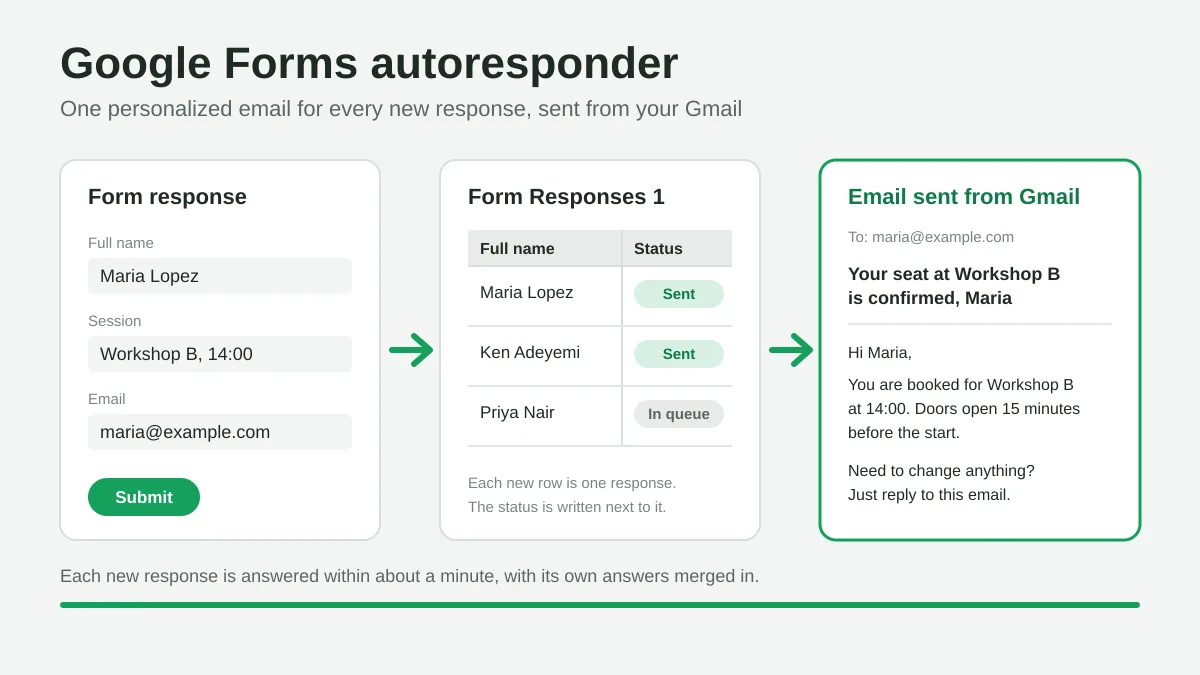
Google Forms Autoresponder: A Personalized Email for Every Response
Set up a Google Forms autoresponder that emails every new response from Gmail, personalized with the answers, using Google Sheets and Mail Merge for Gmail.
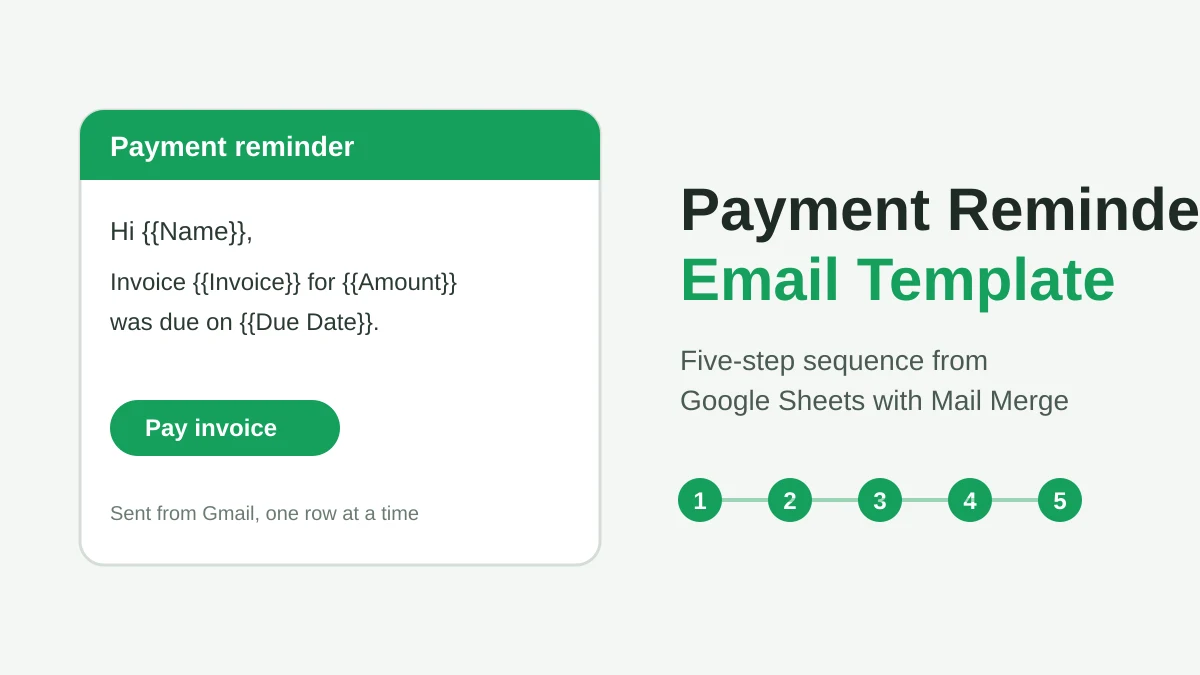
Payment Reminder Email Template: Five Messages You Can Send from Google Sheets
Copy a payment reminder email template for each stage of an overdue invoice, then send every reminder from Google Sheets through Gmail with personalized merge fields.