


















Mail Merge for Email from Excel: A Practical 2026 Guide
Learn mail merge for email from Excel the right way in 2026. Step-by-step prep, template tips, and deliverability fixes that actually work.

At 9:47 on a Tuesday morning, a sales rep is staring at an Excel file named leads_final_v7.xlsx, a Gmail draft, and a campaign that needs to leave before lunch. The list looks usable until the first inspection: duplicate contacts, a company name sitting in an email column, and one row containing “Marketing, HR, IT” in a set of merged cells. Most mail merge tutorials stop being useful here.
A mail merge for email from Excel rarely fails because someone can’t insert a personalization tag. It fails because the source data is inconsistent, the rows don’t represent one recipient each, or the sender treats Gmail’s limits as an afterthought. The reliable workflow is more deliberate: clean the workbook, reshape recipient data, move it into Google Sheets or CSV, map fields in Mail Merge for Gmail, preview real rows, and send within the applicable cap.
When the Spreadsheet Is the Hard Part
The spreadsheet is the campaign. The Gmail draft is only the delivery layer.
A row with john@acme.com may look harmless, but leading and trailing spaces can interfere with validation and mapping. A formula that displays an empty string can still leave a trailing row in the imported range. A merged cell containing several departments may export only its top-left value, removing recipients from the send.
Practical rule: If one row doesn’t represent one complete recipient, it isn’t ready for a merge.
The same problem appears across different teams. A recruiter may keep several candidate contacts in one cell. An event organizer may place a primary attendee, a colleague, and a CC contact together. A sales team may combine several departments into one row because the original list was built for human reference rather than automated sending. Those arrangements can be readable to a person and unsafe for a mail merge.
A dependable process starts by treating Excel as the source of truth, then checking every transformation before sending:
- Clean the source sheet. Normalize email, name, date, phone, and company fields. Remove duplicates and blanks.
- Make the recipient structure flat. Split multi-address cells into separate rows and repeat the related fields.
- Export deliberately. Keep the working copy as
.xlsx, then create a UTF-8 CSV or open the cleaned workbook in Google Sheets. - Map fields carefully. Match column headers to the placeholders used in the Gmail draft.
- Preview actual records. Look for missing names, incorrect companies, broken characters, and unwanted recipients.
- Check status writes. Confirm that delivery or engagement statuses return to the spreadsheet after the test.
This approach takes longer than selecting an entire worksheet and clicking Send. It also prevents the most expensive kind of mistake, a personalized message reaching the wrong person or a campaign stopping after partial delivery.
Personalization remains foundational because reported benchmarks associate personalized emails with 29% higher open rates and 41% higher click-through rates than non-personalized emails, while segmented and personalized messages account for 58% of email revenue, according to reported email personalization benchmarks. Those gains depend on accurate fields. “Hi {{first_name}}” is not personalization when the field is blank, misspelled, or attached to the wrong row.
Preparing Your Excel File the Right Way
Start in Excel, not inside the merge add-on. Fixing the source before import gives you one clean dataset to reuse for sales, HR, or event messages.
Make each row and column predictable
Keep one recipient per row and one field per column. Use short headers such as first_name, company, role, and city. Avoid punctuation, long descriptions, and inconsistent capitalization in headers because merge tags must match the available field names precisely.
Force email columns to Plain Text. Then remove invisible spacing with a helper formula such as =TRIM(A2), copy the cleaned values, and paste them back as values. Check the results manually around unusual addresses and non-English characters. For a deeper validation workflow, use this guide to validate spreadsheet data before a merge.
Remove duplicate rows with Excel’s Remove Duplicates tool, using the email column as the key. Don’t rely only on matching names. Two people can share a name, while the same person can appear with different capitalization or spacing in the email field.
Reshape messy recipient data
Merged cells are a display feature, not a data structure. If the company name spans several rows, unmerge the cells and fill the value into each relevant row. Otherwise, export tools may preserve only the top-left value.
Multi-recipient cells need the same treatment. Convert a@x.com, b@x.com into two rows and duplicate the company, role, and campaign fields. Keep CC and BCC information in dedicated columns when your sending workflow supports them. Don’t assume that a comma-separated list can safely remain in the primary recipient column.
| Column | Problem in Excel | Fix Before Merge |
|---|---|---|
| Leading spaces or several addresses in one cell | Trim the value and create one row per recipient | |
| Company | Merged cells or inconsistent names | Unmerge and repeat one value in each applicable row |
| First name | Blank values or mixed formatting | Fill reliable values and define a fallback |
| Date | Text that looks like a date | Convert it to a real date and standardize the display |
| Phone | Stored as a number, losing formatting | Store it as text, with country code in its own column |
| Role | Long or inconsistent labels | Standardize the labels used in the template |
Dates should be real dates, not text strings copied from different systems. Phone numbers should be strings, not numeric values that can lose leading zeros. Keep optional enrichment on a second tab so the primary recipient list remains flat and easy to audit.
A technical review of mail-merge failures identifies inconsistent source data and missing decimal precision in numeric fields as responsible for 57% of common technical pitfalls, with blanks, hidden spaces, and regional date or phone formats recurring among the causes. The mail-merge formatting breakdown supports a simple conclusion: data cleanup is a sending control, not cosmetic preparation.
Save the cleaned working copy as .xlsx. Then export a UTF-8 CSV for a portable import. Before: john@acme.com with the company spread across merged cells. After: john@acme.com in one row and Acme Corp in its own cell.
Importing to Google Sheets and Mapping Merge Fields
Once the Excel file is clean, upload it to Google Drive and open it as a Google Sheet. You can also import the UTF-8 CSV through File > Import > Replace current sheet. The choice matters less than the verification that follows.
Look at accented names such as José or Hernández, smart quotes, and any special characters in company names. Encoding drift can turn correct source data into broken personalization. Check email cells for leading spaces again, because a clean Excel display doesn’t guarantee a clean imported value.
Build the draft around exact field names
Install Mail Merge for Gmail from the Google Workspace Marketplace and authorize it with the Gmail account that will send the messages. In Gmail, create a draft with the final subject line and body. Use placeholders that match the sheet headers exactly:
Hi {{first_name}}, I noticed {{company}} recently hired for {{role}}.
A mismatch such as {{firstname}} instead of {{first_name}} can leave a literal tag in the message or produce an empty value. Don’t type field names from memory. Copy the header spelling directly from the sheet.
Click the mail merge icon, select the Google Sheet, confirm the sender account, and set the To field to the email column. Map Reply-To when replies should reach another address. A sender alias can also be selected when the domain configuration supports it.
If you want engagement data returned to the sheet, enable Start tracking and identify the Status column used for the writes. Keep that column free of formulas and manual notes. The merge needs a stable place to record what happened to each row.
Before the full list: Send a two-row preview and inspect the rendered message, not just the template.
Check the subject, greeting, links, signature, dates, and fallback text. A practical Google Sheets mail merge workflow should end with a visible row-by-row review, not merely a successful connection between the add-on and the sheet.
Previewing, Sending, and Respecting Daily Limits
The Preview tab is the last useful checkpoint before a large send. It renders the fields for individual rows, so you can see whether “Hi {{first_name}}” becomes “Hi Priya” or remains an unresolved placeholder. It also exposes empty company fields, malformed links, and unexpected punctuation that a raw worksheet view can hide.
Send a small test batch to a personal alias before queueing the campaign. Review the delivered messages for link behavior, tracking pixels, unsubscribe handling, and signature rendering. A draft that looks correct in Gmail can still display differently in the receiving client.
Gmail’s mail merge allowance is specific. Google’s official help states that mail merge permits up to 1,500 recipients in the To line per message and a maximum of 1,500 recipients per day, with one message to 1,000 recipients and another to 500 recipients allowed under that daily limit, as explained in Google’s mail merge guidance. Google’s Workspace documentation also identifies a dedicated daily cap of 1,500 total mail-merge recipients, separate from broader account sending rules, in its Gmail sending-limits documentation.
| Account Type | Daily Recipient Cap | Practical Merge Batch Size |
|---|---|---|
| Mail merge account | 1,500 | Keep the campaign within the published daily allowance |
| Standard account rules | Governed by the applicable Gmail limit | Confirm the account’s current limit before sending |
| Workspace account | Mail merge has its own 1,500-recipient cap | Split larger lists across separate sending days |
The practical batch size is lower than the maximum when the list is unclean or the account is new. Splitting a campaign across days is safer than forcing a send that exceeds the warning shown in the interface. For broader personalization and outreach planning, Coreties’ guide to closing more deals with personalization at scale offers useful context, but the source list still determines whether your merge succeeds.
After sending, inspect the Recipient Status column. Values such as SENT, FAILED, and NO_SEND tell you which rows need attention. Don’t delete or sort that column until the merge has finished writing back.
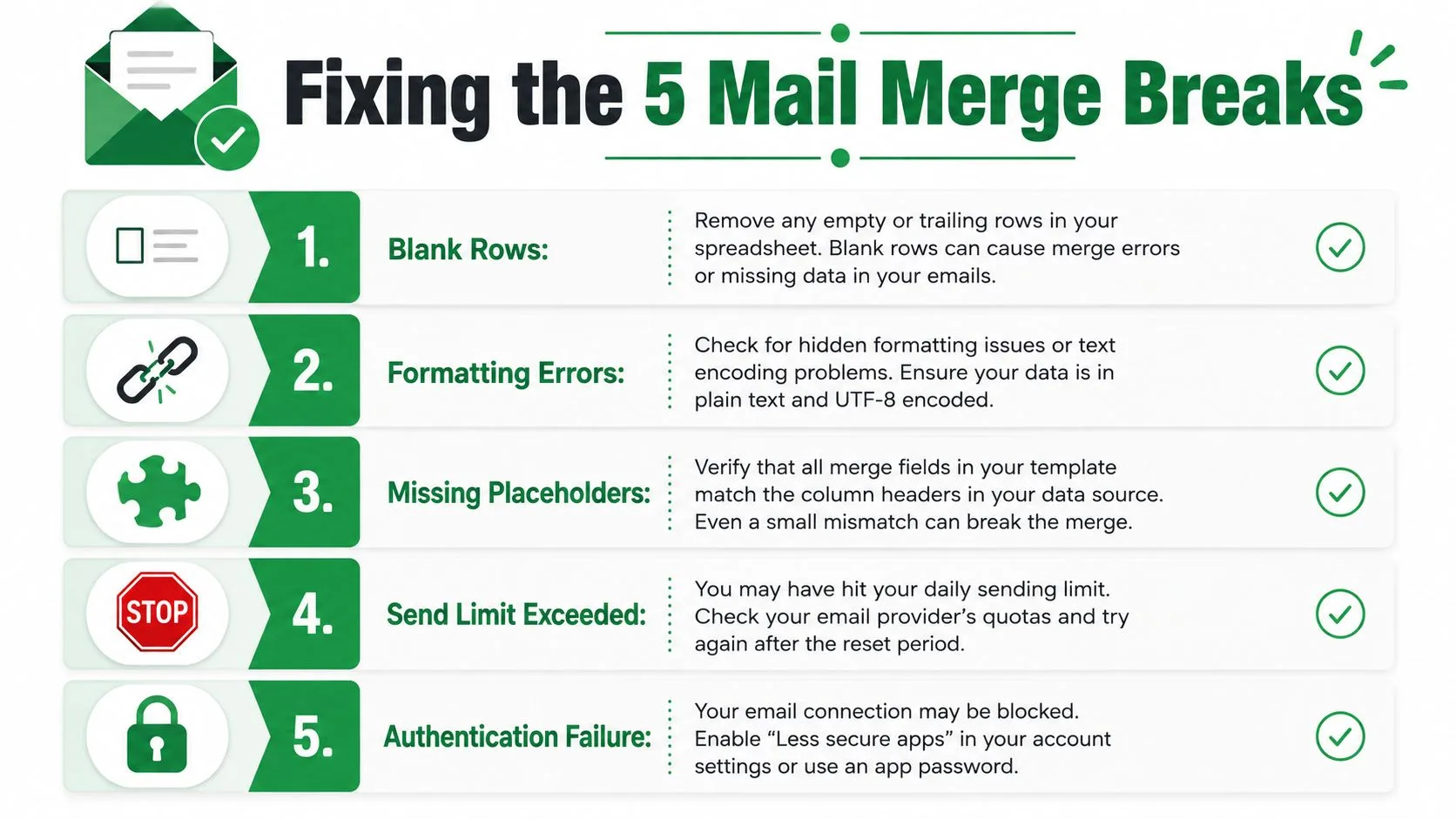
Troubleshooting the Five Merges That Always Break
Most failures have a recognizable signature. Diagnose the symptom first, then change the source or connection that caused it.
Blank rows send empty messages
Trailing rows often come from formulas that evaluate to "". Filter the email column for blanks before importing, delete unused rows below the list, and confirm the imported range ends where the actual records end.
Personalization shows the literal placeholder
{{company}} appearing in the delivered email usually means the header was renamed, the placeholder was mistyped, or the header row was damaged by merged cells. Compare the draft tag character by character with the sheet header, then preview a real record.
Gmail blocks the send after a spike
A sudden burst can trigger provider controls or exhaust the applicable quota. Reduce the batch, check the warning in the merge interface, and avoid treating one successful test as permission to send an entire unverified list. Provider limits, Outlook settings, security software, blank rows, and mismatched headers can all contribute to failed bulk sends, as described in Microsoft’s troubleshooting guidance for mail merge failures.
Recipient statuses never appear
Closing the tab during the merge or losing the spreadsheet connection can interrupt status updates. Reopen the sheet, confirm the correct account is active, and check whether the merge completed before starting a second send.
Status writes don’t reach the sheet
The add-on may have lost edit permission, or the file may have been converted back to .xlsx after authorization. Restore edit access, reconnect the file, and run a small test that confirms the status cell changes before sending more messages.
A short diagnostic video can help when the interface state is unclear:
Deliverability and Compliance Habits That Stick
Inbox placement starts with the list. Remove role addresses such as info@ and contact@ when a named recipient is available, separate role-based CC addresses from the primary contact, and exclude old rows that no longer show engagement. A clean merge is easier to personalize and less likely to produce irrelevant replies or complaints.
New Gmail accounts need a cautious sending pattern. Start with a small audience, increase gradually, and avoid attachments while the account establishes normal sending behavior. Don’t copy a large cold list into a new account and assume that a spreadsheet can make the activity look one-to-one.
Authentication also matters. Configure SPF, DKIM, and DMARC for the sending domain, then verify that they pass before scaling outreach. The email authentication guide explains why authentication belongs in the delivery checklist rather than in a last-minute troubleshooting session.
Consent and opt-outs need a data field
Every campaign should have an unsubscribe path and a physical sender address. For EU recipients, GDPR guidance says consent must be freely given, specific, informed, and unambiguous, and recipients must be able to withdraw consent and unsubscribe easily through a clear opt-out mechanism in each communication, according to GDPR email marketing guidance.
Store consent status and opt-out dates in dedicated columns. Filter unsubscribed contacts out before every merge, and preserve those records so another spreadsheet cannot accidentally reintroduce them. Where supported, add a List-Unsubscribe header and make the visible unsubscribe process easy to use.
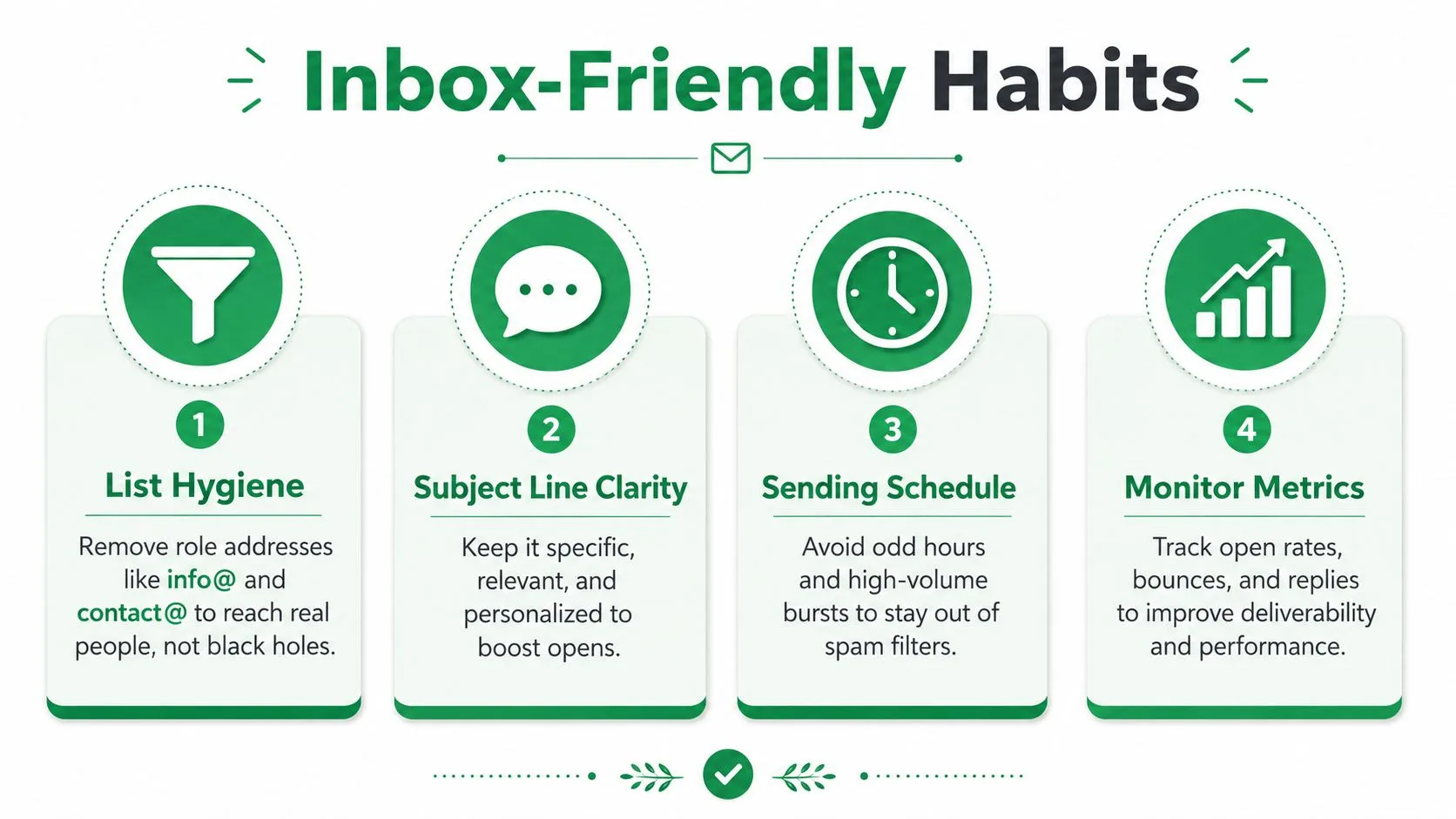
Keep the operating rules simple:
- Personalize beyond the first name: Use relevant company, role, event, or candidate details only when the source is accurate.
- Choose sensible sending windows: Avoid unusual hours and abrupt volume spikes.
- Skip URL shorteners: Use recognizable destination domains and check every link in the preview.
- Never buy lists: Purchased contacts create consent, relevance, and deliverability problems that formatting cannot solve.
- Track opt-outs centrally: Make the next merge filter against the same suppression data.
Mail Merge for Gmail connects Google Sheets recipient data with Gmail drafts, supports personalized fields, previews and sends messages, and can write per-row delivery or engagement statuses back to the sheet. If your Excel workflow is failing because of messy rows, field drift, or quota pressure, visit Mail Merge for Gmail to connect a cleaned spreadsheet to a more controlled Gmail sending process.
Ready to send your first campaign?
Install Mail Merge for Gmail from the Google Workspace Marketplace and send up to 50 personalized emails per day for free.
Get started for freeMore reading
More from Guides

Mail Merge with CC and BCC in Gmail: Copy the Right People on Every Email
Learn how to run a mail merge with CC and BCC from Google Sheets, set up the columns, preview the result and see how copied recipients count toward your daily quota.

Gmail Sending Limit Reached: What It Means and How to Finish Your Campaign
Hit the Gmail sending limit reached error? Learn the real daily limits, when you can send again, and how to split a mail merge into safe daily batches.

Personalized Email Gmail: The Complete Guide
Master your personalized email Gmail workflow. Learn to merge Sheets data, track opens, and scale one-to-one outreach without leaving your inbox.