


















New: Mail Merge for Gmail Now Works With Google Forms
Mail Merge for Gmail now answers every Google Forms response with a personalized email from your own Gmail account. Here is what shipped, how it works and where to start.
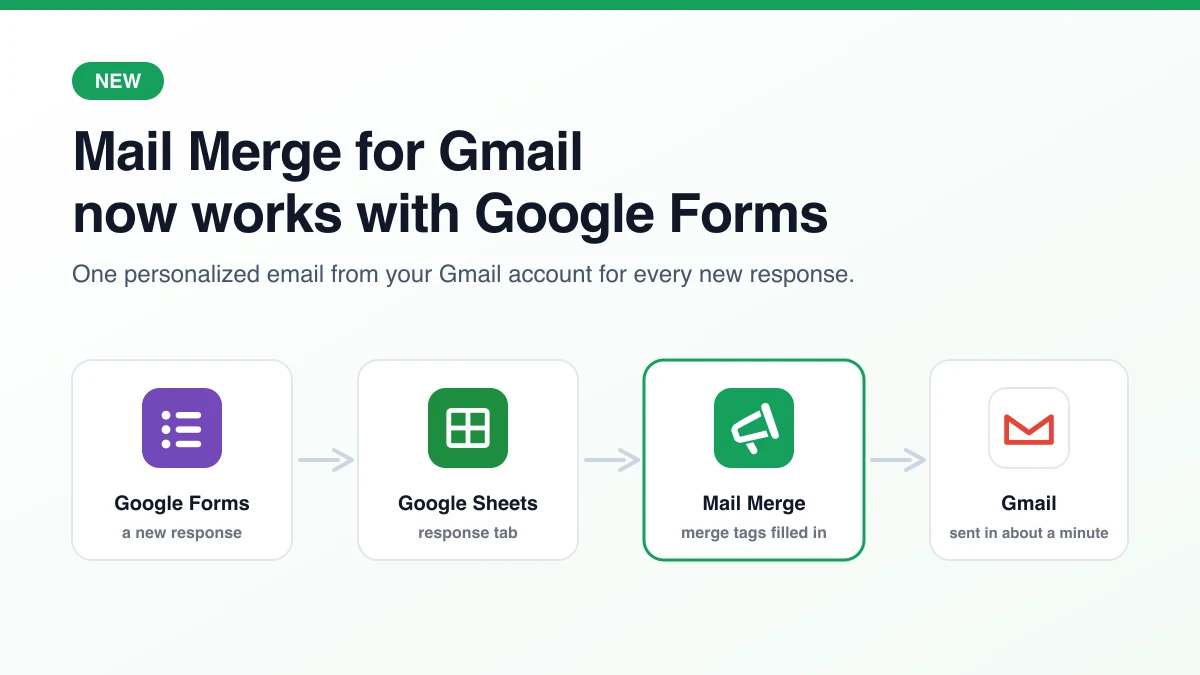
Until this week, Mail Merge for Gmail did one thing with a Google Form: nothing. You could collect responses in a spreadsheet and run a campaign on them later, but the moment someone clicked Submit, the add-on was not involved. That changes today. Mail Merge for Gmail now works with Google Forms, and every new response can get a personalized email from your Gmail account within about a minute, with no script and no second tool.
This post covers what shipped, why we built it this way and where to click first. If you want the full setup walkthrough with a worked example, it lives in our Google Forms autoresponder tutorial.
What is new
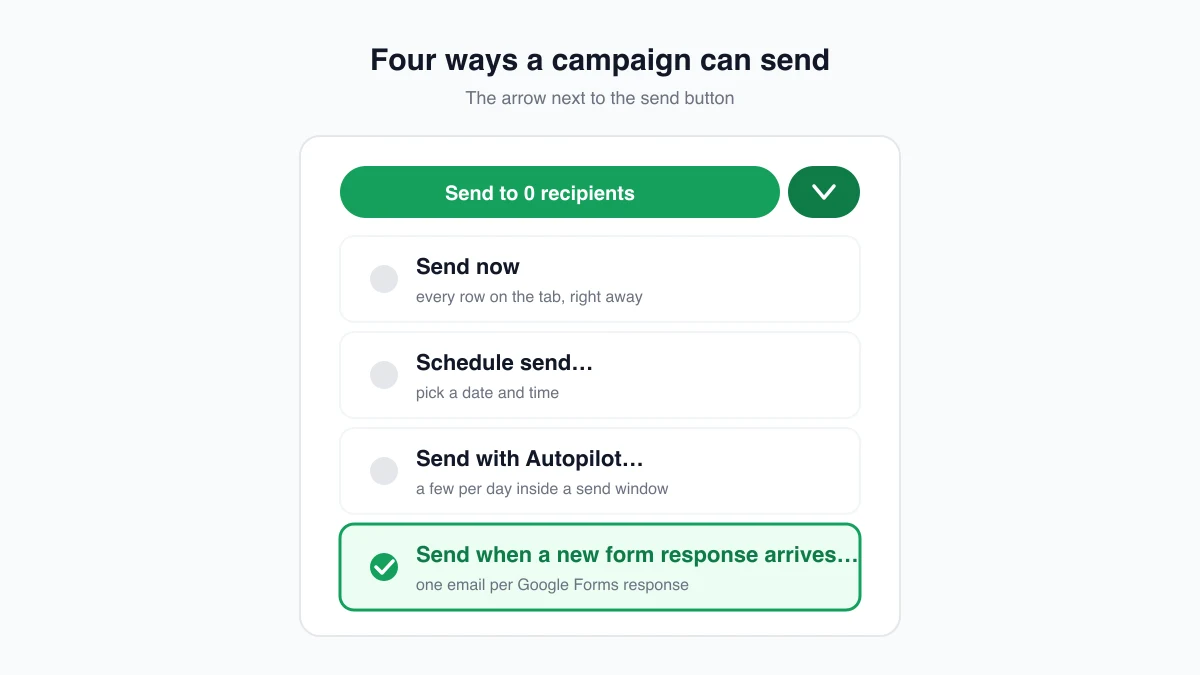
A campaign now has a fourth way to send, next to sending now, scheduling and Autopilot: Send when a new form response arrives. Pick it, and the campaign becomes a form automation. Instead of emailing the rows that are already in the sheet, it watches the response tab and emails each response as it lands, using the answers as merge tags.
Three surfaces got the feature at once:
- In Google Sheets, open the response tab of a linked form, write the email in the campaign builder, then open the arrow next to the send button and choose Send when a new form response arrives…. The confirmation dialog explains what will happen and the button reads Create automation.
- In the Google Forms editor, Mail Merge for Gmail is now an add-on too. Open Extensions, Mail Merge for Gmail, Send an email for each response. The builder opens on the form’s response tab, already in automation mode, and works before the first response has arrived. If the form is not linked to a spreadsheet yet, the add-on creates and links one for you, the same thing Responses, Link to Sheets does.
- In the web app, the builder has a New form response setting. An automation created there is activated the next time you open the add-on in that spreadsheet, and shows Waiting for activation until then.
Every email goes out through your own Gmail address, with your sender name and reply-to, and with the campaign options you already know: open and click tracking, an unsubscribe link, CC and BCC columns and attachments, either one file for everyone or a Drive link per row. The status of each response is written next to it in the sheet, In queue, then Sent, then Read or Clicked when tracking is on.
Why we built it
Two reasons, and the first one is a confession. A customer wrote to support asking whether Mail Merge could email people as they filled in a form, and our support assistant told them no. It was right at the time. The question kept coming, in the same shape: a registration form, a quote request, a volunteer sign-up, and a sheet nobody looks at until the end of the day.
The second reason is what people were doing instead. Google Forms can send respondents a copy of their answers, but you cannot change a word of it, and Google’s own help page on managing form responses warns that those receipts can be lost to spam filters. The alternative is an Apps Script trigger, which works until a question is renamed or the author leaves the company, and which sends under the Apps Script email quota of 100 recipients a day on a consumer account. Our users already write their emails in Mail Merge and already have the response sheet open. Teaching the campaign builder about form submissions was the shortest path between the two.
How it works under the hood
A form automation is one long-lived campaign, not a new campaign per response. That choice shapes everything you will notice about it.
- The message is a snapshot. The subject, body, attachments and tracking settings are frozen when you click Create automation. To change the wording, stop the automation from the Campaigns page and create a new one. One automation watches a given tab at a time.
- Rows already on the tab are not emailed. The automation starts counting from the next submission. To reach the people who have already responded, run a normal campaign on the same tab first.
- A response without an address is marked Missing recipient. Turn on Collect email addresses in the form, or add an email question, so every row has one.
- Pause means pause. A response that arrives while the automation is paused is marked Paused in the sheet and is not sent when you resume.
- Unsubscribed people are skipped. A respondent who has unsubscribed from your emails before is marked Unsubscribed and nothing goes out, the same rule as any campaign.
- Your daily sending limit still applies. A response that arrives after the limit is reached waits in the queue and goes out once the rolling 24-hour window clears. The per-plan numbers are on the daily sending limits page.
- It runs for the account that created it. The add-on installs a watcher in the spreadsheet for that Google account, which is what notices new responses. Set the automation up from the address you want the confirmations to come from.
Two things are deliberately not available in this mode. Follow-ups need a send date to count from, and A/B subject lines need a batch to split, and a form automation has neither. If you want reminders before an event, run a separate reminder campaign from the same sheet closer to the date.
For developers, every queued response also fires an automation.submission webhook with the campaign id, the recipient and the row number, so you can mirror the event into a CRM or a chat channel.
Who it is for
The pattern is the same whenever a form has a person waiting on the other side:
- Event and webinar registrations that confirm the session, the room and the joining link.
- Lead and quote requests that acknowledge what was asked for and name the person who will call.
- Applications and sign-ups for schools, clubs and volunteer programs, with the next deadline spelled out.
- Surveys and feedback forms that say thank you and hand over a discount code or the results.
- Internal intake forms for IT, facilities or HR, where the requester gets a ticket-style receipt.
Because the reply comes from your Gmail account, the respondent sees a real address rather than a no-reply, and their answer lands in your inbox like any other conversation.
Plans and availability
Form automations are part of the Professional plan, alongside Autopilot and AI fields. The feature is live in the add-on, in the web app and in the Google Forms editor, and the Marketplace listing now carries the Forms badge. Start from whichever side you have open, the form or its response spreadsheet. Both paths create the same automation.
Try it on your next form
Link a form to a sheet, open Mail Merge for Gmail on the response tab, write the email once with the questions as merge tags, and choose Send when a new form response arrives. The step-by-step tutorial walks through a workshop registration from the blank form to the first confirmed seat, and the documentation keeps the reference list of rules in one place.
Write to contact@merge.email with what you build. The next things on the list for automations came straight from messages like that one.
Ready to send your first campaign?
Install Mail Merge for Gmail from the Google Workspace Marketplace and send up to 50 personalized emails per day for free.
Get started for freeMore reading
More from News
7 Best Monthly Newsletter Templates for 2026
Find your perfect monthly newsletter template. Our guide has 7 free and paid options, plus a tutorial on sending them with Mail Merge for Gmail.

Best Email Marketing Tools for Small Business: Your 2026
Discover the best email marketing tools for small business in our 2026 guide. We rank 10 top platforms on features, pricing, and deliverability for growth.
Mail Merge is CASA Tier 3 Certified!
Mail Merge for Gmail passed an independent CASA Tier 3 security assessment. Learn what the certification covers, its four pillars, and what it means for your data.