


New: Find New Contacts and Email Them From Gmail, Without Leaving Mail Merge
Mail Merge for Gmail can now find the people you want to reach. Filter by job title, location and company, see how many match for free, set a budget at 9 cents a verified work email and send from Gmail.
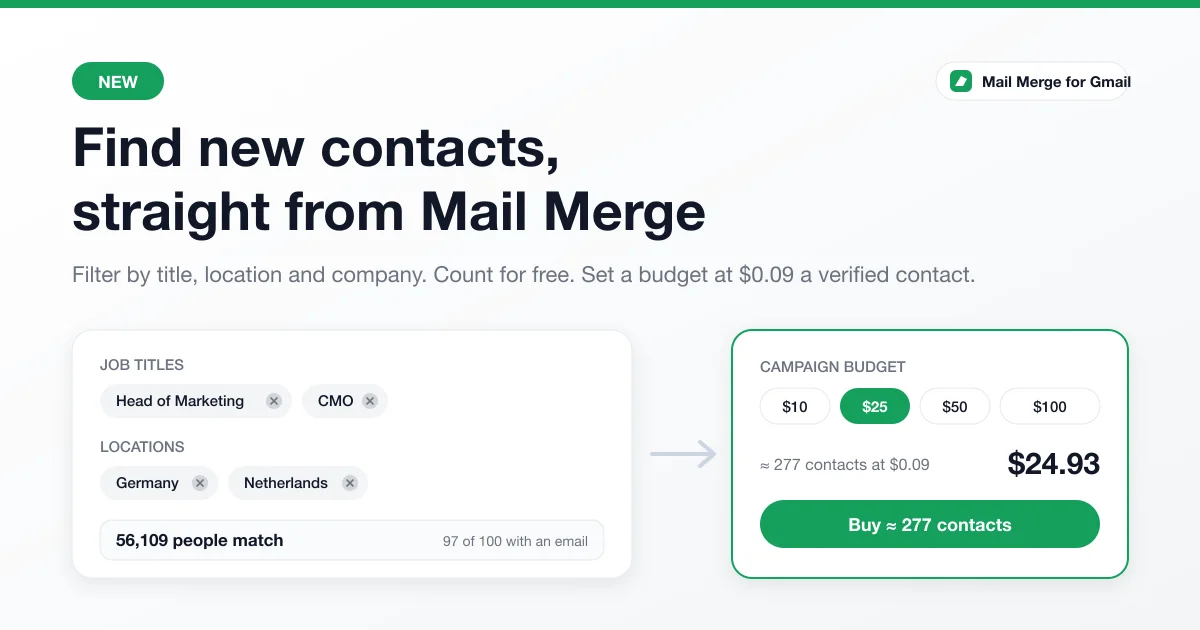
Every mail merge starts with a list, and until today the list had to be yours already: a spreadsheet, a CSV export, the contact book your past campaigns filled in. Mail Merge for Gmail now has a second way to get one. Find new contacts lets you describe the people you want to reach, shows you for free how many of them exist, and buys their verified work email addresses for the budget you set, at a fixed price per contact. The contacts land in your account as a new list, ready to send to from your own Gmail address.
This post covers what shipped, how the budget and the price work, what a contact comes with, the account balance, and the rules that apply to a bought list.
What is new
On the Contacts page of the web app there is a new button, Find new contacts. It opens a dialog with four filters:
- Job titles, such as Head of Marketing or CTO.
- Locations, a country, a region or a city.
- Company domains, when you already know which companies you want.
- Keywords, anything about the person or the company, such as SaaS or logistics.
The count updates while you type. It is free, it needs no payment method, and it tells you two things: how many people match the filters, and how many of them have a work email on record, which is what you can actually buy. From there you set a campaign budget, the way you would in an ads platform, and the dialog tells you what it buys: every contact costs $0.09, so a $25 budget is about 277 marketing leaders in Germany, and $50 is about 555. Pick one of the preset amounts or type your own, from $1 up to what buys everyone who matches (2,000 contacts per order at most).
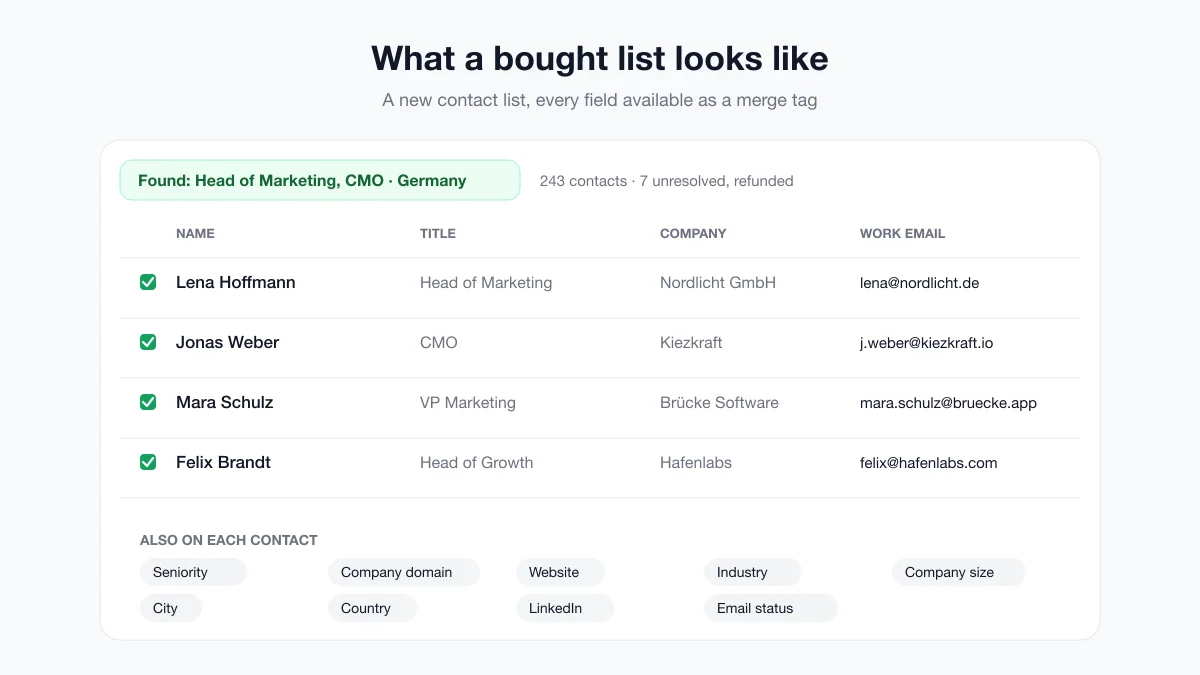
Press Buy, pay by card in the same form that handles subscriptions, and the order is fulfilled within minutes. Each contact arrives with the fields a personalized email needs: first and last name, job title, seniority, company, company domain and website, industry, company size, city, country, a LinkedIn profile and the email verification status. They are saved as a new contact list named after your filters and the date, so the next campaign can select the whole list in one click.
The same button sits inside the campaign builder. Open Select recipients, go to the Contacts tab and choose Find new contacts there. When the order completes, the new list is already ticked as the recipients of the campaign you are writing.
How the budget and the price work
Most contact databases sell credits, and you learn what a list costs once the export has run. We did not want that. The feature uses two steps from the data provider, and only the second one is paid. The first step searches the database and reports who matches and whether an email is on record; it costs nothing, which is why the count is free and updates on every keystroke. When you press Buy, Mail Merge runs that free search again and picks as many people as your budget affords, all of them flagged as having an email. The payment form then shows the exact amount for those people, and that is what you pay: if fewer people with an email exist than the budget could buy, the order shrinks to what exists and so does the charge. A budget is a ceiling, never a prepayment.
The second step, after payment, asks the provider for each person’s verified work email. It is the only step that costs money, and it is charged per person found. When the provider cannot resolve someone despite the flag, that contact is not delivered and its 9 cents are credited to your account balance automatically, as part of the same order. You pay for the contacts you receive. Because the list is delivered at once and is usable at once, a completed purchase is otherwise not refundable; the payment form says so above the Pay button, and section 22 of the Terms of Service spells out the same.
The account balance
Your account now has a balance in US dollars, shown in the dialog next to a Top up button. It pays for contact orders before your card does: an order the balance covers needs no payment form at all, and a larger one charges the card only for the difference. The balance grows in two ways. You can top it up, from $5 to $500 at a time, which saves re-entering a card for a series of small lists. And every contact an order could not deliver comes back to it automatically, so the money stays yours to spend on the next list. The balance is store credit for contact orders only: it does not pay for a subscription, it is not transferred between accounts, and it is not paid back to a card.
The data comes from Apollo, reached through Firecrawl’s Alexandria catalogue of data providers. Mail Merge does not compile the data itself and does not warrant that a person still holds the title the record shows; the verification status on each contact tells you how confident the provider is about the address.
Every plan, including Free
Find new contacts is available on every plan. There is no subscription to add: you pay for a list, from your card or from your balance, and nothing renews. A Free account can create one contact list of its own, and a bought list does not count against that limit. The daily sending limit of your plan still applies when you email the list, and a long list may take a few days to send on the Free plan; the sending limits page has the numbers.
What to do with the list
A bought list is a cold list, and the rest of Mail Merge is built for exactly that kind of sending. Write the email once with the contact fields as merge tags, so the first line names the company and the role rather than opening with “Hi there”. Keep the unsubscribe link, which Mail Merge inserts in every campaign email; a reader who can leave quietly does not press Report spam. Use a delay between emails or Autopilot to spread a large list over several days, and plan a follow-up for the people who did not answer. On the Professional plan, the AI segmentation on the Contacts page sorts the new contacts by industry and role, so one list can become three campaigns with three different openings.
If your sending address is new, warm it up first. Our Gmail warm-up guide covers the ramp Google itself describes, and the Deliverability page checks your SPF, DKIM and DMARC records before the first send.
The rules that apply
Buying a list does not change who is responsible for the emails you send to it: you are. Google’s email sender guidelines expect every sender to make unsubscribing easy and to keep the spam rate reported in Postmaster Tools below 0.10%. The CAN-SPAM Act requires an honest subject line, a physical postal address and an opt-out honoured within ten business days, and it holds the sender responsible even when the sending is outsourced. In Europe, the GDPR and the ePrivacy rules decide whether a business contact may be emailed without prior consent, and the answer depends on the country and on the relationship between what you sell and what the person does. The Terms of Service ask three things of every bought list: use it only for lawful business-to-business communication, keep the unsubscribe link in every email and honour every request to stop, and never resell or share the contacts outside your own account.
In practice, a narrow audience and a relevant email keep you on the right side of all three. A list of two thousand people who share nothing but a country is a spam complaint waiting to happen. A list of eighty logistics managers in one region, each emailed about the one problem your product solves for logistics managers, is a campaign.
Try it on your next campaign
Open Mail Merge for Gmail, go to Contacts and press Find new contacts. Type a job title and a location, watch the count, and set a $1 budget to see what a record looks like before you commit to a larger list. Then write the email in the campaign builder with the new fields as merge tags, and send it from the Gmail address your recipients will recognise.
Write to contact@merge.email with the filters you wish the dialog had. The four it ships with came from the questions customers asked most often; the next ones will too.
Ready to send your first campaign?
Install Mail Merge for Gmail from the Google Workspace Marketplace and send up to 50 personalized emails per day for free.
Get started for freeMore reading
More from News
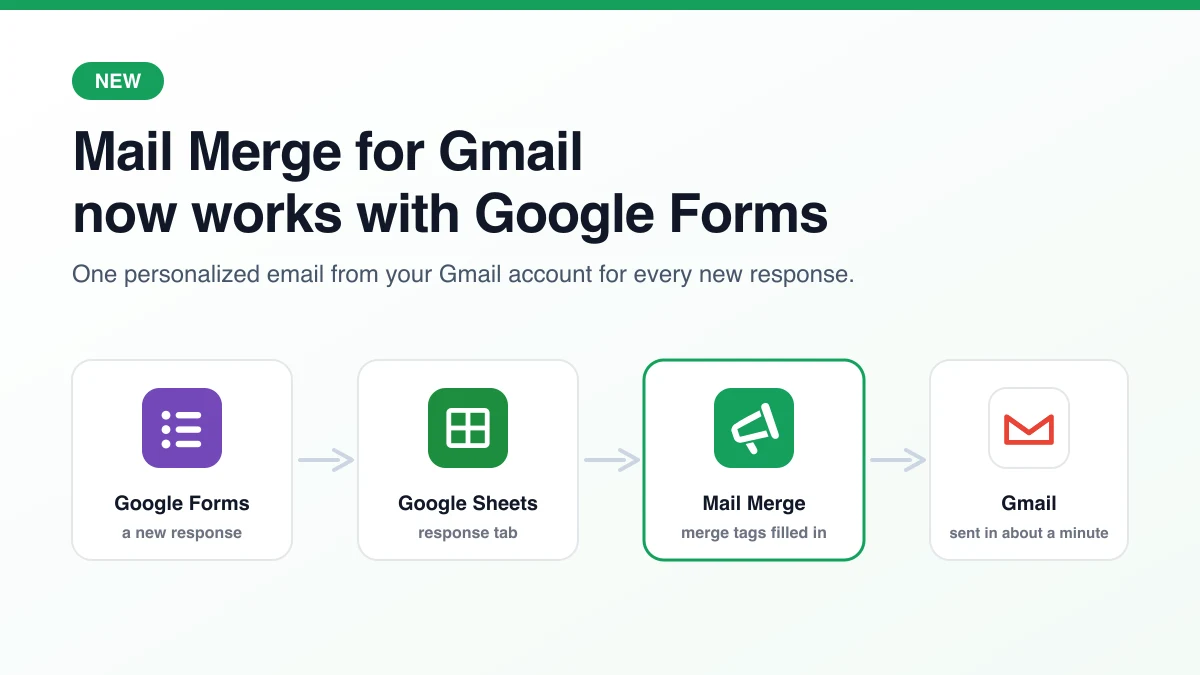
New: Mail Merge for Gmail Now Works With Google Forms
Mail Merge for Gmail now answers every Google Forms response with a personalized email from your own Gmail account. Here is what shipped, how it works and where to start.

7 Best Monthly Newsletter Templates for 2026
Find your perfect monthly newsletter template. Our guide has 7 free and paid options, plus a tutorial on sending them with Mail Merge for Gmail.

Best Email Marketing Tools for Small Business: Your 2026
Discover the best email marketing tools for small business in our 2026 guide. We rank 10 top platforms on features, pricing, and deliverability for growth.